User Management
Route: /connections/:id/settings/users
Tutorial ID: settings-users
Breadcrumb: Settings → User Management
Purpose
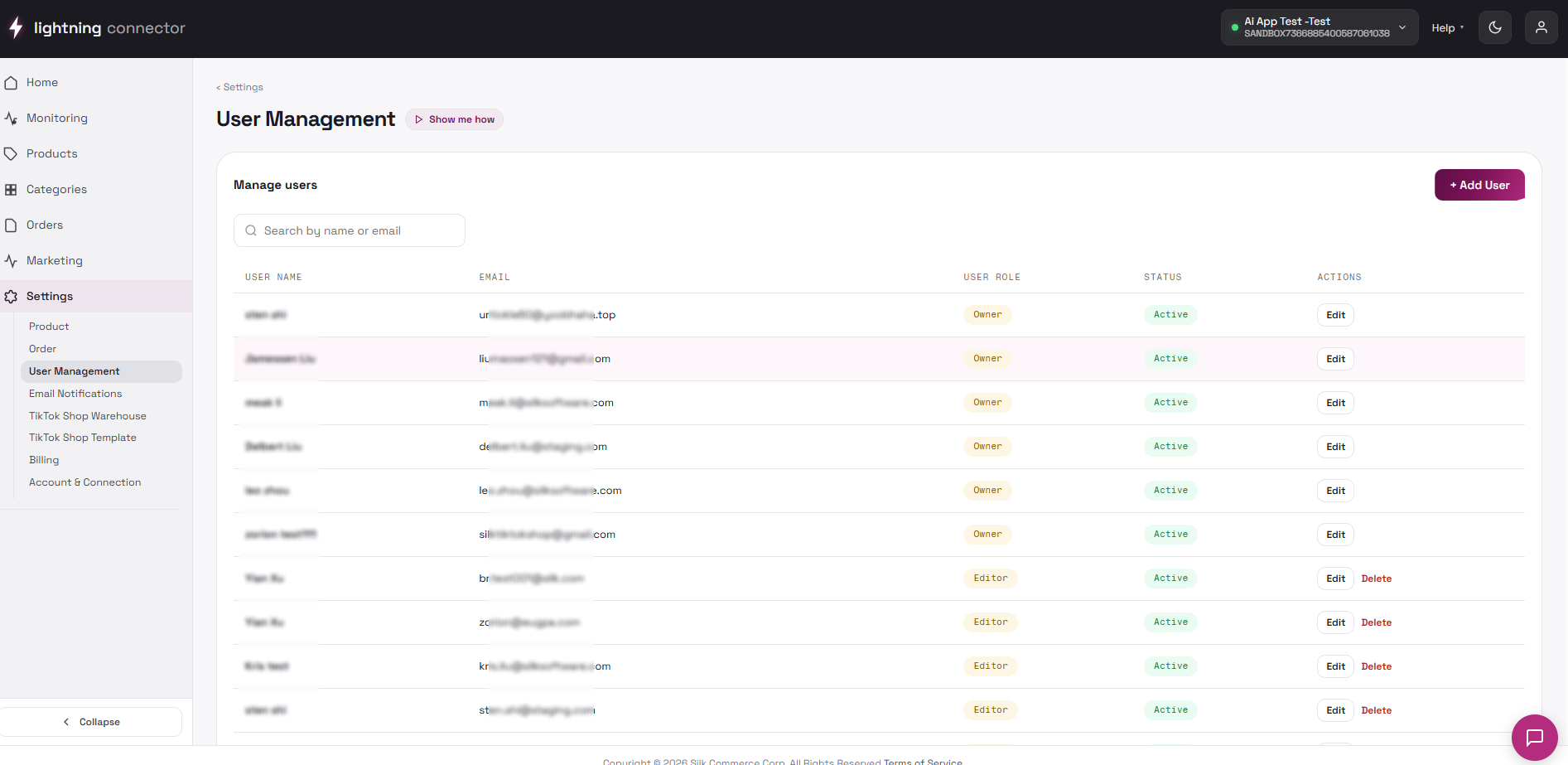
Section titled “Purpose”Manage merchant account users who can access Silk Connector. Users are merchant-level (not per-connection), but this page is reached from connection Settings for convenience.
Page layout
Section titled “Page layout”Search by name or email filters the table as you type.
| Column | Content |
|---|---|
| Username | First + last name |
| Login email | |
| User Role | Owner or Editor badge |
| Actions | Edit / Delete (permission-dependent) |
Roles
Owner can manage billing and destructive actions; Editor can run day-to-day sync and settings. Add users before go-live so fulfillment staff do not share one login.
Add user
Section titled “Add user”+ Add User (requires permission) opens Add new user: First Name*, Last Name*, Email*, then Save user. Invitation or creation follows backend policy; the user appears in the table.
Edit and delete
Section titled “Edit and delete”Edit opens the same form with name fields editable and email read-only (cannot change login email here). Save user to confirm.
- Click Delete on a row.
- Confirm Delete user in the dialog.
Users without permission see — in Actions.
| Role | Typical access |
|---|---|
| Owner | Full merchant control including billing and account cancel |
| Editor | Operational access; some admin actions restricted |
Exact permissions follow backend role rules for your merchant.
Tips / common issues
Section titled “Tips / common issues”- Not signed in — log in again.
- Save fails — read the toast; verify the email is not already registered.
- No Actions column — your role cannot manage users.