Manage Products
Breadcrumb: Products
Tutorial IDs: products, product-detail, map-product
See also: Categories, Product Settings, Background Tasks.
Purpose
Section titled “Purpose”Manage how products move from Shopify to TikTok Shop: pull products into the connector, sync them to TikTok Shop as listings, edit product details, map Shopify products to TikTok Shop listings, and keep the two catalogs in sync.
Almost every action on this page runs as a background task instead of happening instantly: the connector queues the request, processes each product, and you can track progress in the Background Tasks sidebar. Results are written back to the product’s sync status, so a sync keeps running even if you navigate away.
Not covered here: The Categories module and Promotion Sync have their own user guides. The category fields inside a product editor (Category tab, attributes, certifications) are in the Editor section.
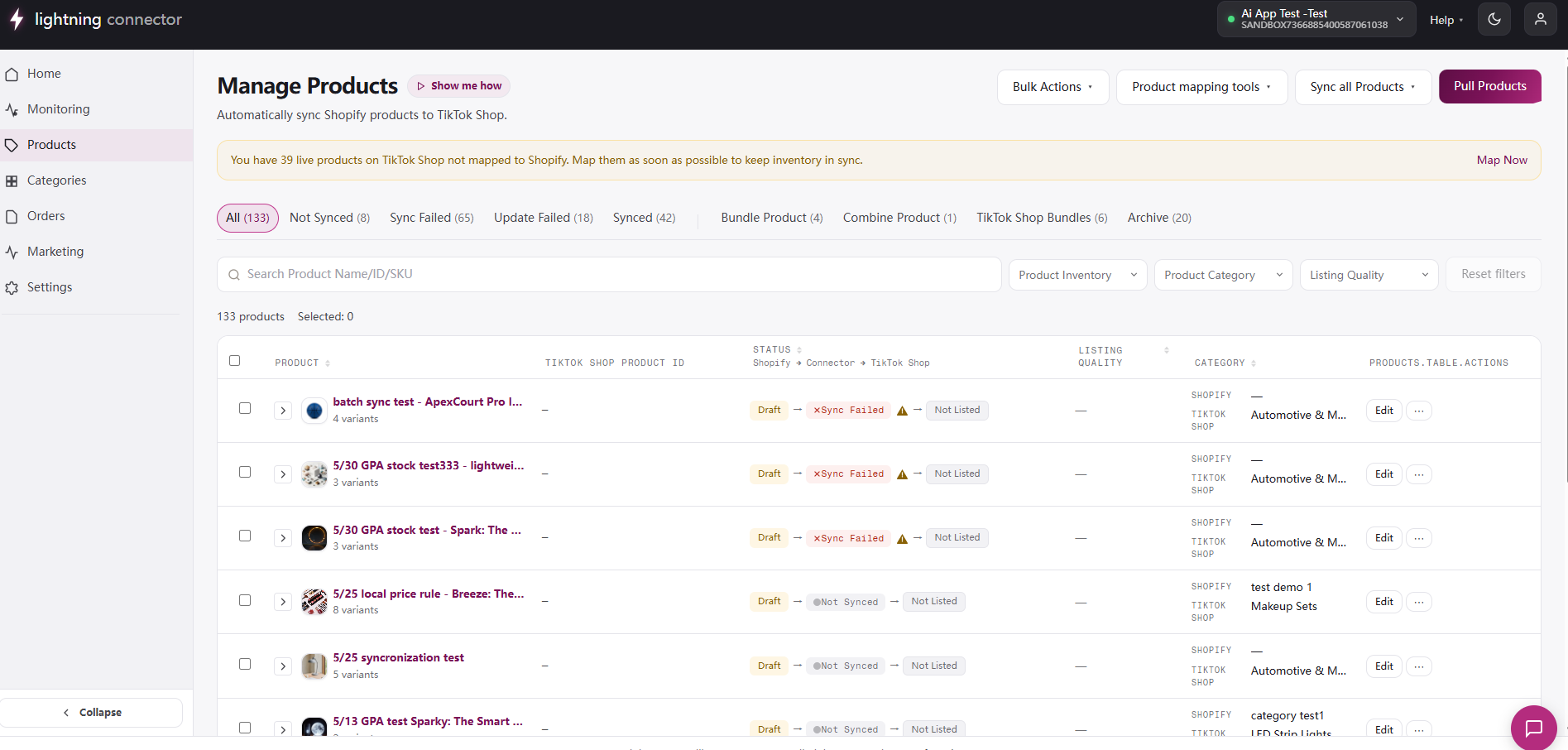
Manage Products
Section titled “Manage Products”The main product page. All product operations start here.
How actions are executed (background tasks)
Section titled “How actions are executed (background tasks)”Each row action and bulk action queues a background task instead of running synchronously. The connector processes each product in the task and writes the result back to the product’s sync status. You can watch progress in the Background Tasks sidebar; a sync keeps running even if you navigate away. Only one sync runs per connection at a time; the connector queues new syncs until the current one finishes.
The statuses in the list (Not Synced / Synced / Sync Failed / Update Failed) come from these task results.
Filters
Section titled “Filters”- Search: by product name, ID, or SKU.
- Product Inventory: “Inventory is less than or equal to 0” / “Inventory is greater than 0”.
- Product Category: searchable dropdown of Shopify categories.
- Listing Quality: multi-select: Poor / Fair / Good / Excellent.
- Reset filters: clears all filters (disabled when no filters are active).
A stats line shows “N products” (or “N products match your filters”) and “Selected: N”.
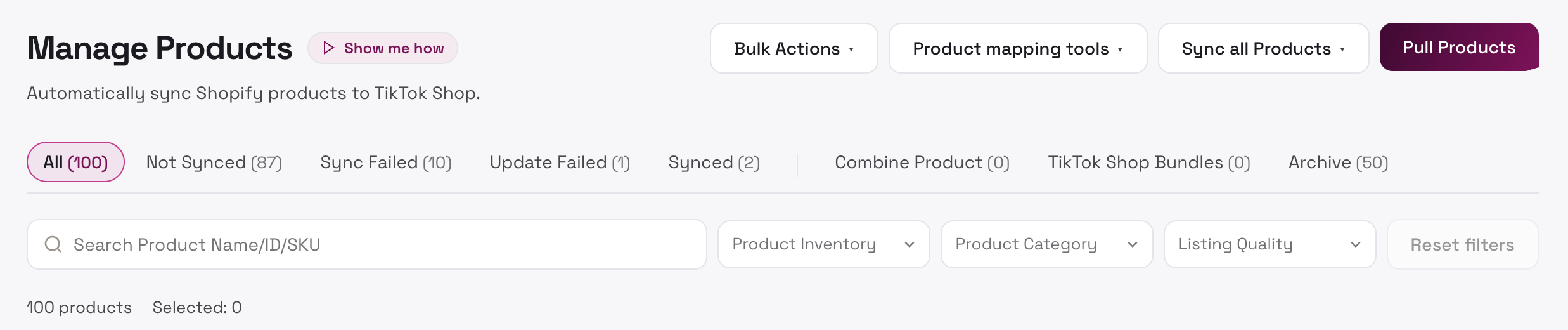
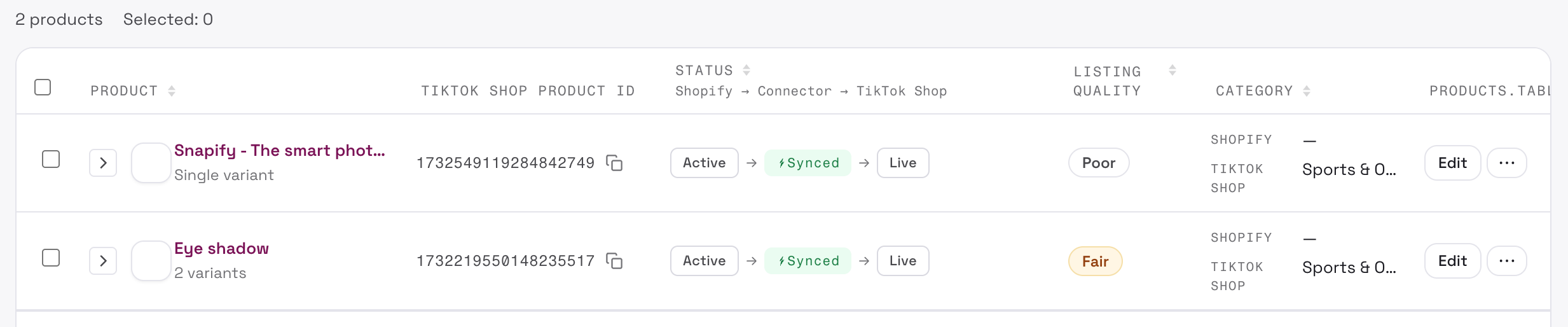
Table columns
Section titled “Table columns”Sortable columns include Product name, Status, Global status, Listing quality, Categories, and Origin.
Row and bulk actions
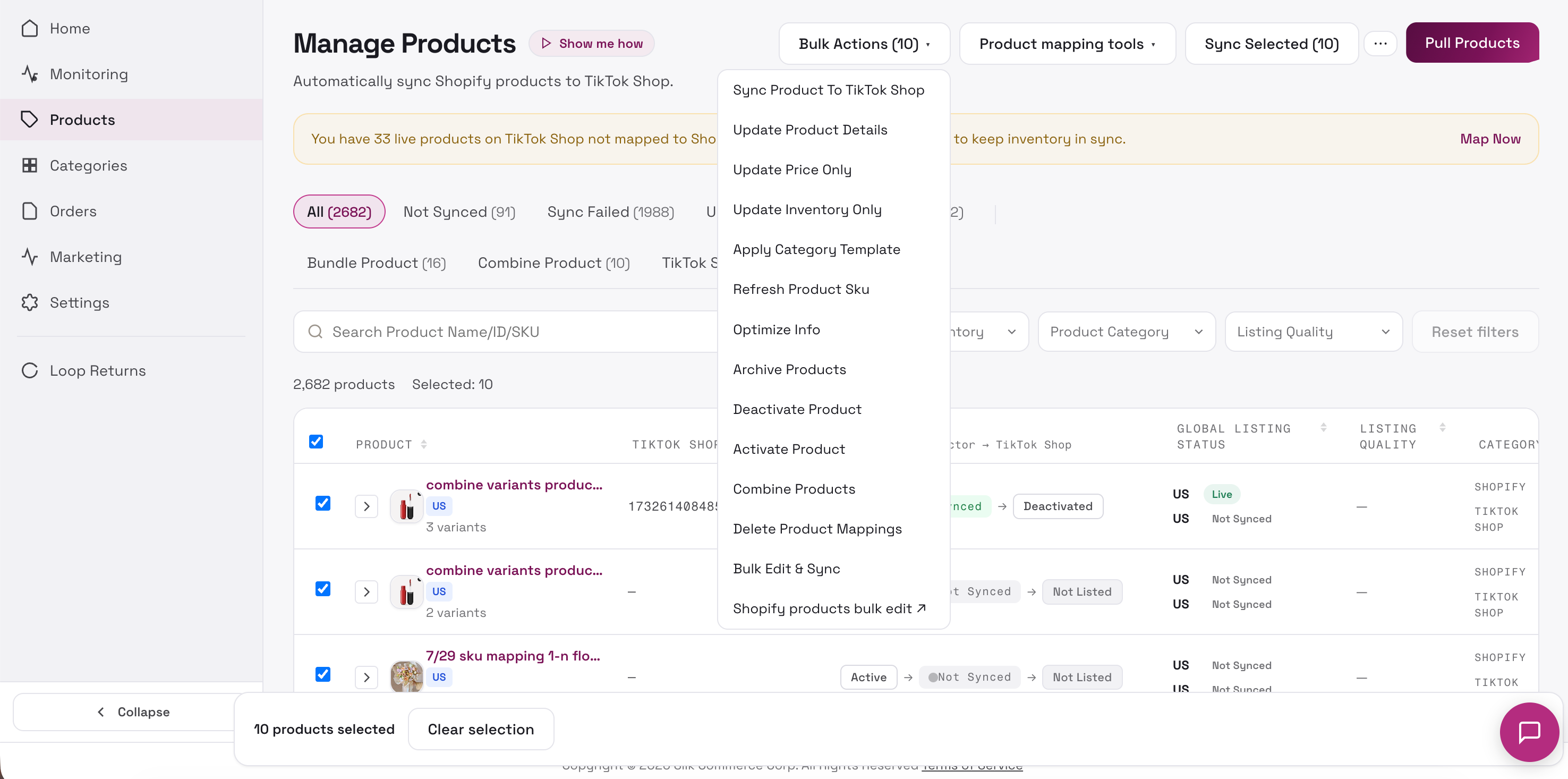
Section titled “Row and bulk actions”Each row’s Edit button (labeled Edit Combine Product for combine products) opens the product editor. Products without a TikTok Shop listing hide listing-specific actions (Update Product / Update Price / Update Stock / Deactivate / Refresh SKU / Refresh Status) and show Sync Product instead.
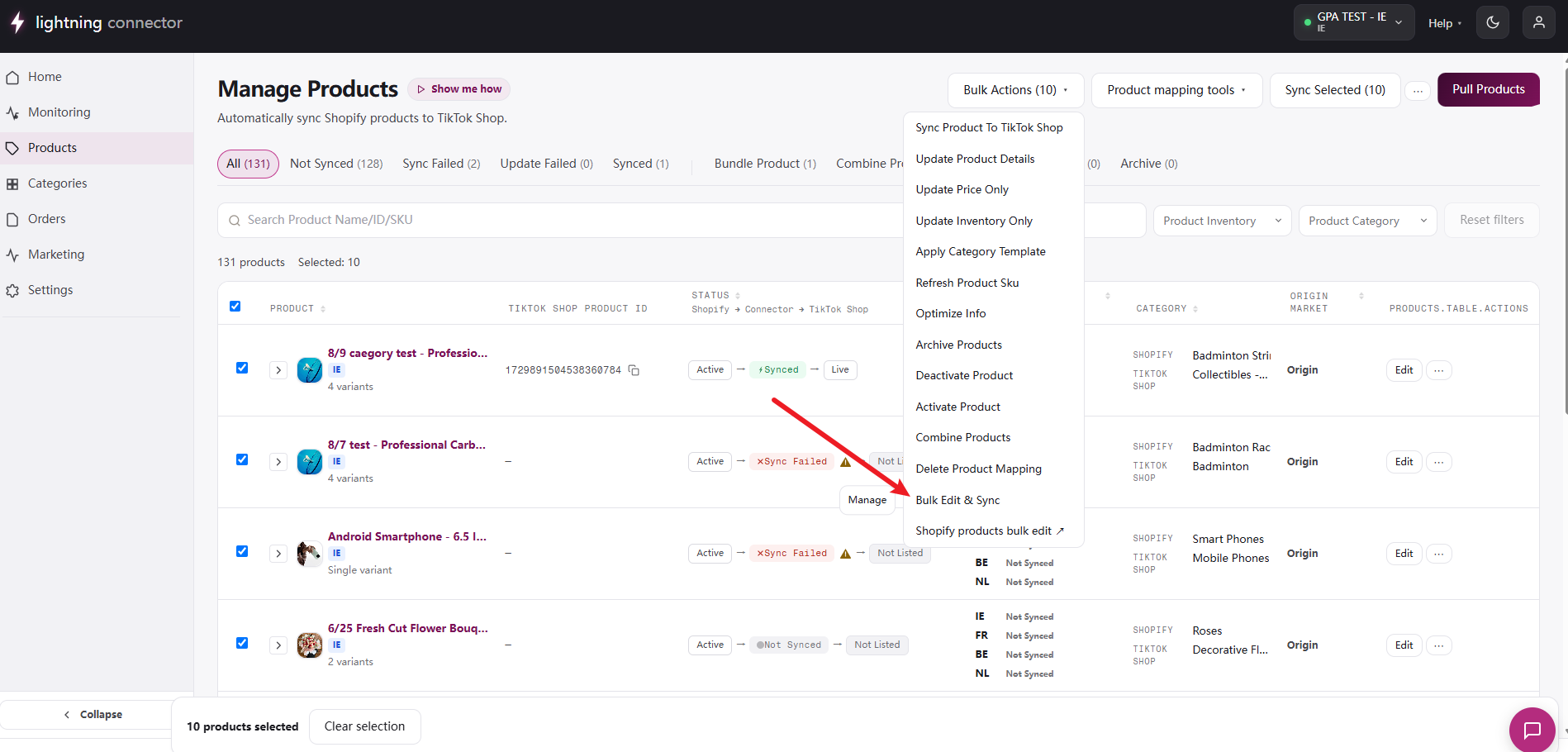
Select products with checkboxes (up to 50), then open Bulk Actions. A bottom bar shows “N products selected” with Clear selection.
Combine Products sidebar
Section titled “Combine Products sidebar”Opened from Bulk Actions → Combine Products, the Combine tab’s Create Combine Product, or a combine product’s Edit Combine Product. The connector combines 2–3 Shopify products into one TikTok Shop listing with a single SKU set:
- It validates the selection locally first: at least 2 products; all must be not-synced; all must be single-variant or all multi-variant (no mixing); multi-variant products must share the same option name and have at least one common option value; SKUs must be mappable.
- On confirm, it generates the combined listing: the product name becomes the first option value (“Product”), common variant values become the second option dimension, and it builds a cartesian set of variants. Each combined SKU is mapped to a source Shopify variant’s SKU.
- The combined row appears under the Combine tab with per-source rows (mapped SKU, price, inventory, and per-SKU Activate/Deactivate when enabled).
If a source product changed structure during combining, the connector deactivates the new listing and notifies you by email.
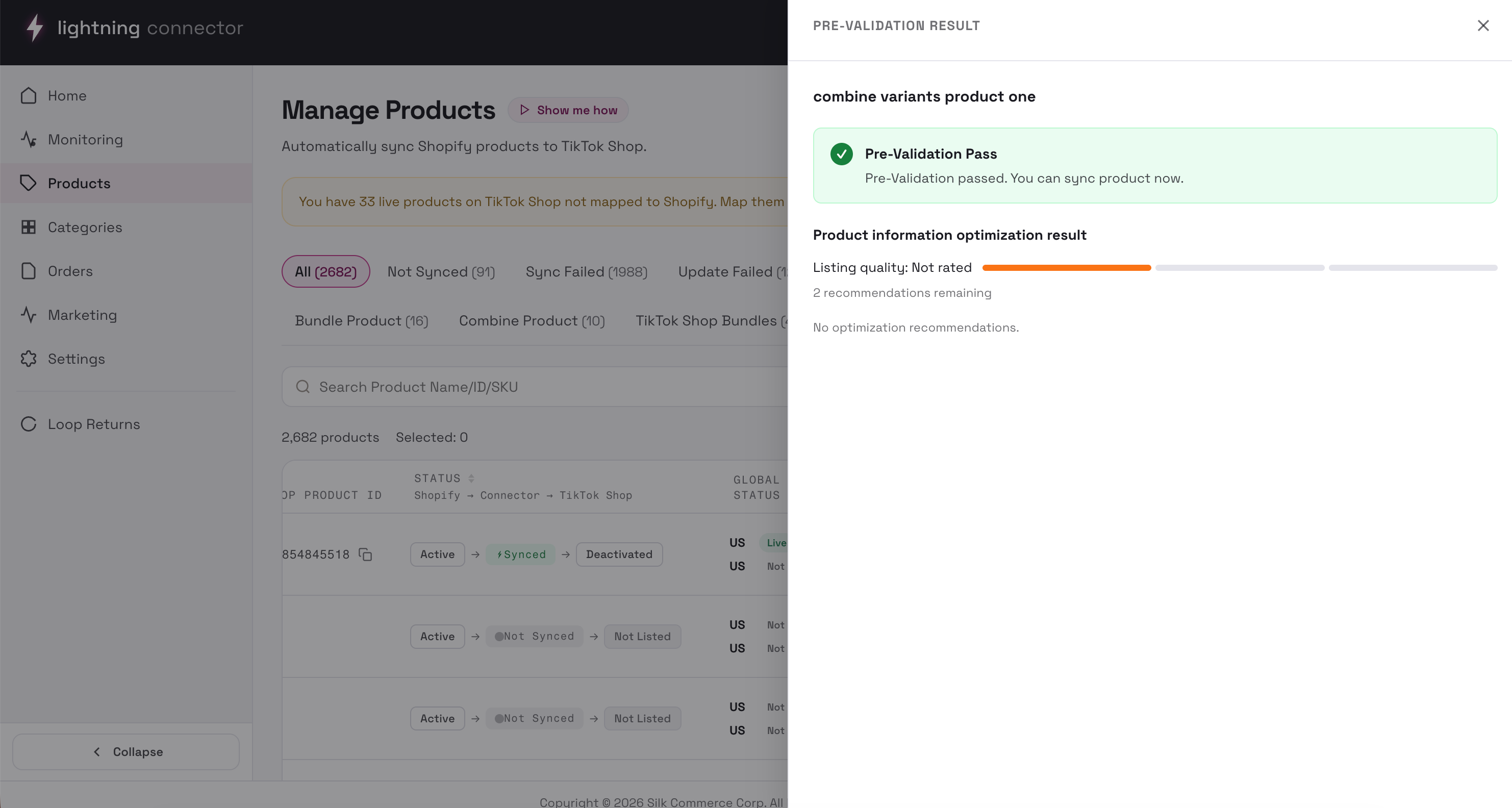
Pre-Validation drawer
Section titled “Pre-Validation drawer”Opened from a row’s Pre-Validation action, or by clicking a sync-failed status badge. It runs a two-stage check:
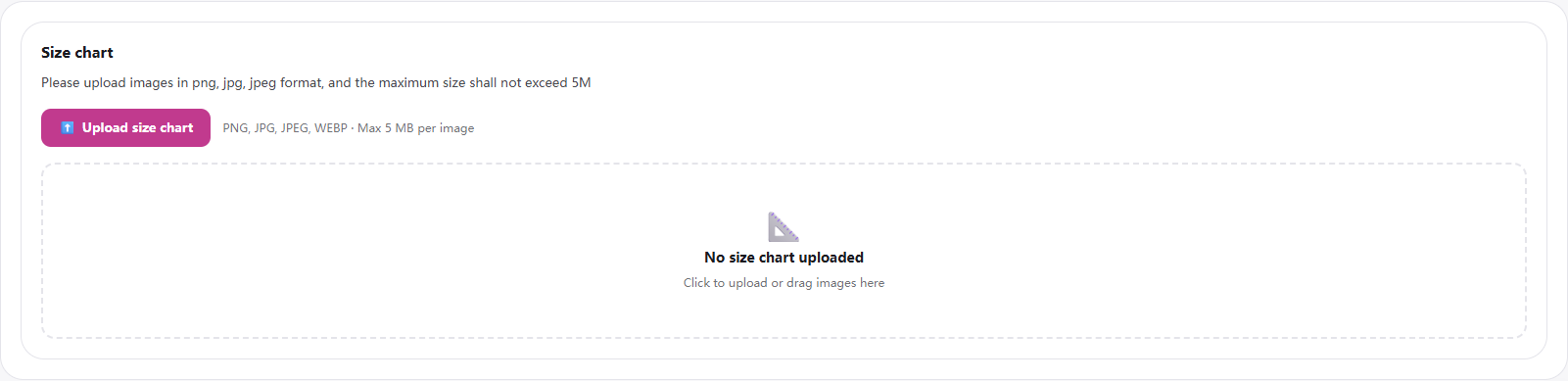
- Local static checks (no external call): Category mapping, required attributes, product name, description, variants (SKU, price range 0.01–7600), barcode, package weight/dimensions, images, certifications / size chart when required.
- TikTok Shop live pre-check (for synced products): validates warehouse, shipping template, shop status, category rules, and mandatory attributes. Each blocking issue gets a “Go to …” jump into the editor.
The drawer also shows a listing quality score and non-blocking optimization recommendations. Issues resolve when you fix them in the editor; the connector runs the same checks again on the next sync.
Optimize Info (AI batch)
Section titled “Optimize Info (AI batch)”Bulk Actions → Optimize Info (GB/US markets only) runs an AI listing-quality pass in the background, then restores local values while leaving the field’s update rule set to “TikTok Shop”. Results appear in a modal with Download CSV. This is separate from per-product AI Assist in the editor.
Pull Products modal
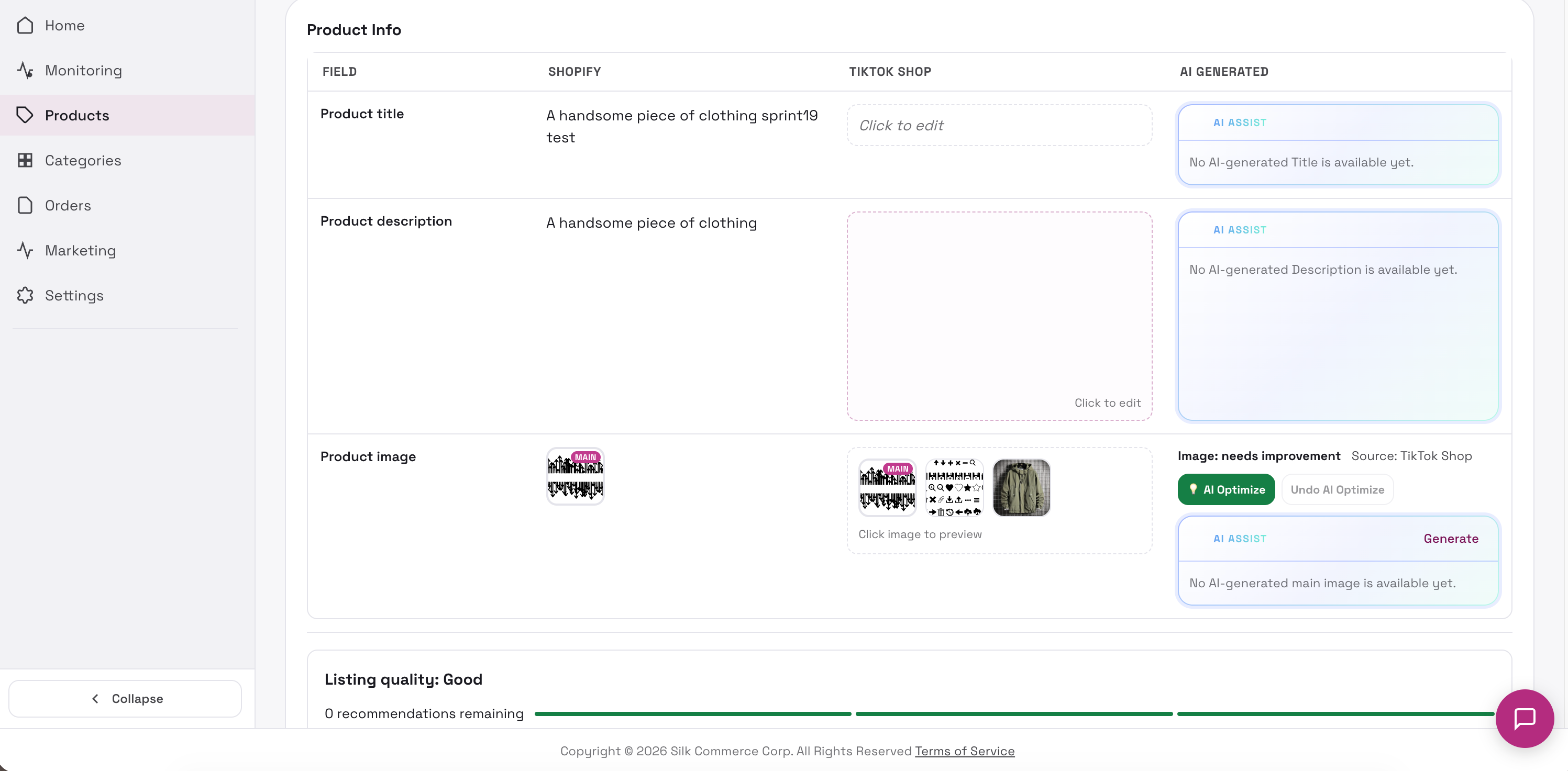
Section titled “Pull Products modal”- The connector pulls products from Shopify and adds them to your list.
- For each product whose Shopify category has no TikTok Shop mapping yet, TikTok Shop recommends a category for later mapping in Manage Categories.
- Progress shows in Background Tasks; completion reports how many were pulled.
- With Auto-sync enabled, newly pulled products are pushed to TikTok Shop afterwards.
Products tagged Silk TikTok in Shopify are auto-imported instead (see Product Settings → auto-pull).
Banners and statuses
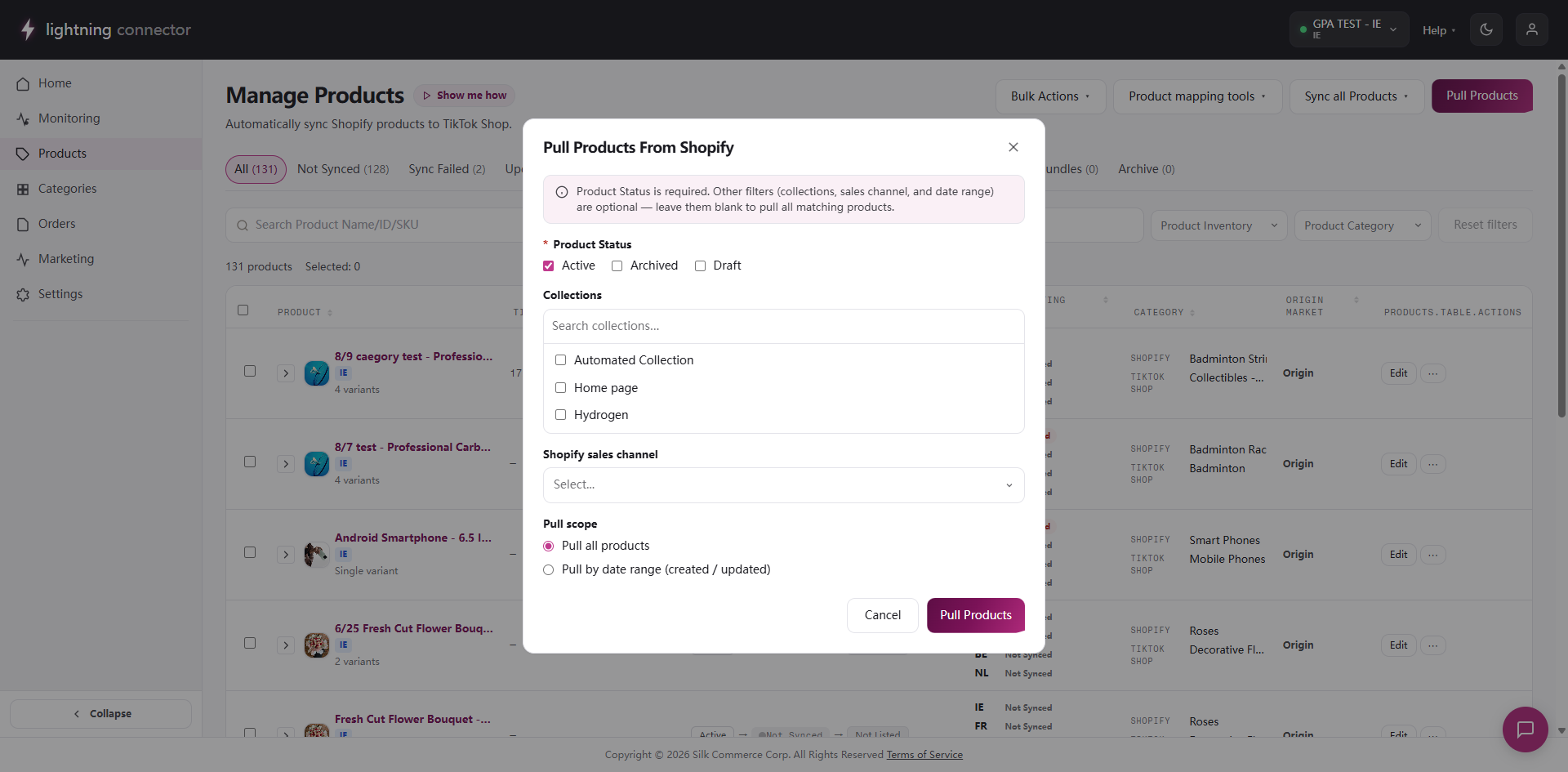
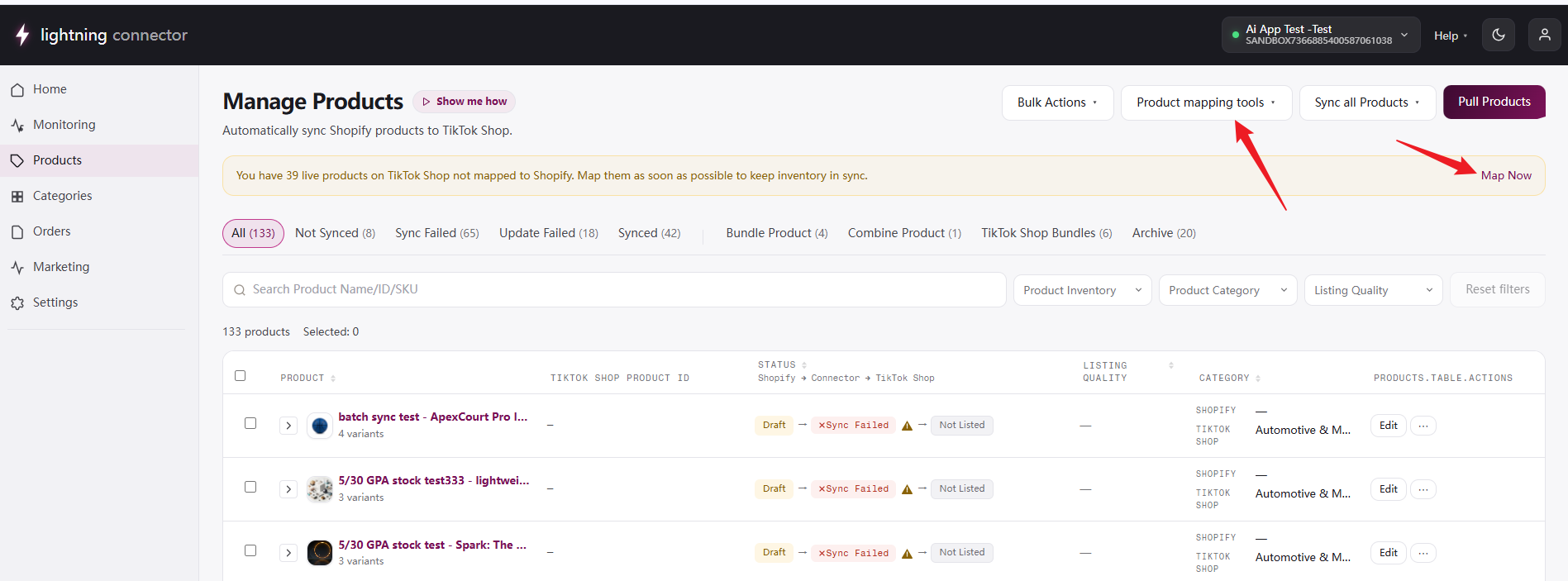
Section titled “Banners and statuses”- Unmapped products banner: “You have N live products on TikTok Shop not mapped to Shopify…” with a Map Now link. Unmapped products cannot receive inventory or price updates.
- Sync progress banner: running sync progress with View task details and All background tasks.
- Error statuses are clickable and open the sync error drawer. When the Shopify token is invalid, a Re-authorize Shopify store button is shown.
Product Detail Editor
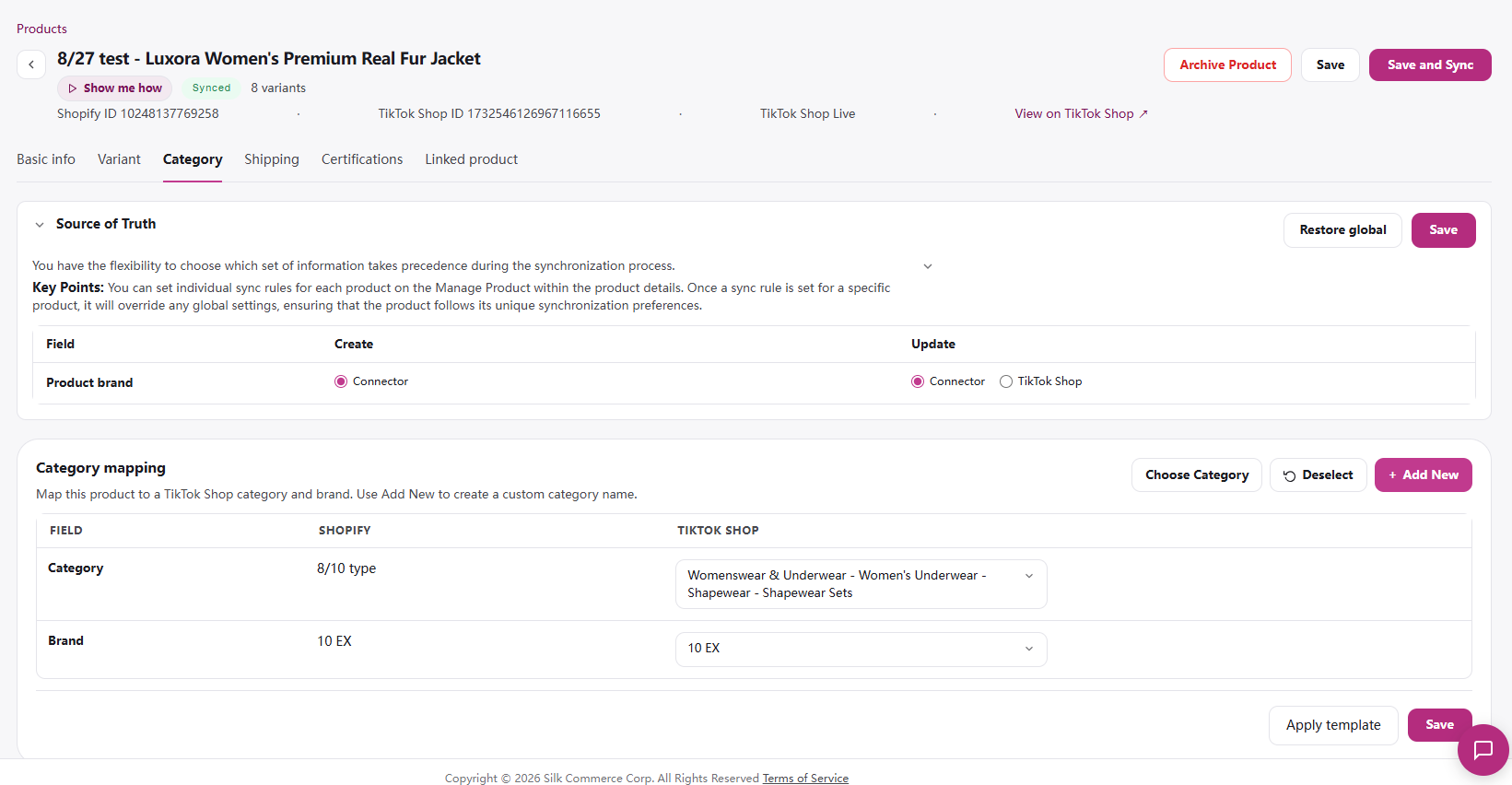
Section titled “Product Detail Editor”Open via a product’s Edit action or by clicking the product name. The header shows Shopify ID, TikTok Shop ID/status, View on TikTok Shop ↗, a sync status badge, and Show Me How.
Source of Truth (sync rules)
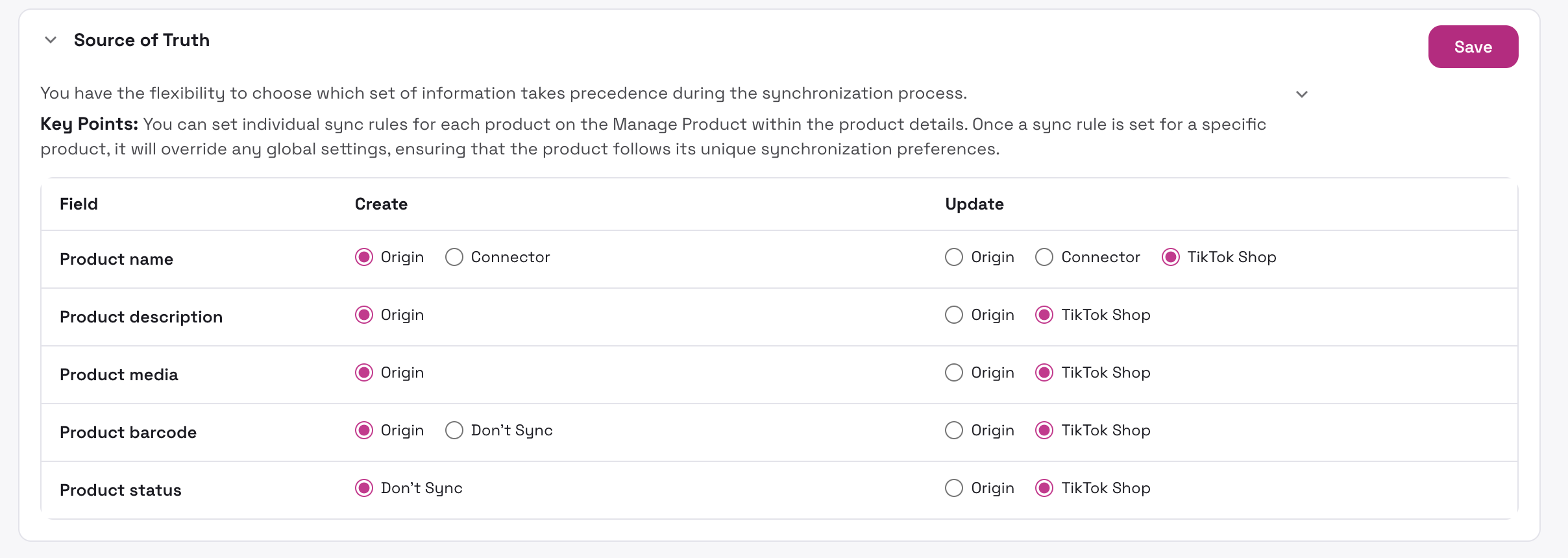
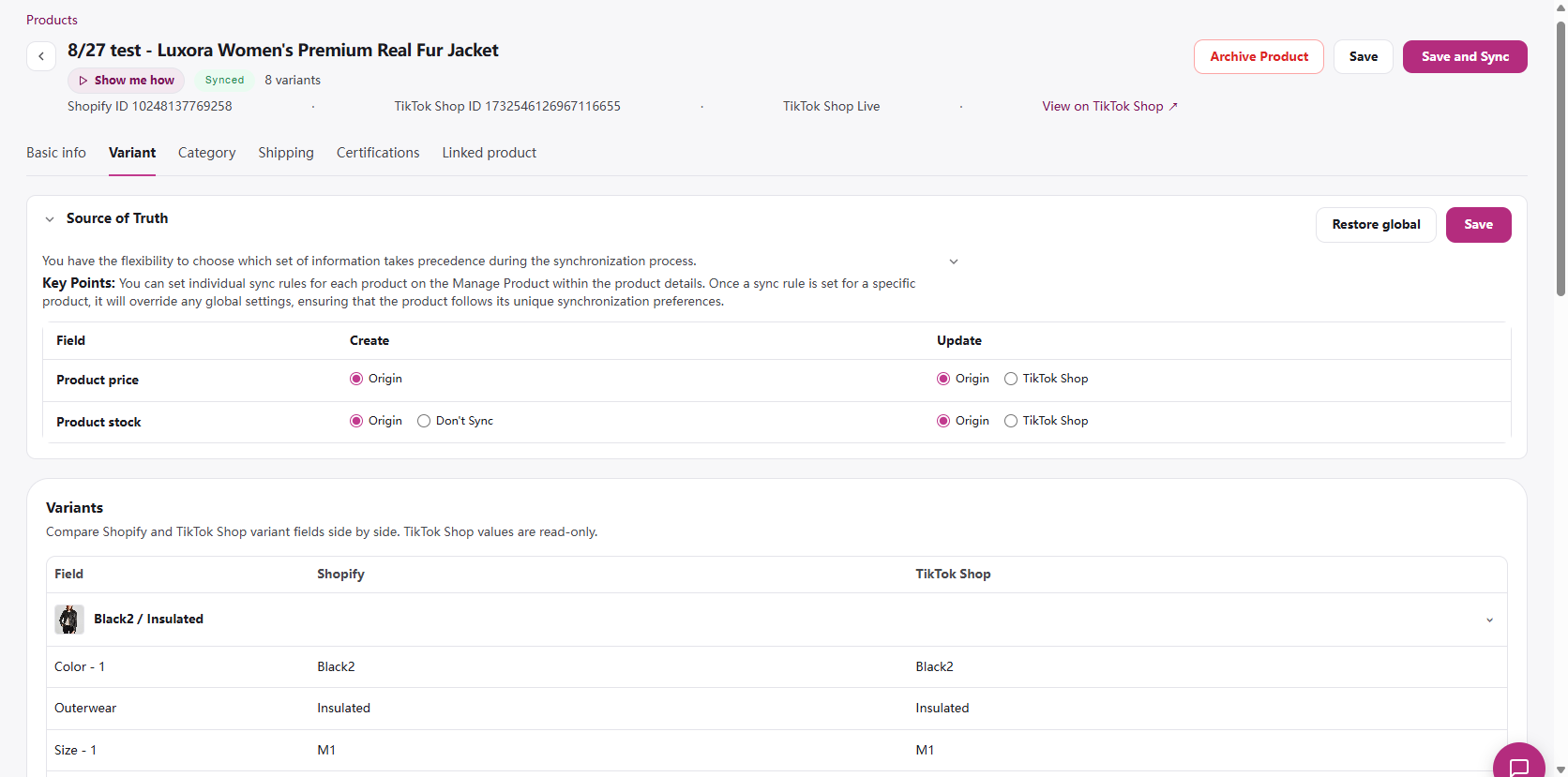
Section titled “Source of Truth (sync rules)”On Basic info, Variant, and Category tabs, a Source of Truth bar shows field-level sync rules. For each field, pick a value source for Create and Update:
- Origin: the value from your Shopify store.
- Connector: the value set up in the connector.
- TikTok Shop: the value currently on TikTok Shop.
- Don’t Sync: do not sync the value from Shopify.
Fields include product name, description, media, barcode, status, video, price, stock, and brand. Per-product rules override Product Settings. Use Restore global and Save.
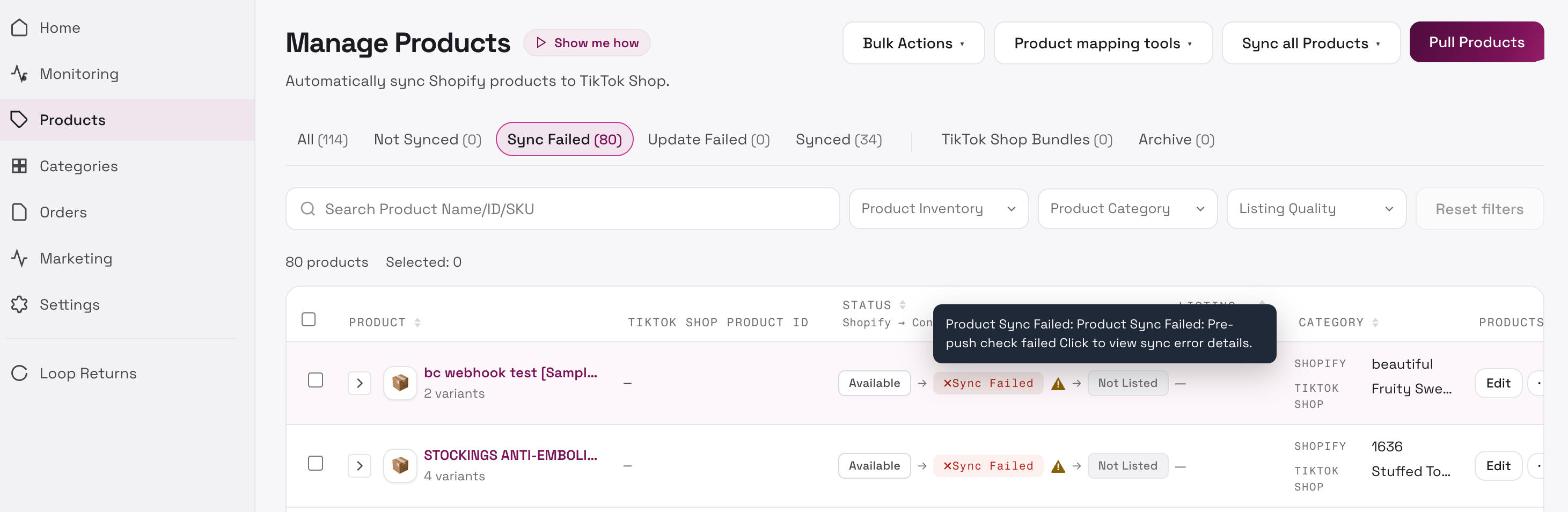
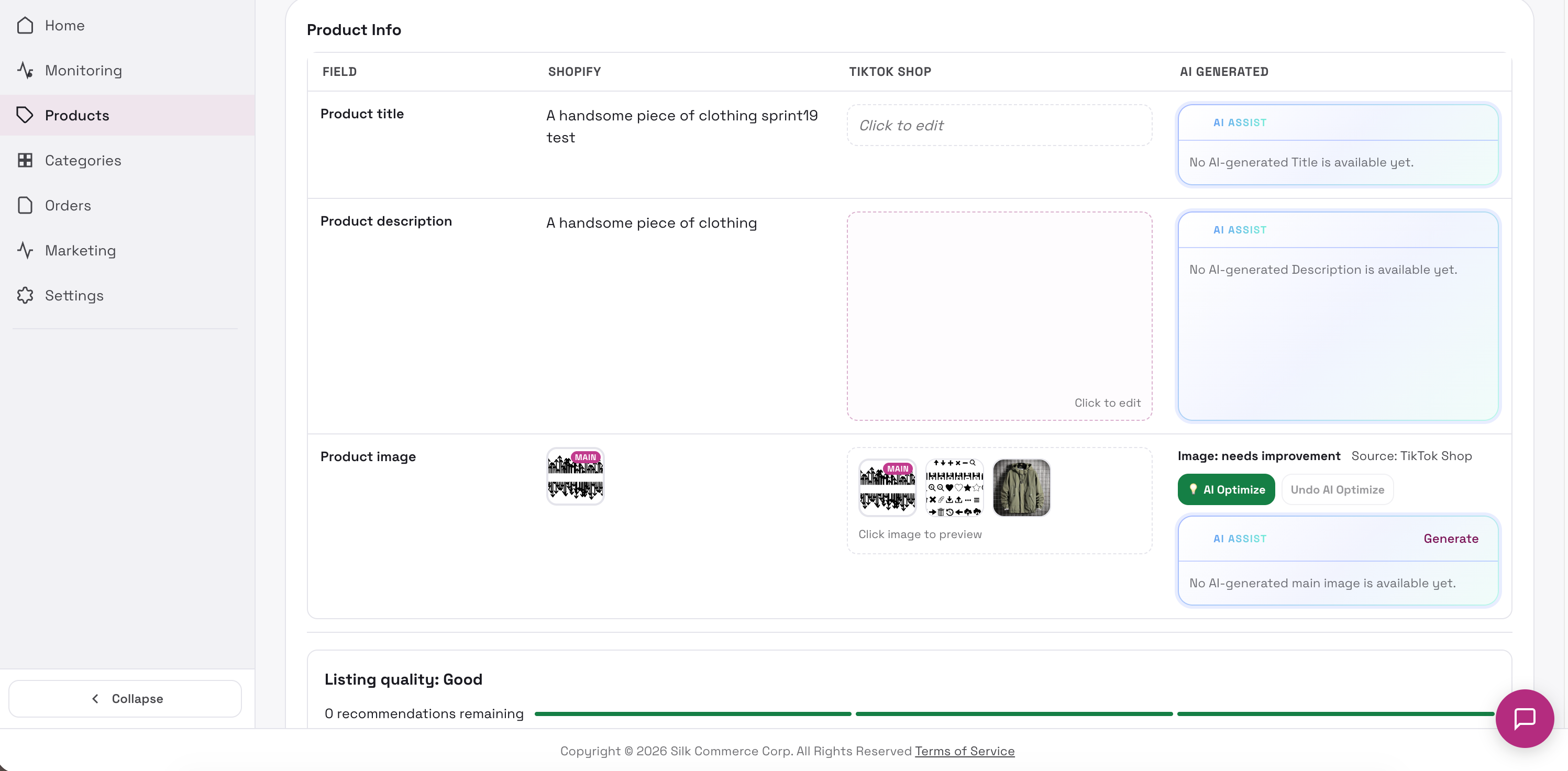
- Basic info: Shopify / TikTok Shop / AI columns for title, description, and images. AI Assist suggests titles, descriptions, and image optimization. Saved values reach TikTok Shop when you click Save and Sync.
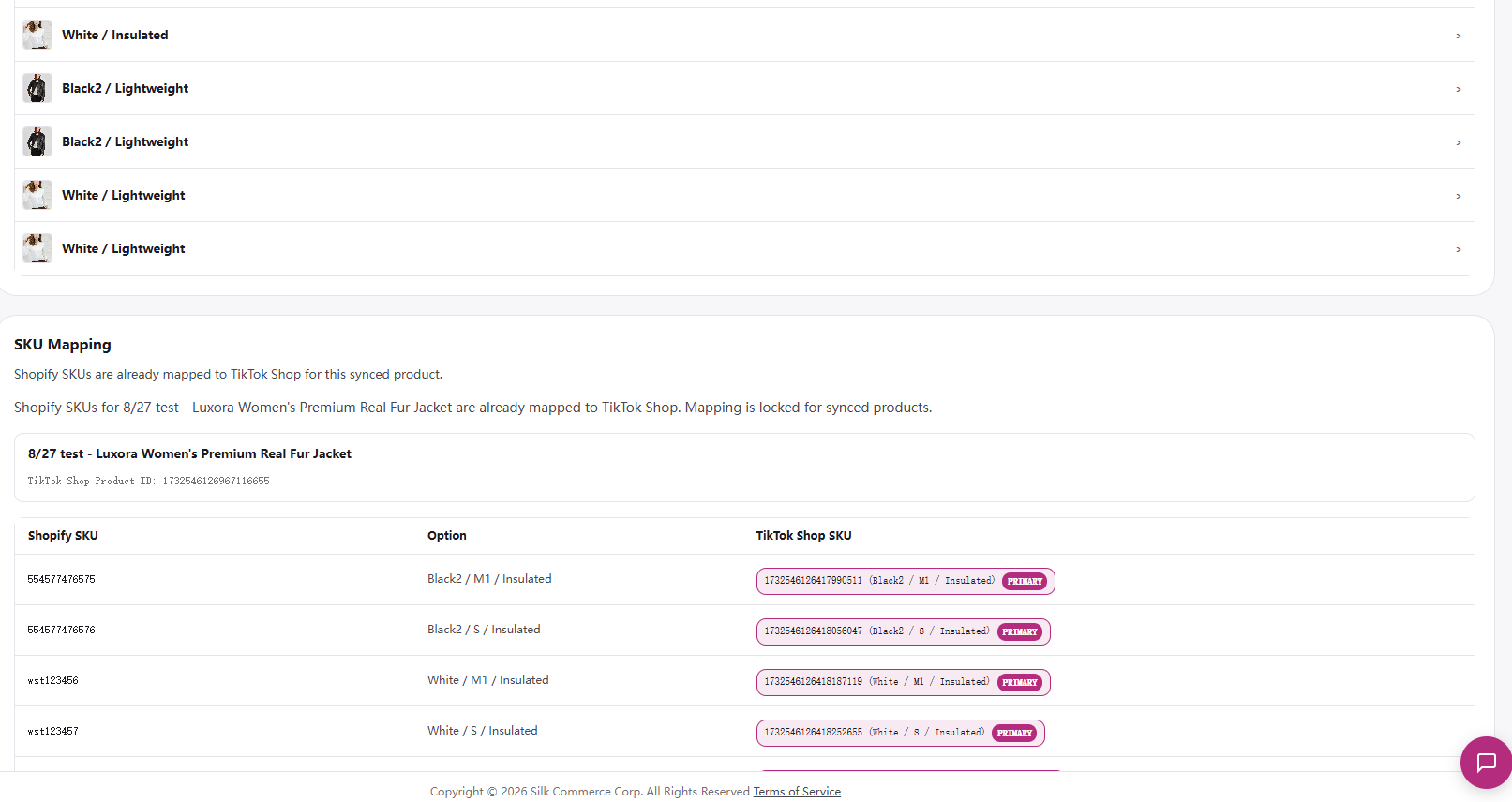
- Variant: variants table, SKU Mapping, and Map Option Value.
- Category: cascade TikTok Shop category picker, brand, required / optional attributes.
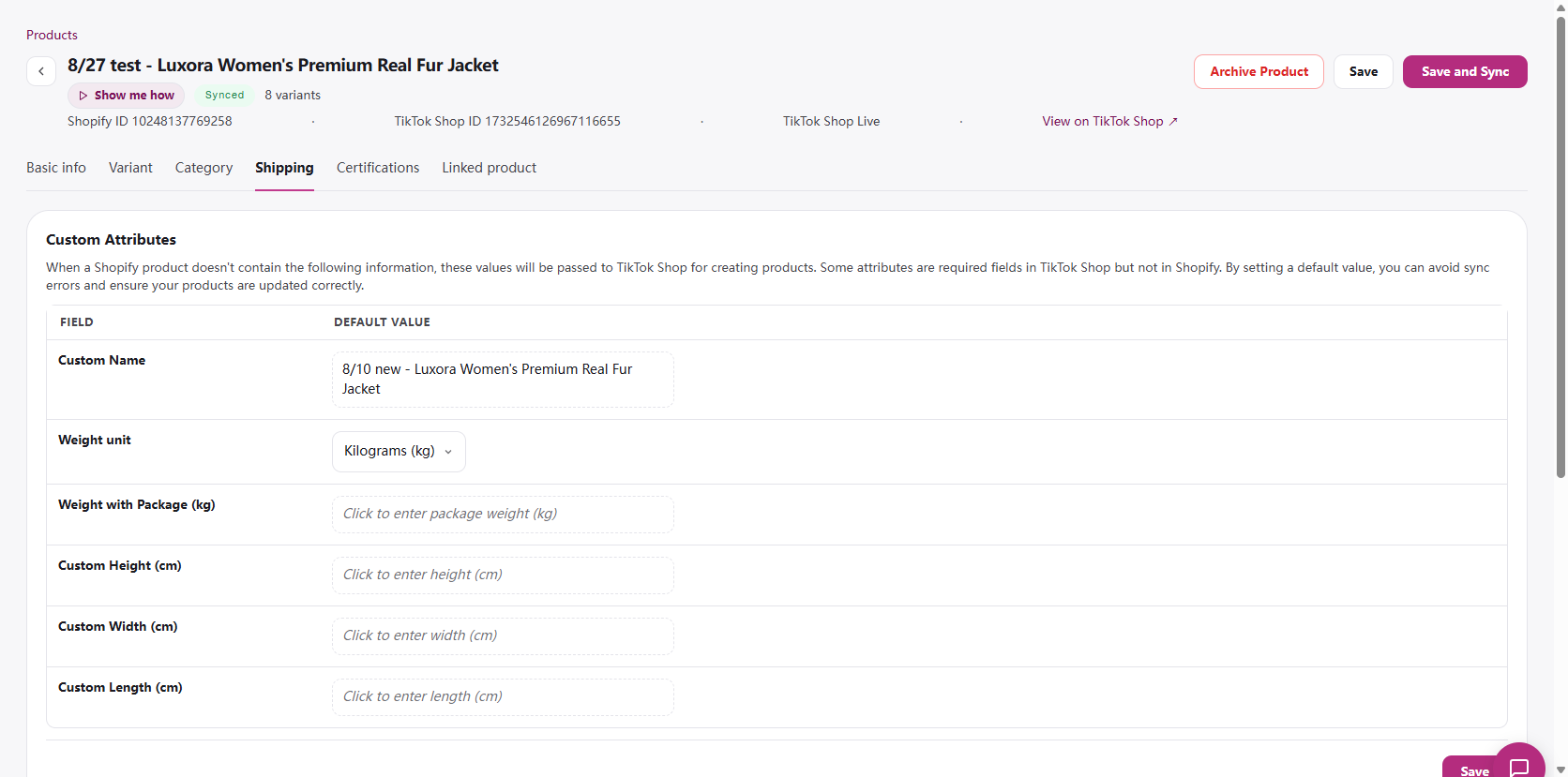
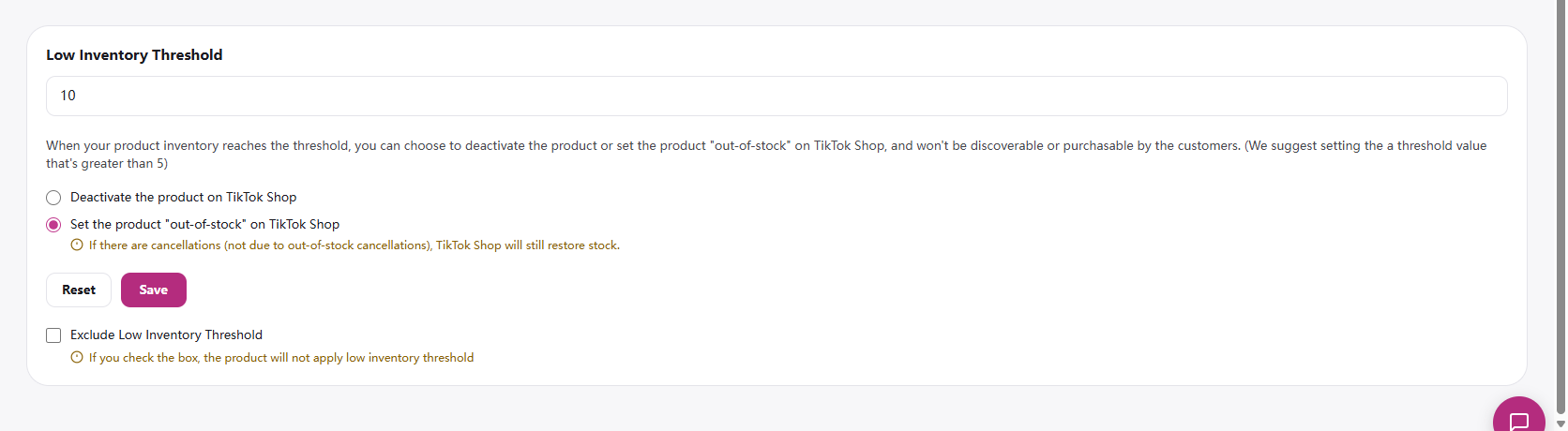
- Shipping: custom package dimensions and Low Inventory Threshold (deactivate or set out-of-stock).
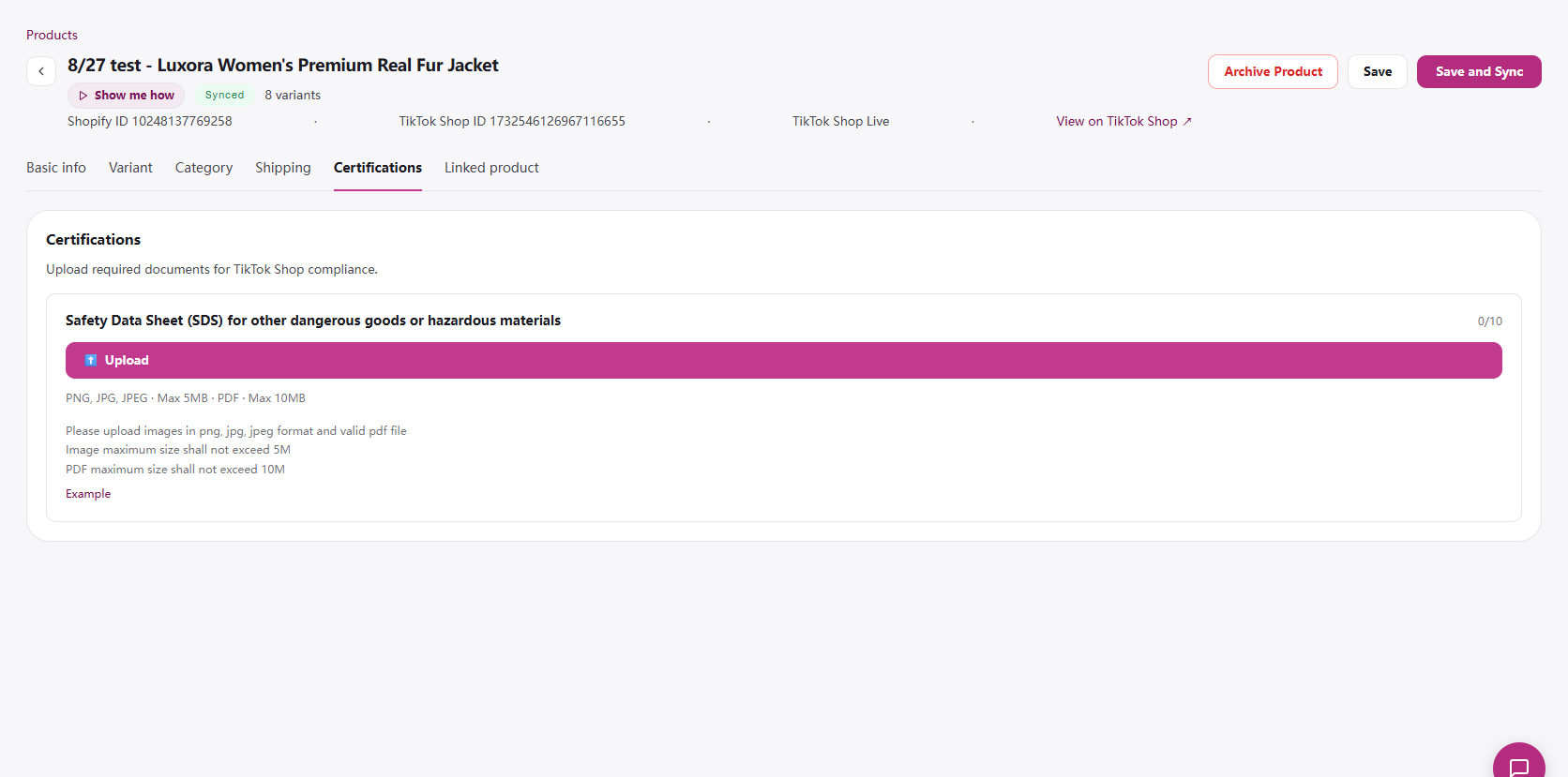
- Certifications: one upload card per required certification (max 10 files).
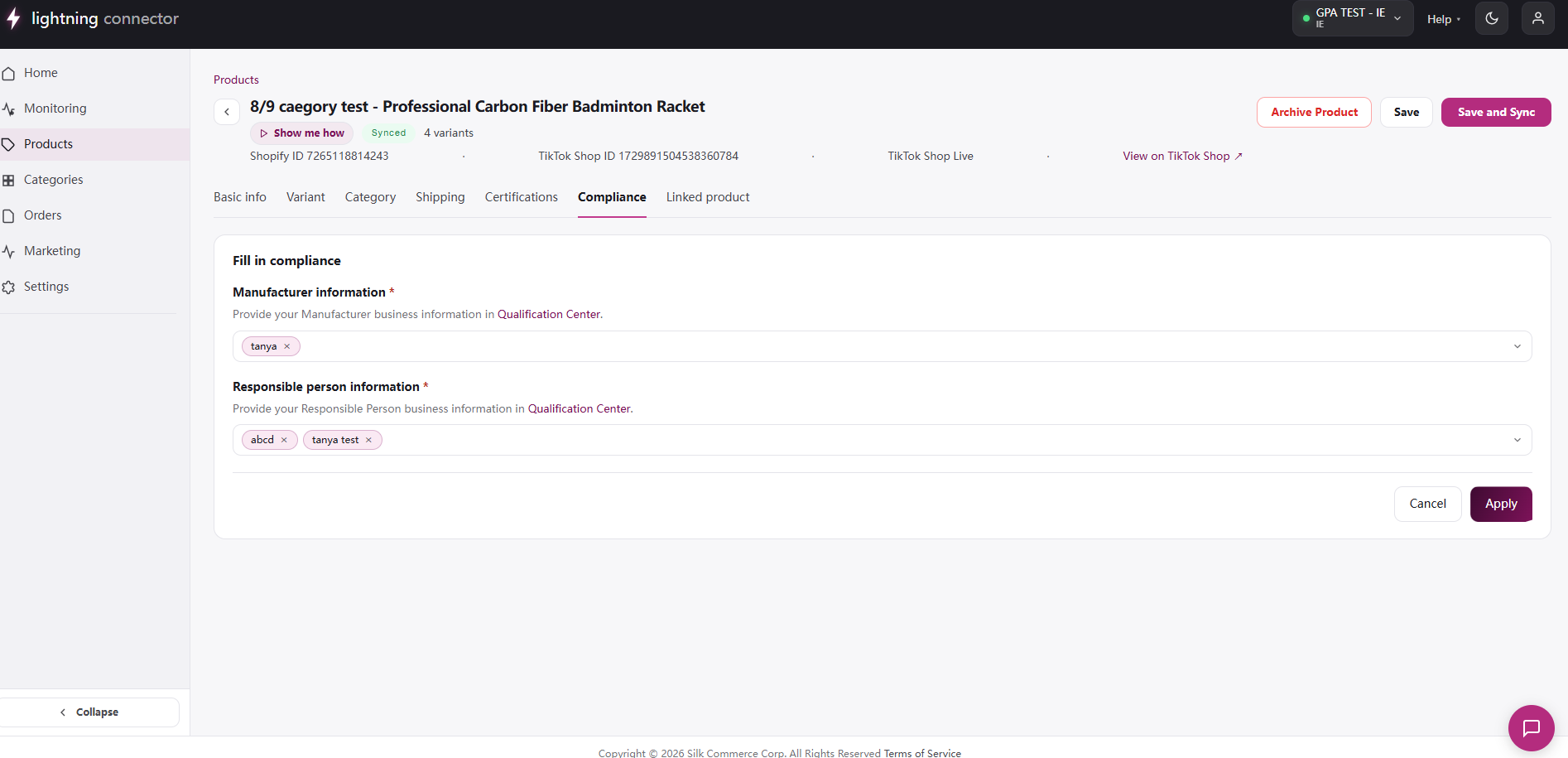
- Compliance: EU manufacturer and responsible person (Qualification Center).
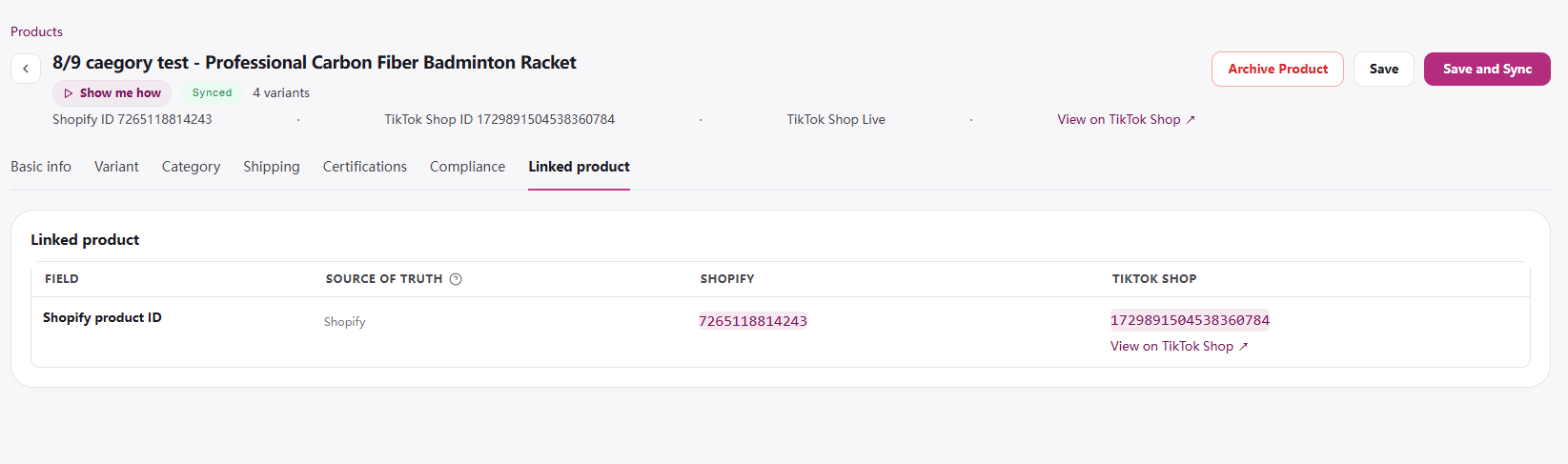
- Linked product: read-only Shopify and TikTok Shop IDs.
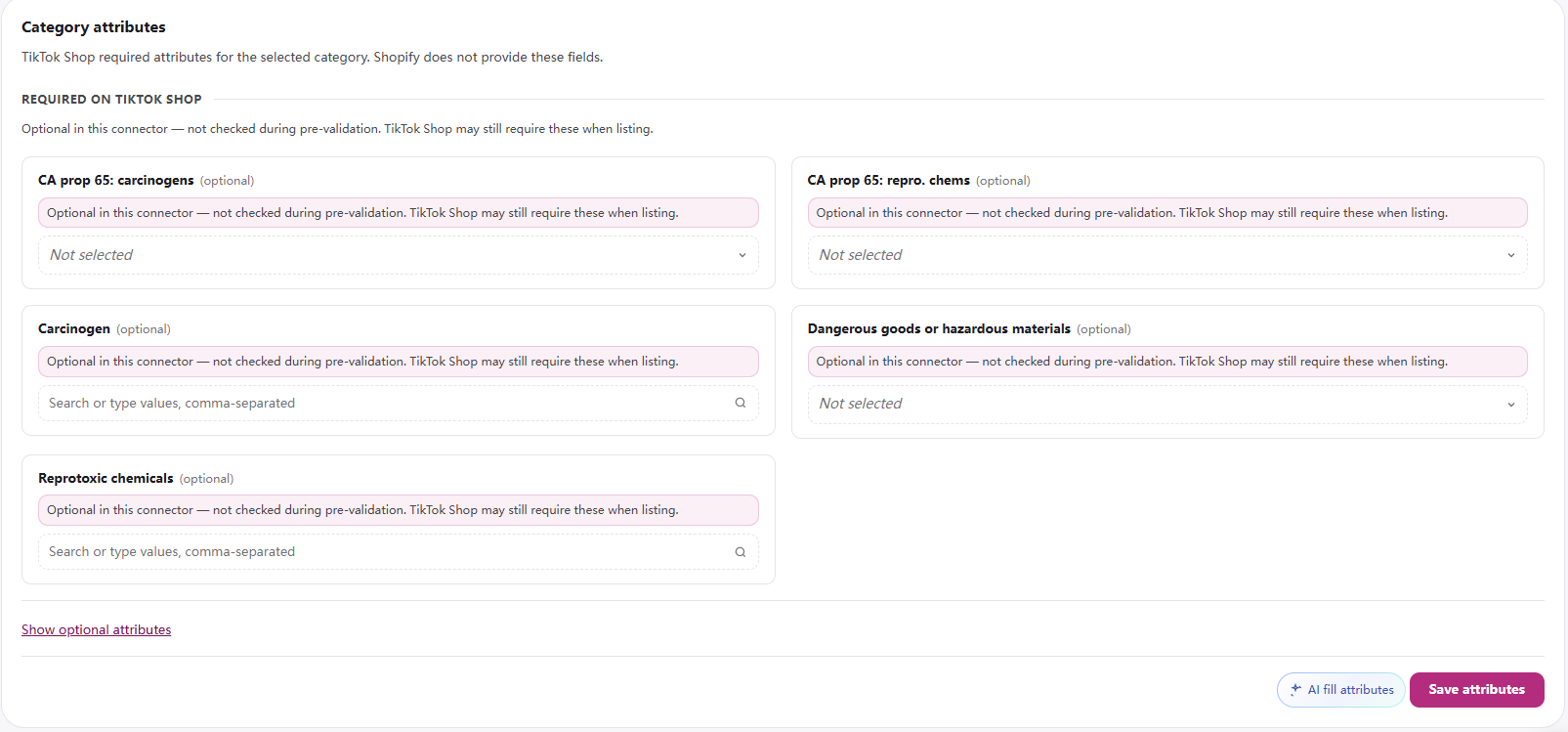
Issues preventing sync: The banner lists blocking issues with jump-to buttons. Save and Sync stays disabled until they are resolved. Tab warning icons appear on Category / Shipping / Certifications when incomplete.
Bulk Edit & Sync
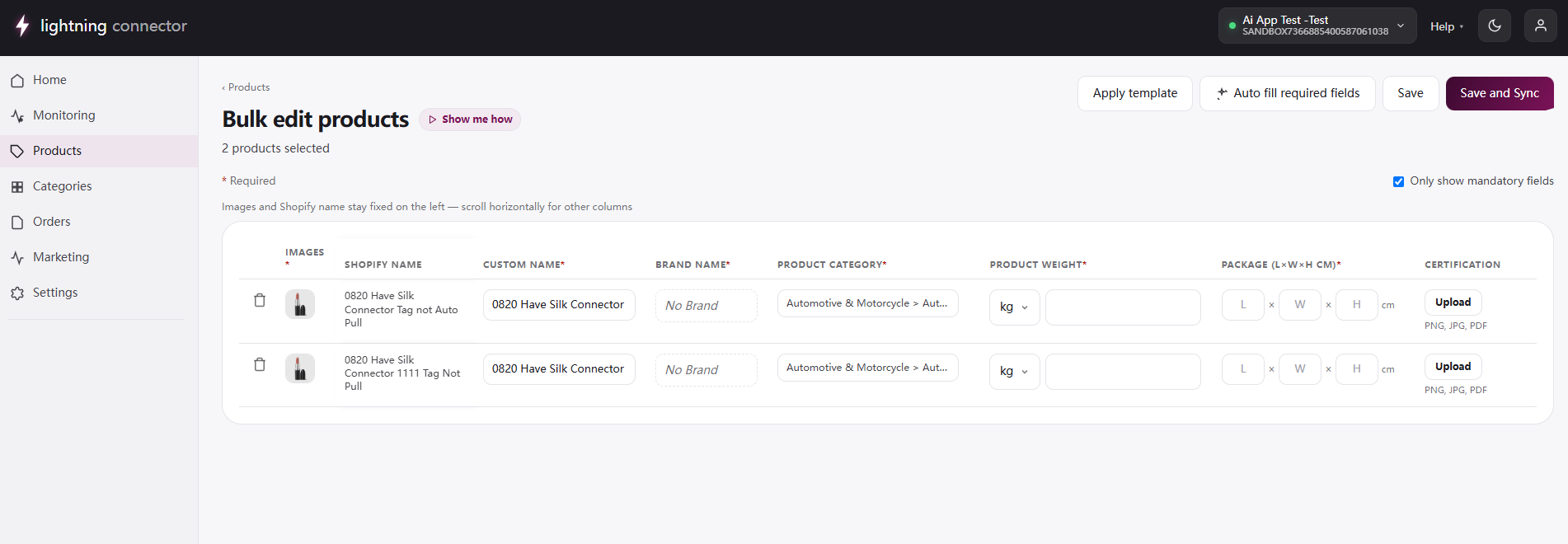
Section titled “Bulk Edit & Sync”Reached from Bulk Actions → Bulk Edit & Sync (max 50 products). Missing-category products are blocked upfront (“N selected product(s) need category mapping before bulk edit”).
Only show mandatory fields toggles optional columns. Columns depend on the category configuration.
AI attributes: Auto fill required fields and per-attribute AI suggestion exist but are currently not shown in the UI.
Product Mapping
Section titled “Product Mapping”Link Shopify catalog products to TikTok Shop listings so inventory and pricing stay in sync. Reached from the unmapped-products banner (Map Now), Product mapping tools → Open mapping workspace, or the “‹ Manage Products” back link.
Inventory and price updates are addressed to TikTok Shop product/SKU IDs stored on the mapping. Until a Shopify product is mapped, stock and price changes never reach that listing. Deleting a mapping is blocked while unfinished orders reference the SKUs.
Manual mapping
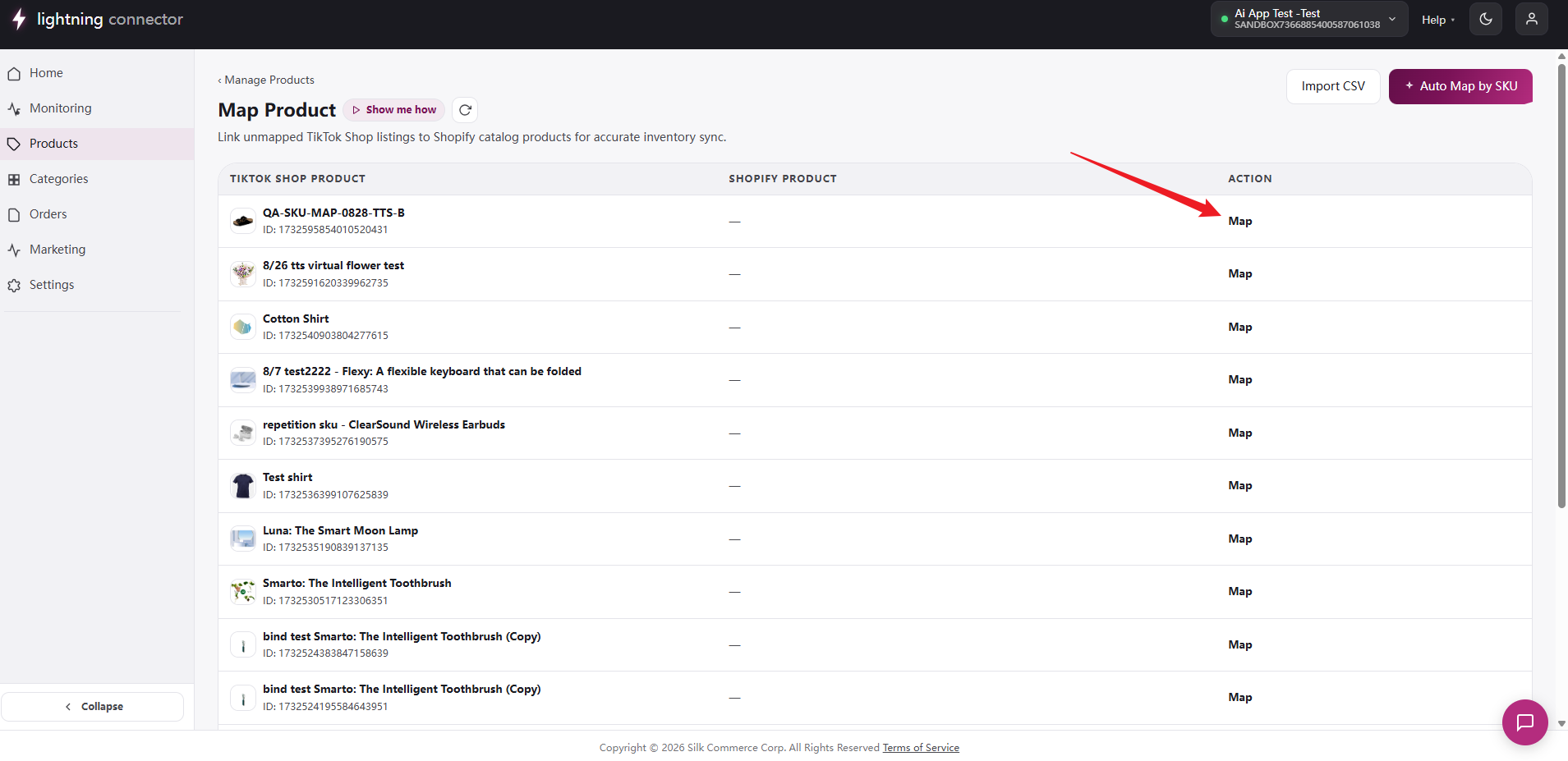
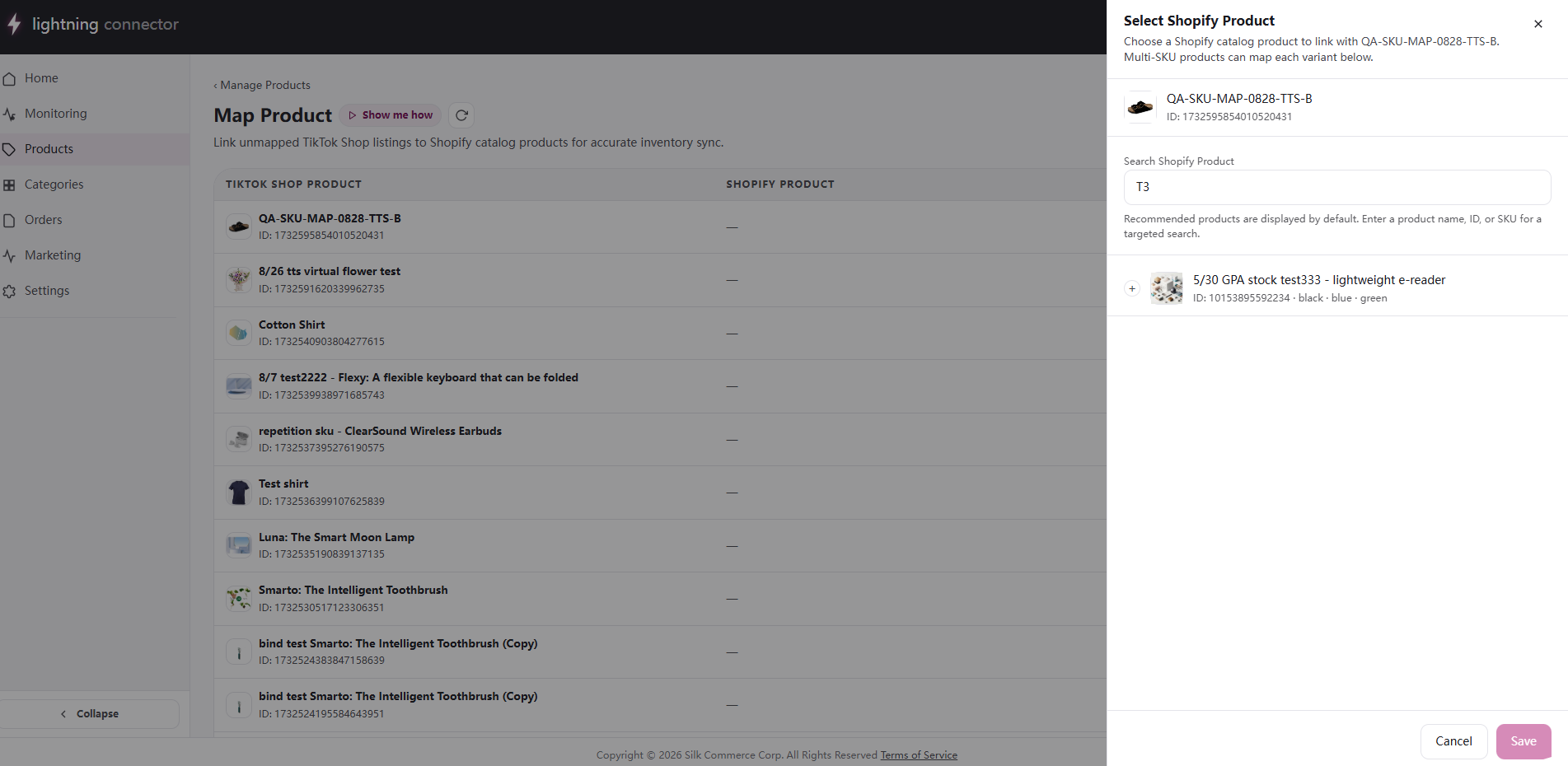
Section titled “Manual mapping”- Click Map (or Change if already mapped) on a Shopify product row.
- In Search TikTok Shop Product ID, search by title, product ID, or seller SKU.
- Select a TikTok Shop product and map each Shopify SKU. Toggle Can’t find it? Enter product ID to type the ID directly.
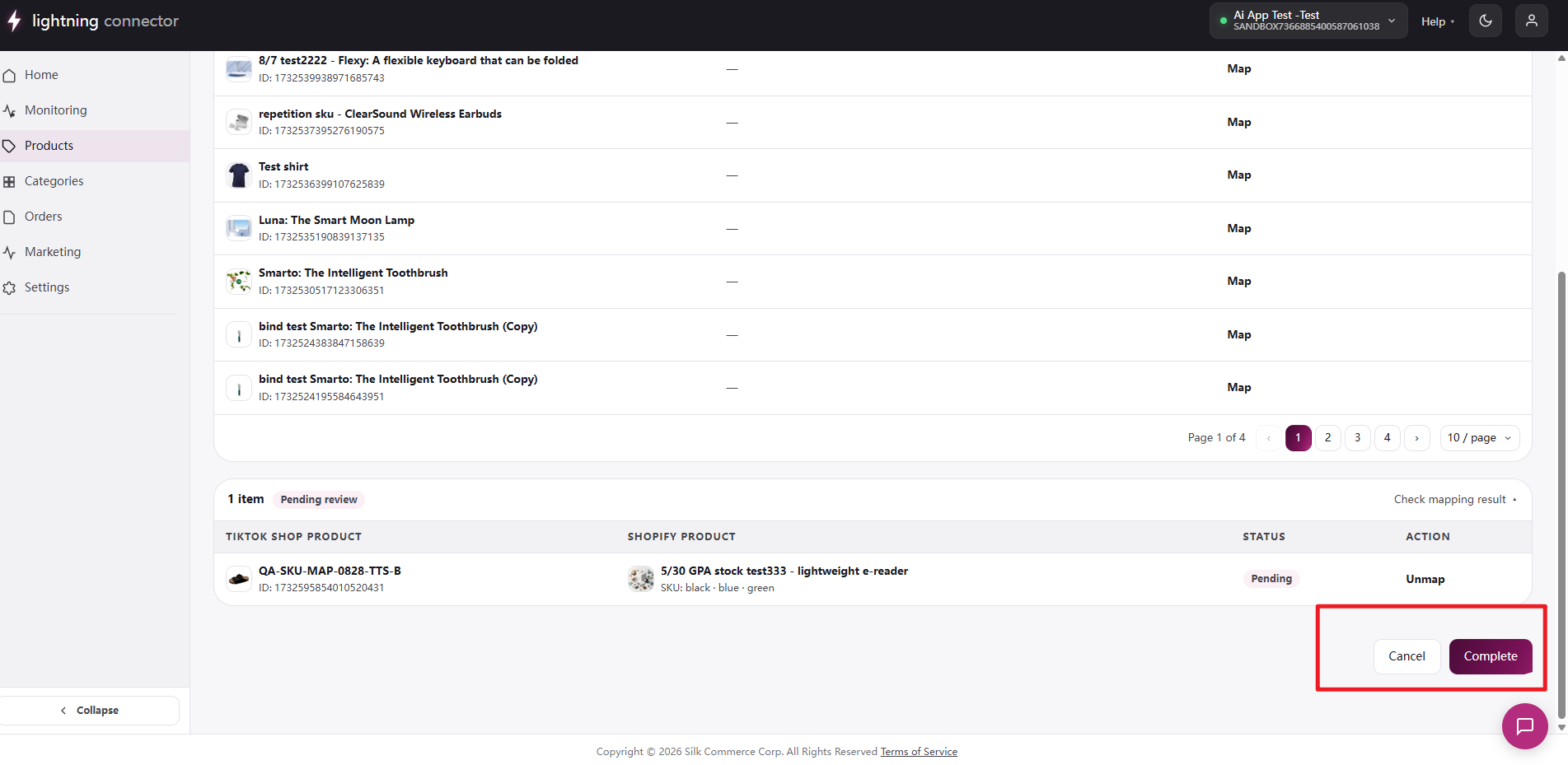
- Click Save. Pending mappings accumulate in Check Mapping Result; Complete processes them as a background task.
Auto Map by SKU and Import CSV
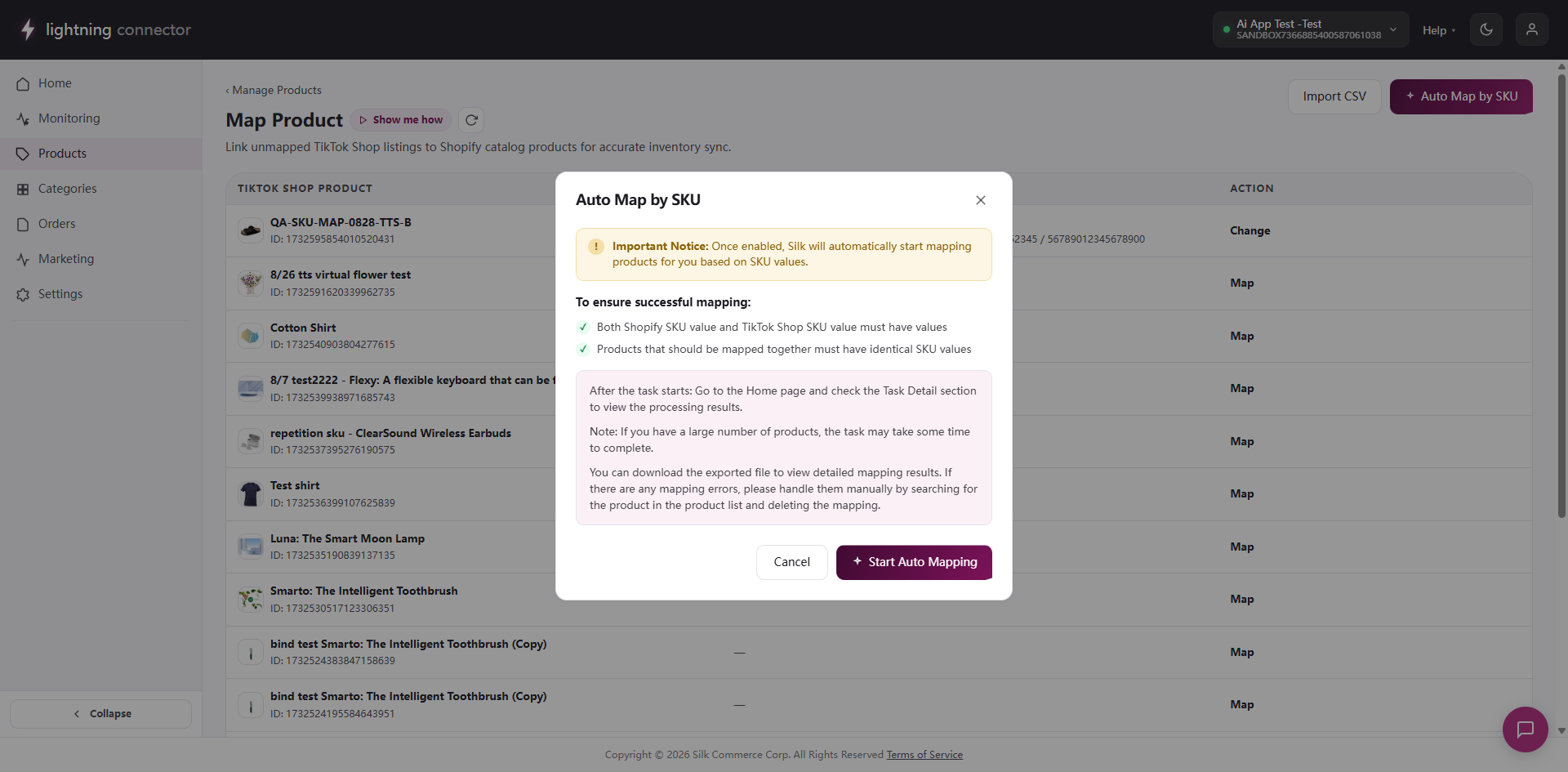
Section titled “Auto Map by SKU and Import CSV”Auto Map by SKU links products whose seller SKU sets match exactly. Unmatched products land in a downloadable CSV.
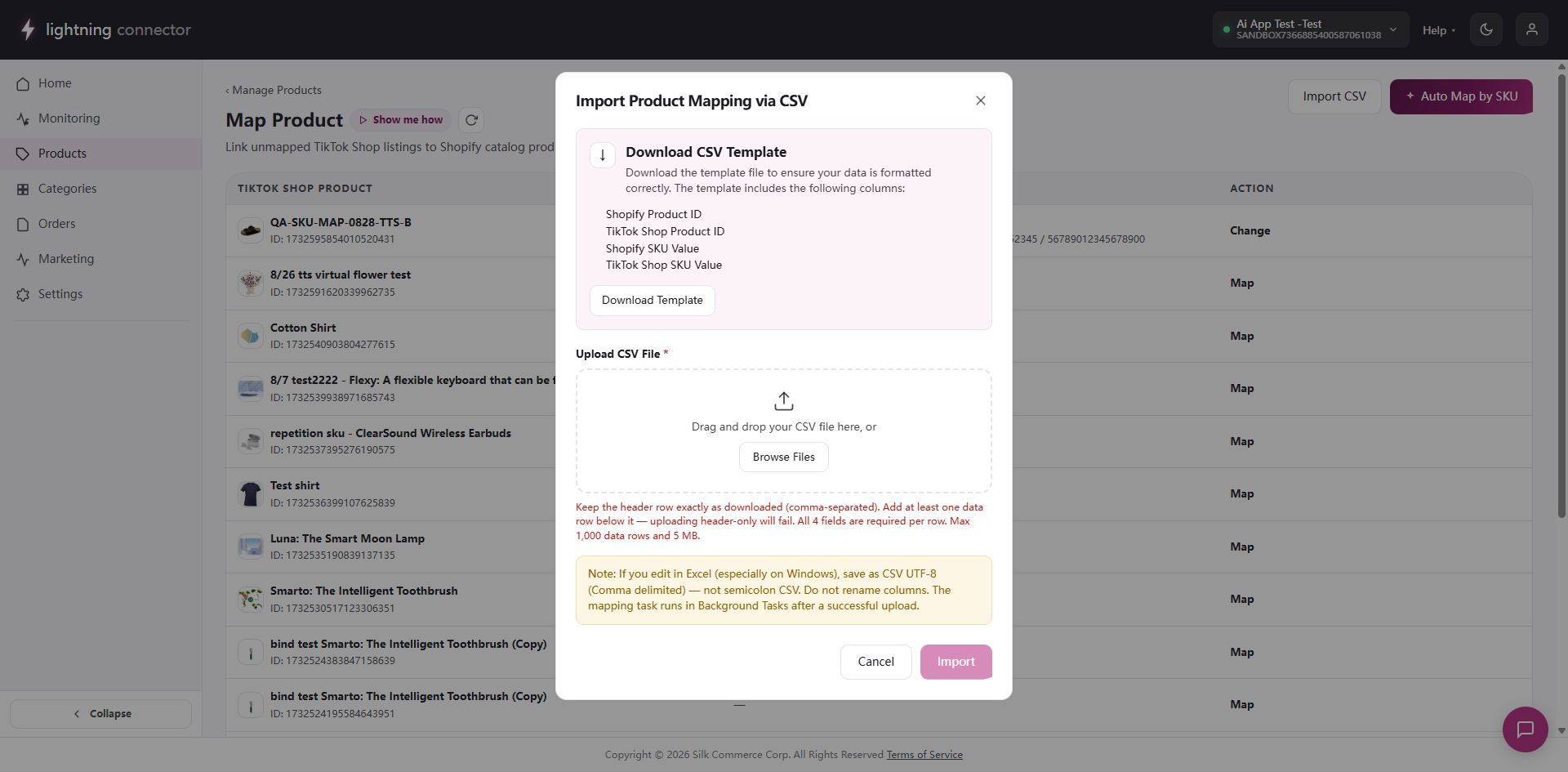
Import CSV: download product-mapping-template.csv, then upload .csv ≤ 5MB, ≤ 1000 data rows, comma-delimited UTF-8. Each row is validated against the live TikTok Shop product before it is applied.
Related
Section titled “Related”- Product Settings: pull rules, field-level sync rules, package defaults.
- Categories: map Shopify categories to TikTok Shop and configure required attributes.
- Order Settings: order sync (linked from the product setup guide).
- Background Tasks: track pull/sync/mapping progress (Home → Tasks).