Manage Categories
Breadcrumb: Categories
Tutorial IDs: categories, category-config
See also: Manage Products, Product Settings, Background Tasks.
Purpose
Section titled “Purpose”Manage how Shopify categories map to TikTok Shop categories, and configure the TikTok Shop fields (attributes, brand, size chart, certifications, compliance, package metafields) that products in each category need before they can sync. Category-level defaults are stored once per category and applied to every product mapped to it, so filling them correctly here avoids fixing the same fields product by product.
Product editor vs this page: Category fields inside a product editor (Category tab, attributes, certifications, size chart) are covered in the Manage Products guide. This guide covers the category-level configuration those product fields inherit from.
The Categories landing page has two tabs: Category Mapping (always visible) and Category Templates (when the feature is enabled).

Category Mapping
Section titled “Category Mapping”The mapping tab lists every Shopify category for the connection. Shopify categories are synced from Shopify automatically; the mapping tells the connector which TikTok Shop category each one corresponds to. Products keep the mapping of their Shopify category.
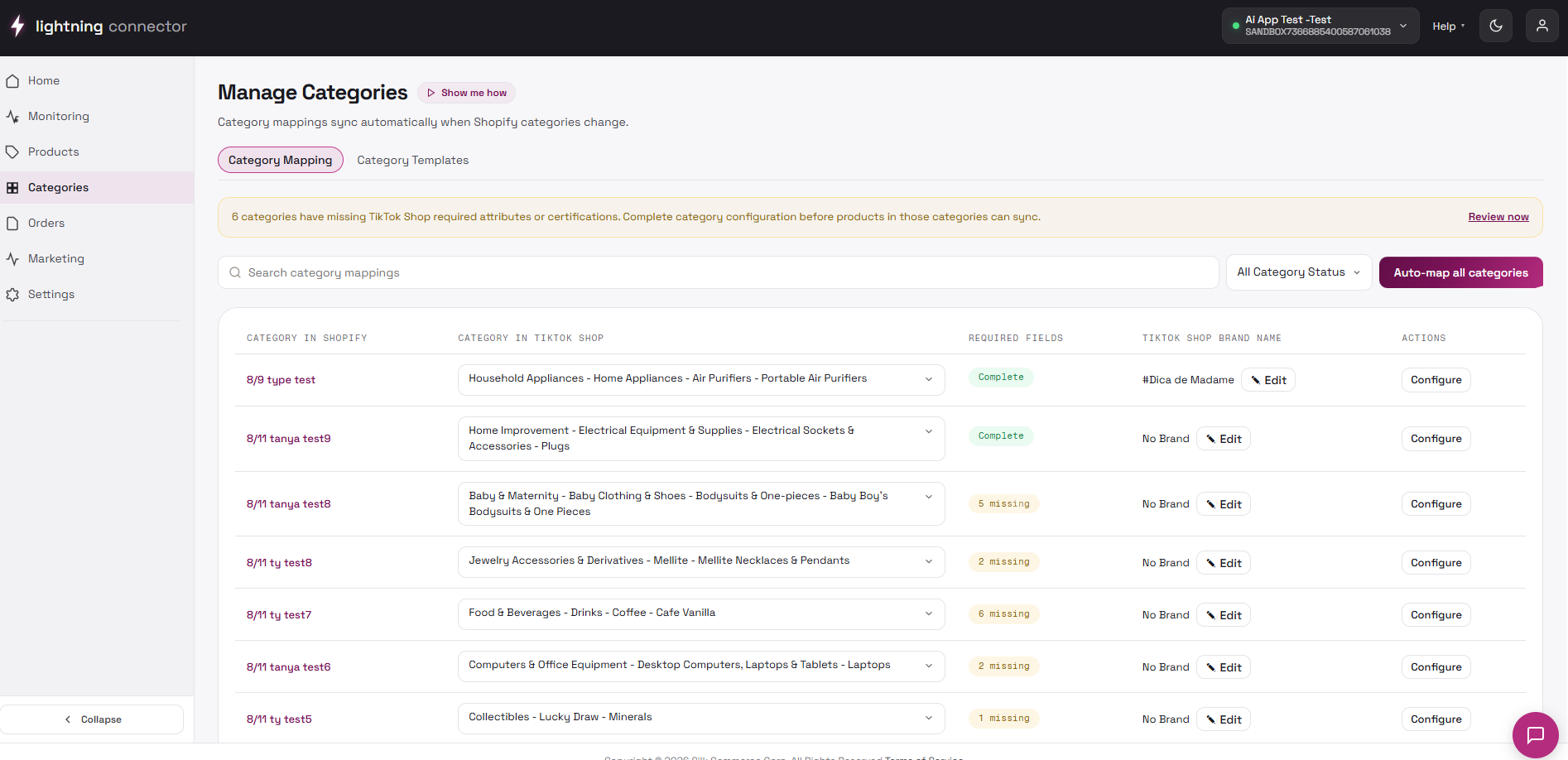
Incomplete-mapping warning: Shown at the top when some categories are missing TikTok Shop required attributes or certifications. Incomplete categories block products in that category from syncing.
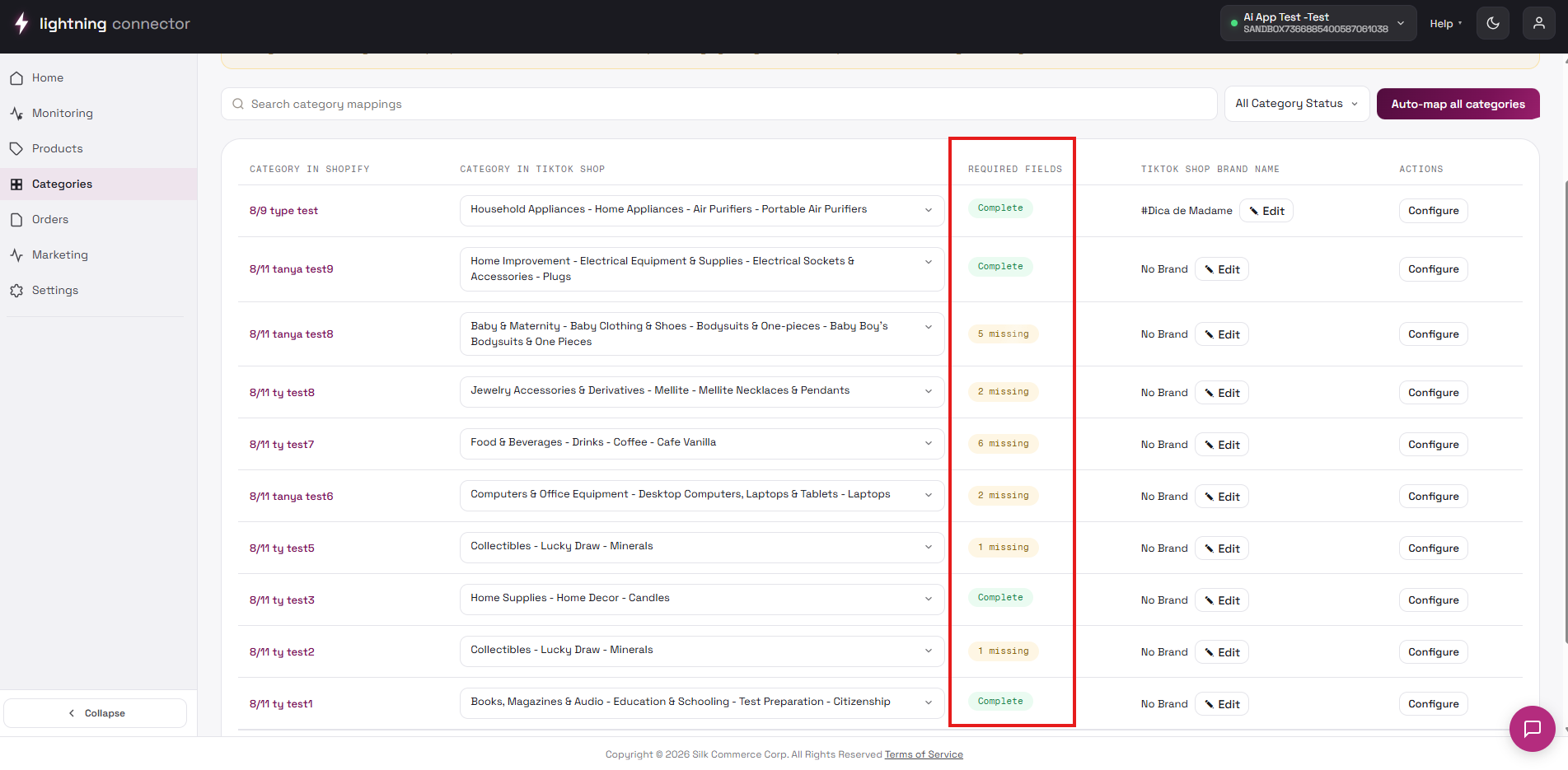
Use the filter bar, then review table columns and row actions. Pagination below the table supports page numbers with ‹ / › and a rows-per-page dropdown (10 / 20 / 50).
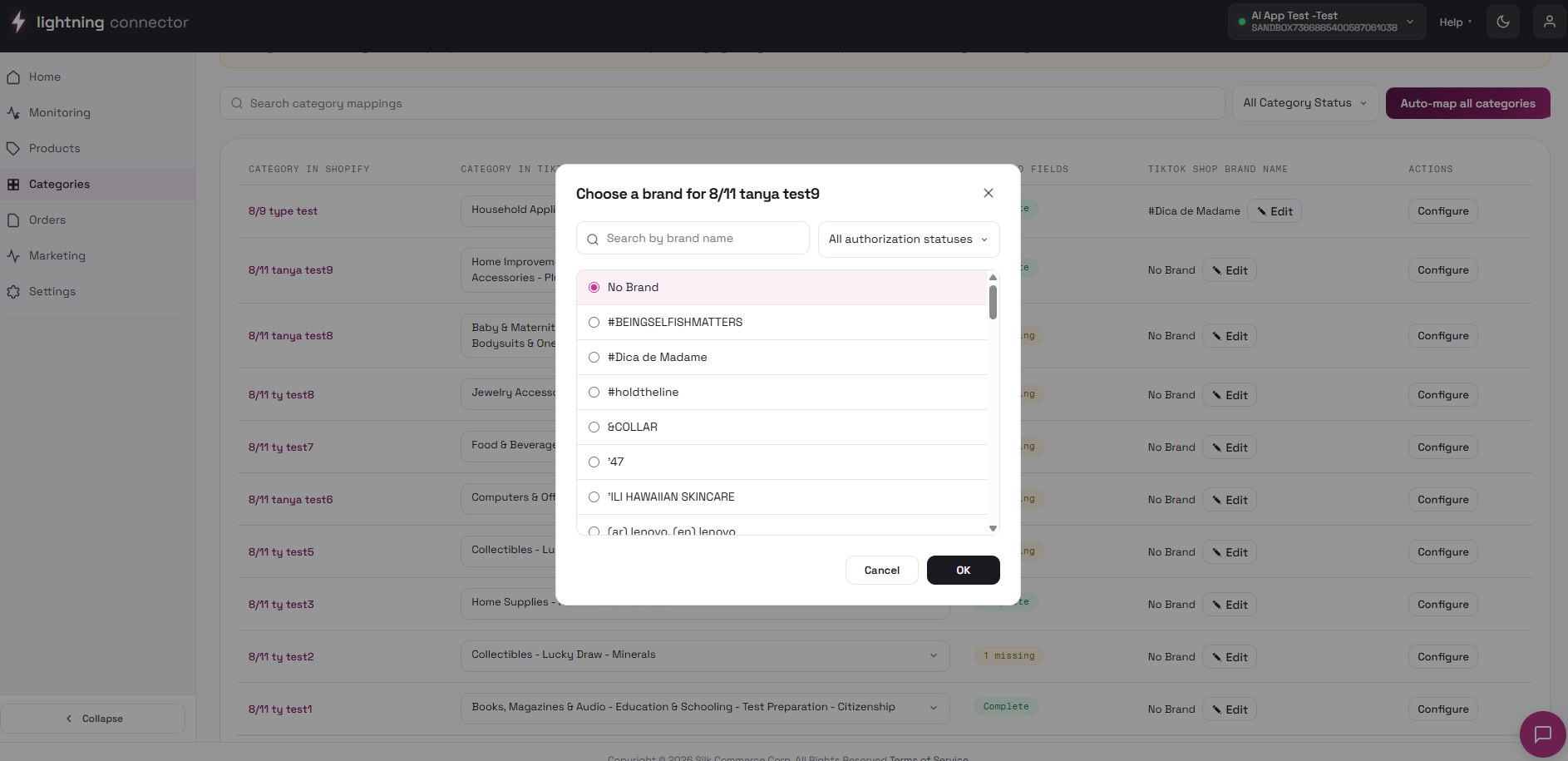
Choose Brand modal
Section titled “Choose Brand modal”Opened from a row’s Edit. Used on both the mapping tab and the Category Configuration page.
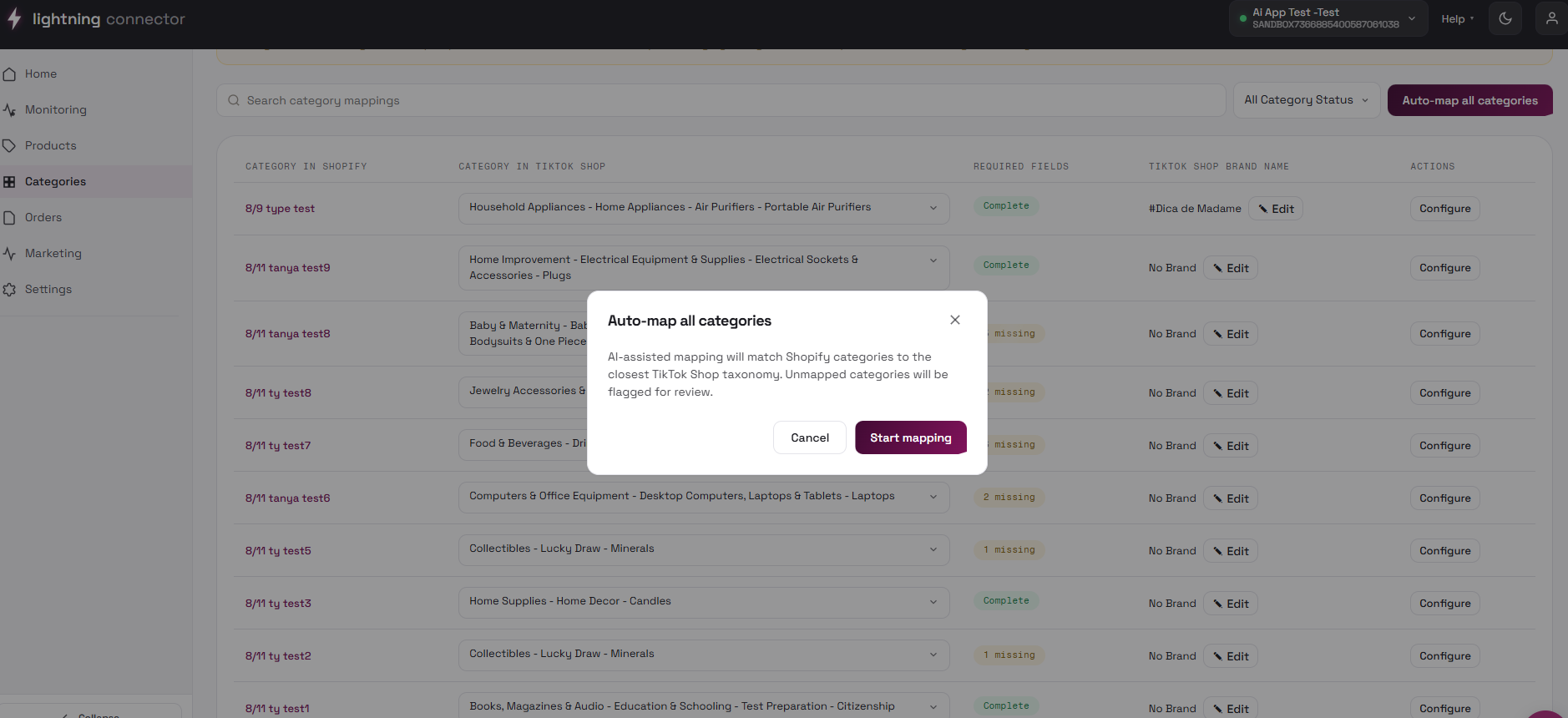
Auto-map all categories
Section titled “Auto-map all categories”Starts an AI-assisted mapping of every Shopify category to the closest TikTok Shop category. Unmapped categories are flagged for review. Progress shows in Background Tasks.
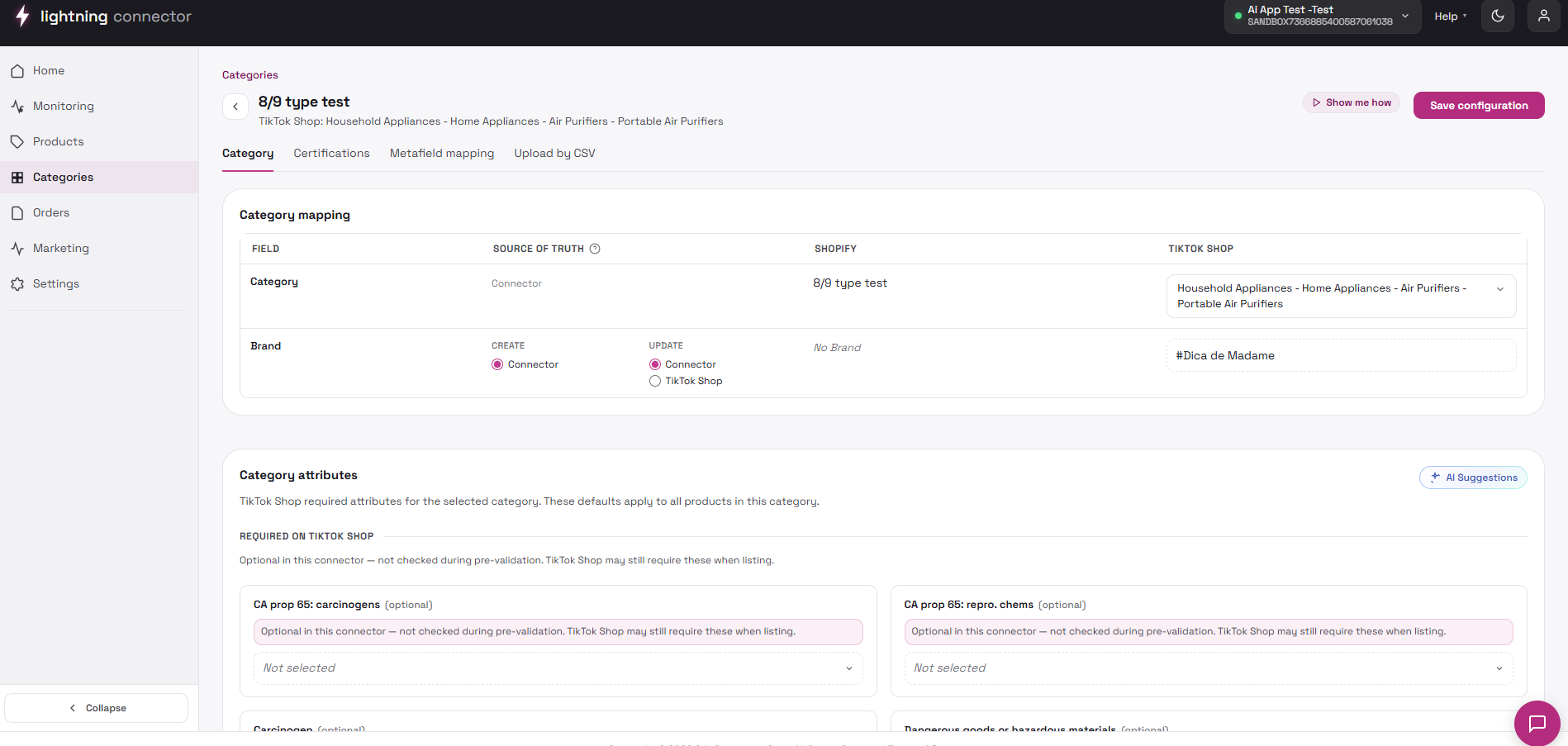
Category Configuration
Section titled “Category Configuration”Open via the category name link or Configure on the mapping tab, or from the incomplete-categories review list.
The header shows the Shopify category name, Show me how, a status badge (N required fields missing), a “TikTok Shop: {mapped category}” meta line, and Save configuration.
An issue-preventing-sync panel appears when required attributes or certifications are missing; each issue has Go to Category / Go to Certifications.
Category tab
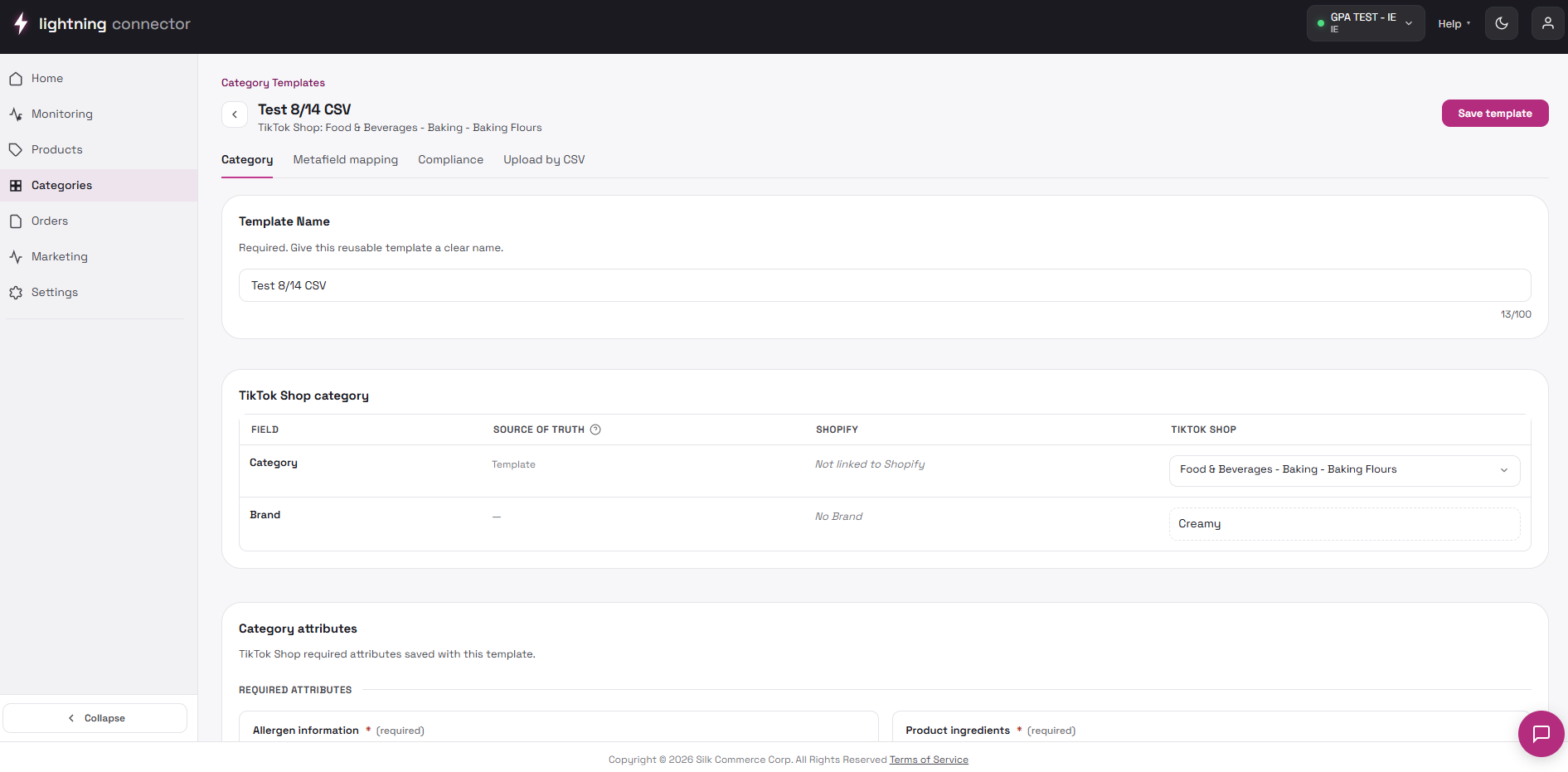
Section titled “Category tab”Shopify category is read-only. Changing the TikTok Shop category immediately saves the mapping and reloads attribute and certification fields. Brand is stored locally and saved with Save configuration. Attributes are grouped into Required, Required on TikTok Shop, and Optional (hidden until Show optional attributes).
Size Chart, Certifications, Metafields, Compliance
Section titled “Size Chart, Certifications, Metafields, Compliance”- Size Chart: images become the default size chart for every product mapped to this category.
- Certifications: one upload card per certification required by the TikTok Shop category.
- Metafield mapping: Shopify Package Width / Length / Height dropdowns map package-dimension metafields.
- Compliance: EU Manufacturer and Responsible person (create contacts in Qualification Center first).
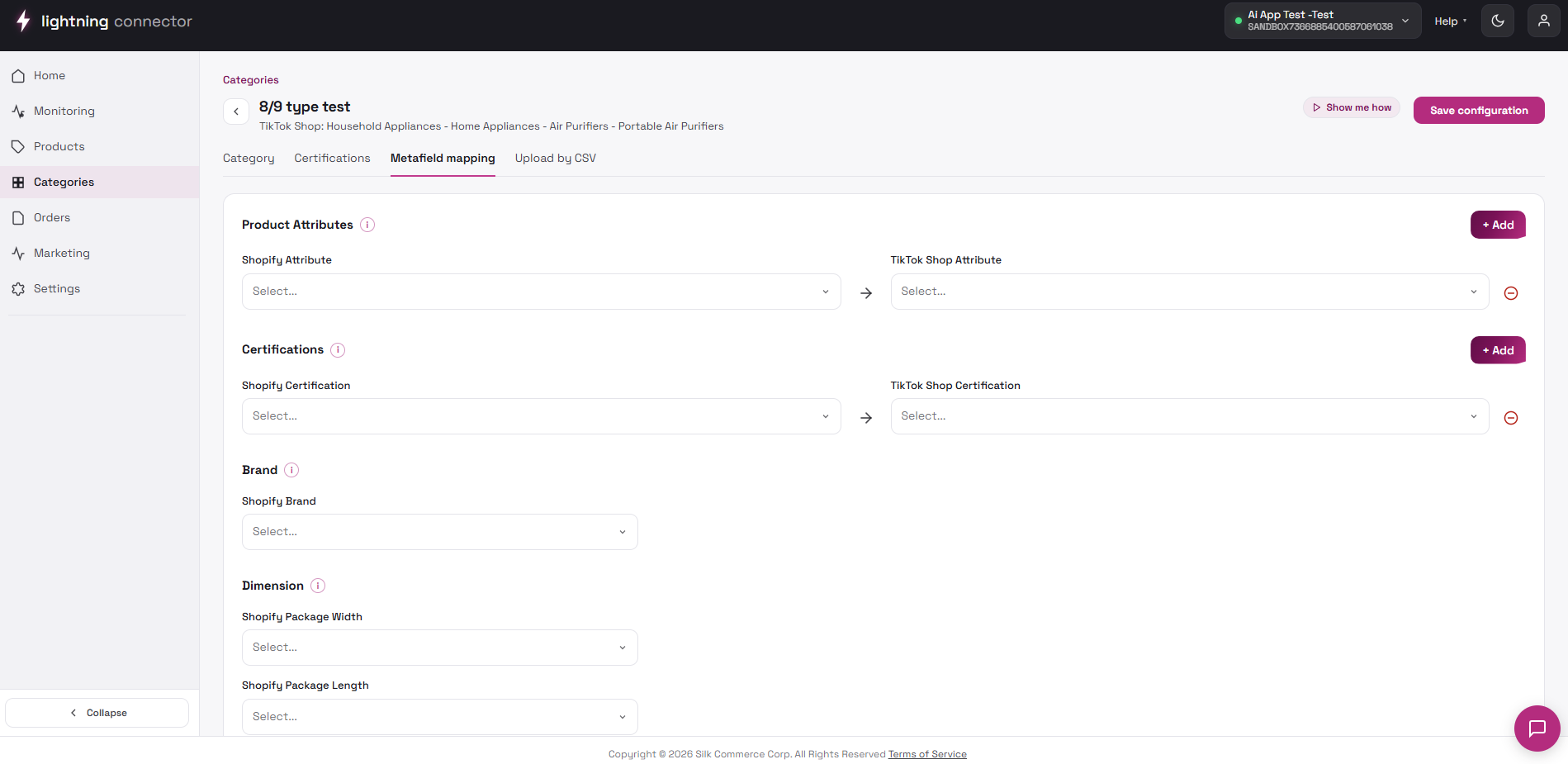
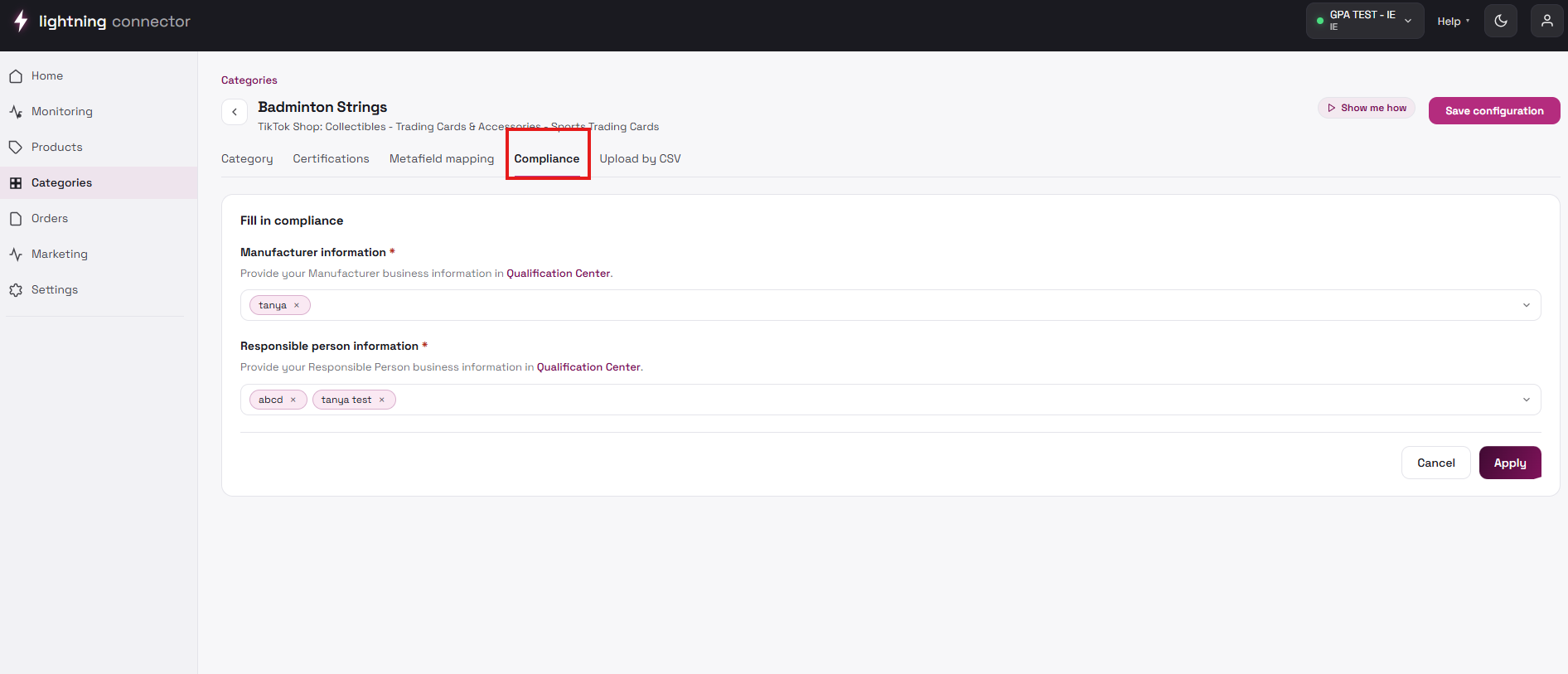
Upload by CSV
Section titled “Upload by CSV”Batch-updates products under this category (custom name, attributes, brand) from a filled template. Toasts summarize “Updated N products; M rows skipped due to errors”.
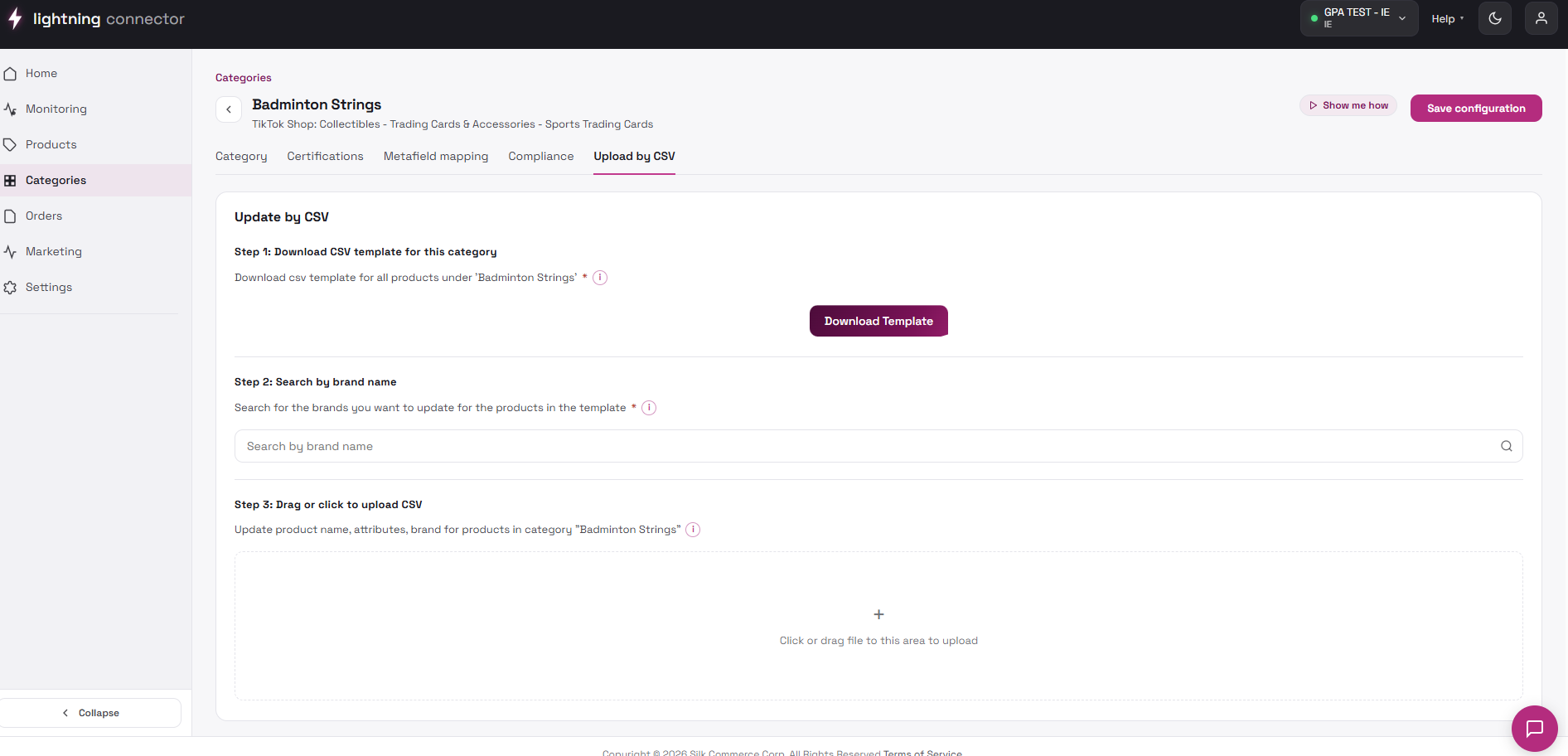
Save configuration
Section titled “Save configuration”- Blocks while a size chart / certification upload or a TikTok Shop category update is still running.
- Saves the category mapping change (if any), the brand, attribute values, and metafield mapping.
While a category is incomplete, its products show the orange “N missing” badge and the connector blocks them from syncing.
Category Templates
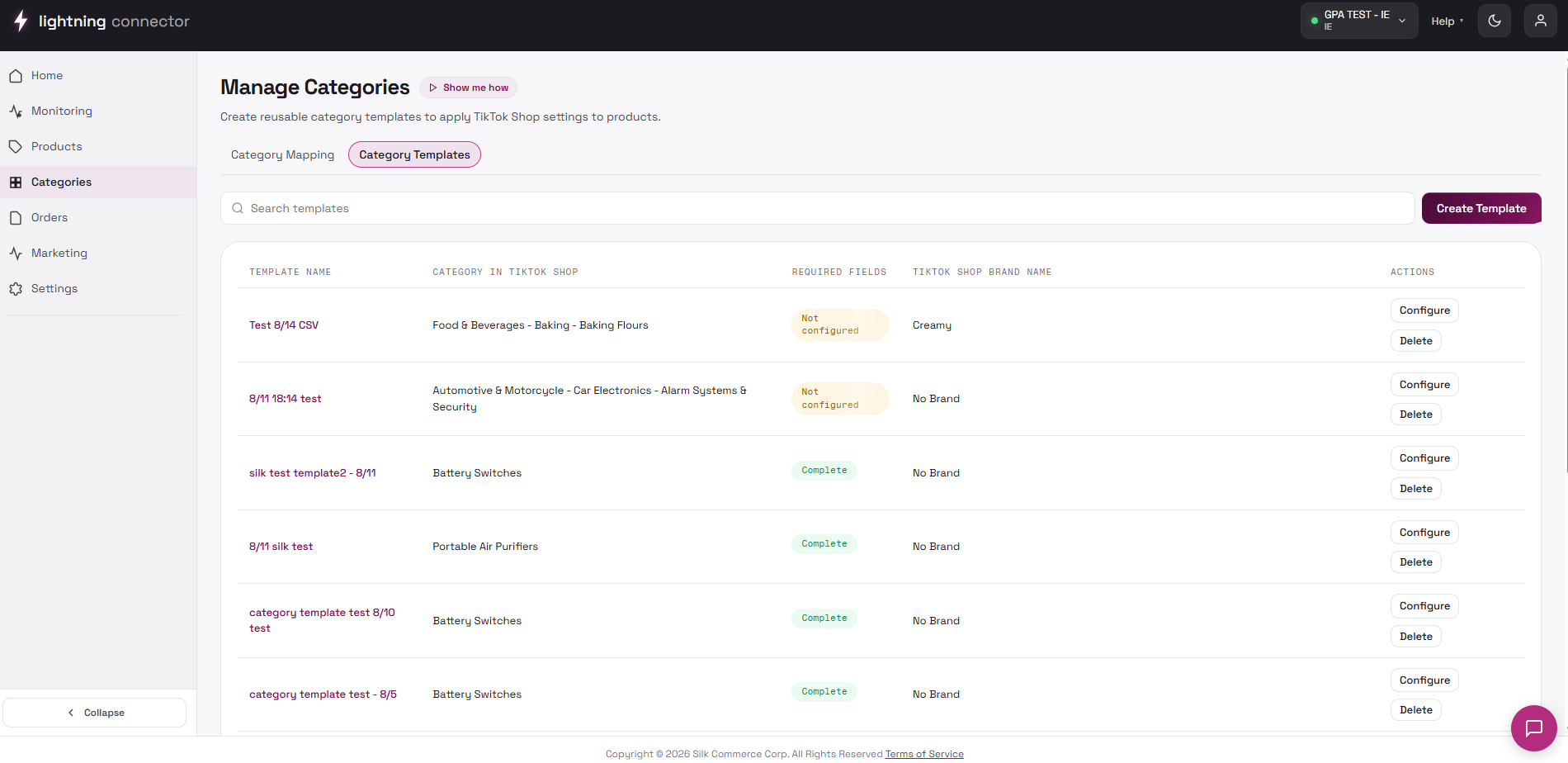
Section titled “Category Templates”Templates are reusable TikTok Shop category configurations independent of Shopify categories: pick a TikTok Shop category once, fill in attributes / certifications / size chart / compliance, and apply the whole set to products.
Reached from the Category Templates tab. Pagination matches the mapping tab (10 / 20 / 50). The template detail editor is the same as Category Configuration, with no duplicate/copy action and no bulk delete; templates belong to one connection.
Apply Category Template (in Products)
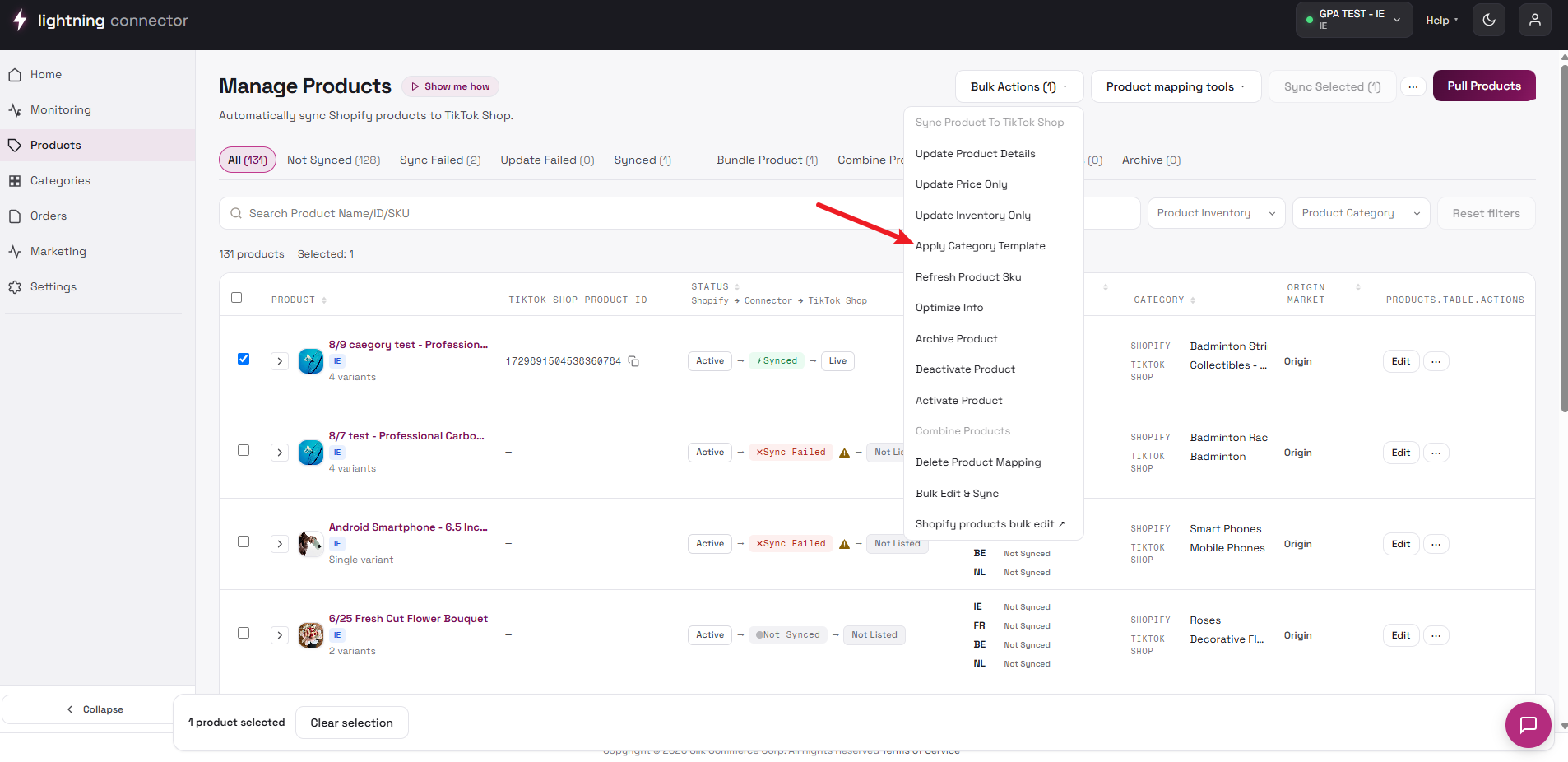
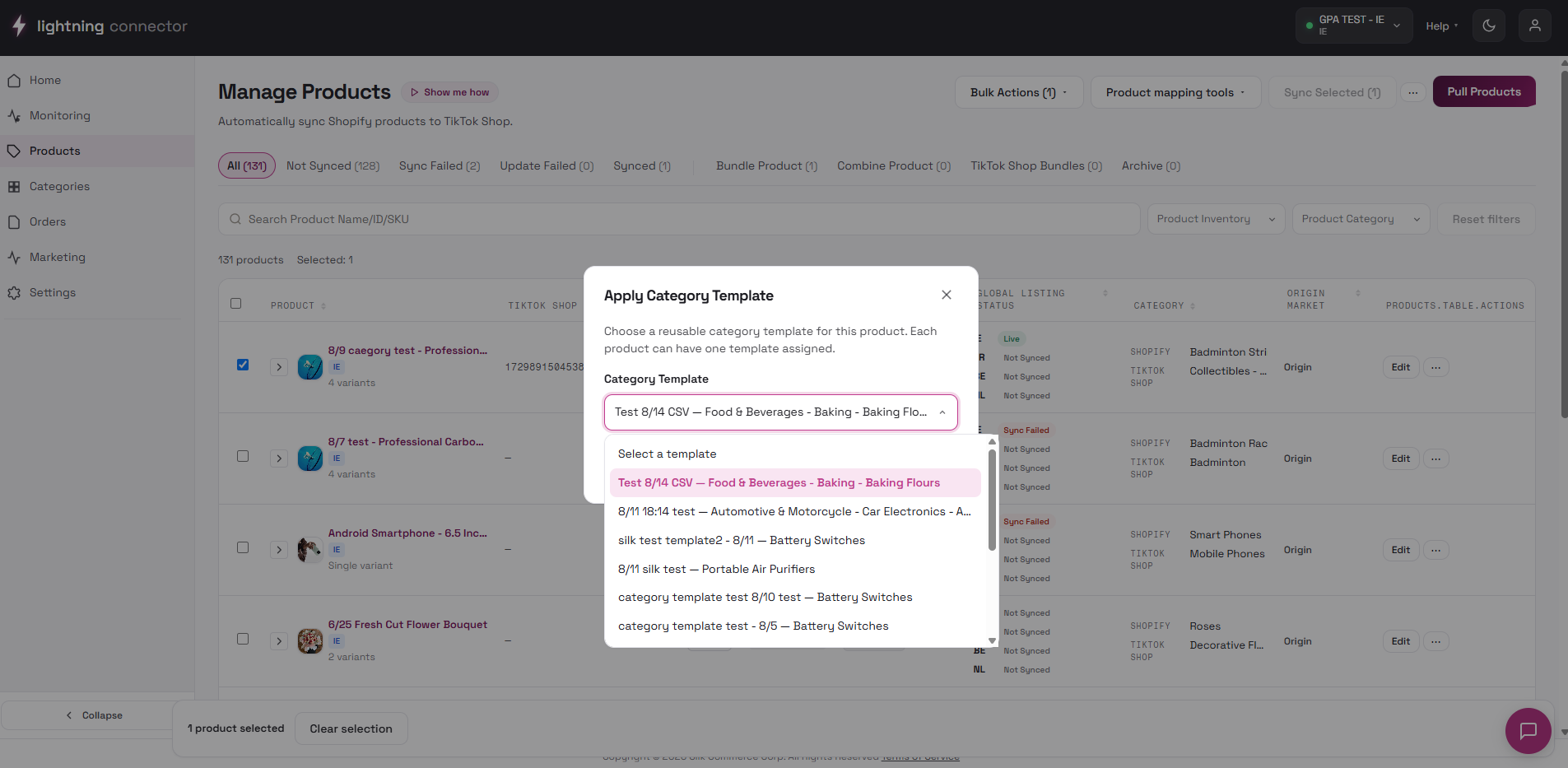
Section titled “Apply Category Template (in Products)”Available in three places when the feature is enabled. The dialog lists templates, a Category Template dropdown, and Cancel / Apply Template. Apply assigns the template to selected products (single product immediately, multiple as a background task). Bulk Edit additionally pre-fills edited rows with the template’s attribute values.
Related
Section titled “Related”- Product User Guide: how category fields surface per product, pre-validation, and blocking issues.
- Product Settings: global sync rules and package defaults.
- Background Tasks: track auto-map and template-apply progress (Home → Tasks).