Connections
Route: /connections
Tutorial ID: connections
See also: Get Started, Billing, Shared reference.
Purpose
Section titled “Purpose”View, create, and manage all Shopify ↔ TikTok Shop connections for your merchant account, including multi-region (GPA) setups.
Who can use it: Signed-in Owner and Member users. Billing-sensitive actions (subscribe prompts) are Owner-only via the merchant billing banner.
Browse connections
Section titled “Browse connections”- After sign-in, you land on Connections.
- Review the Merchant Billing Banner at the top if shown (pending Shopify approval or subscribe prompt; see Billing).
- Use the tabs:
- Active: setup complete; click to open the connection dashboard.
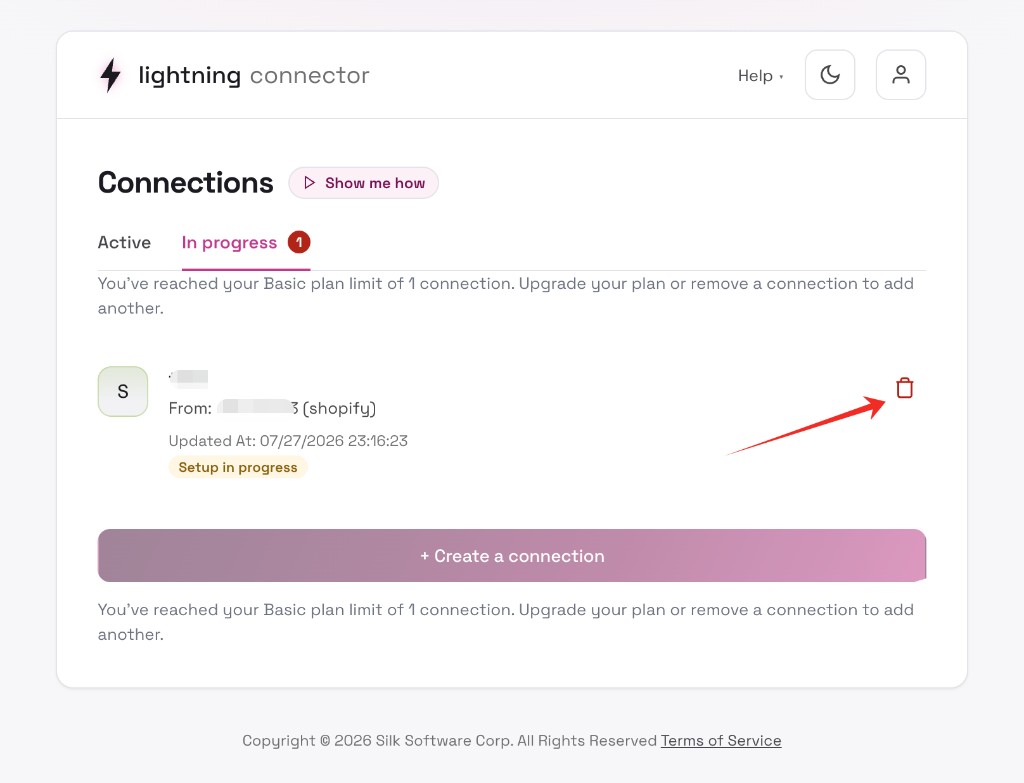
- In progress: setup not finished; click to resume Get Started.
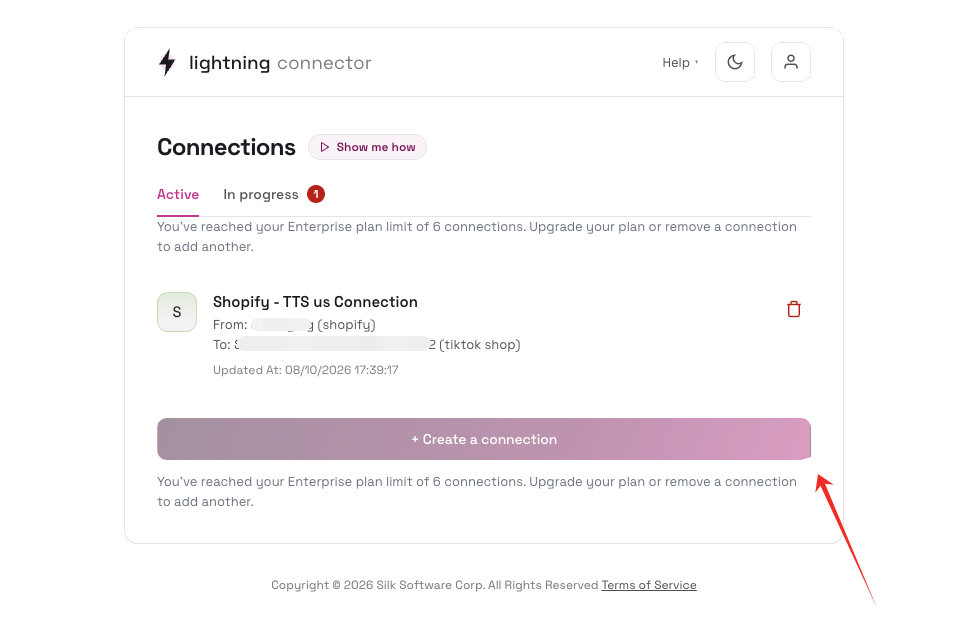
- Each card shows:
- Connection name.
- From: source store (Shopify) and To: TikTok Shop store(s).
- Region badges for multi-market targets.
- Origin badge on the designated origin shop (GPA).
- Status: Setup in progress, Connection failed, or active (no badge).
- Updated At timestamp.
- Click a connection row:
- If setup is complete, open
/connections/:id(Home). - If setup is incomplete, open
/connections/:id/get-started.
- If setup is complete, open
- Use Show Me How (tutorial
connections) for a video walkthrough.
Create a connection
Section titled “Create a connection”- Click + Create a connection at the bottom of the list.
- In the modal, enter a Connection name.
- Select From (source service, typically Shopify).
- To is read-only TikTok Shop.
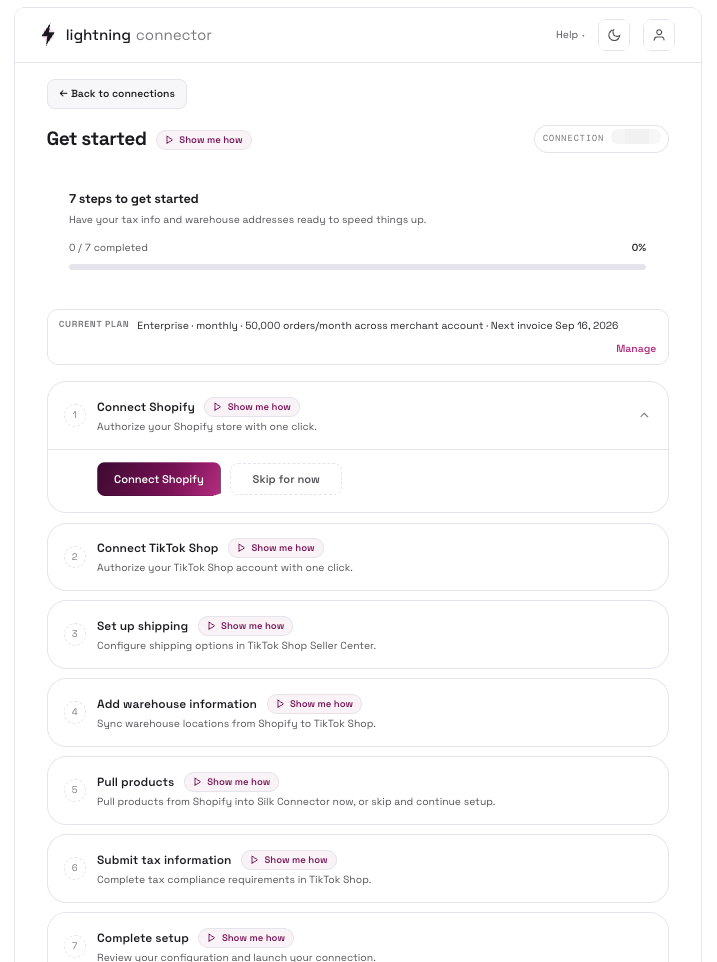
- Click Create. You are redirected to Get Started for the new connection.
Delete a connection
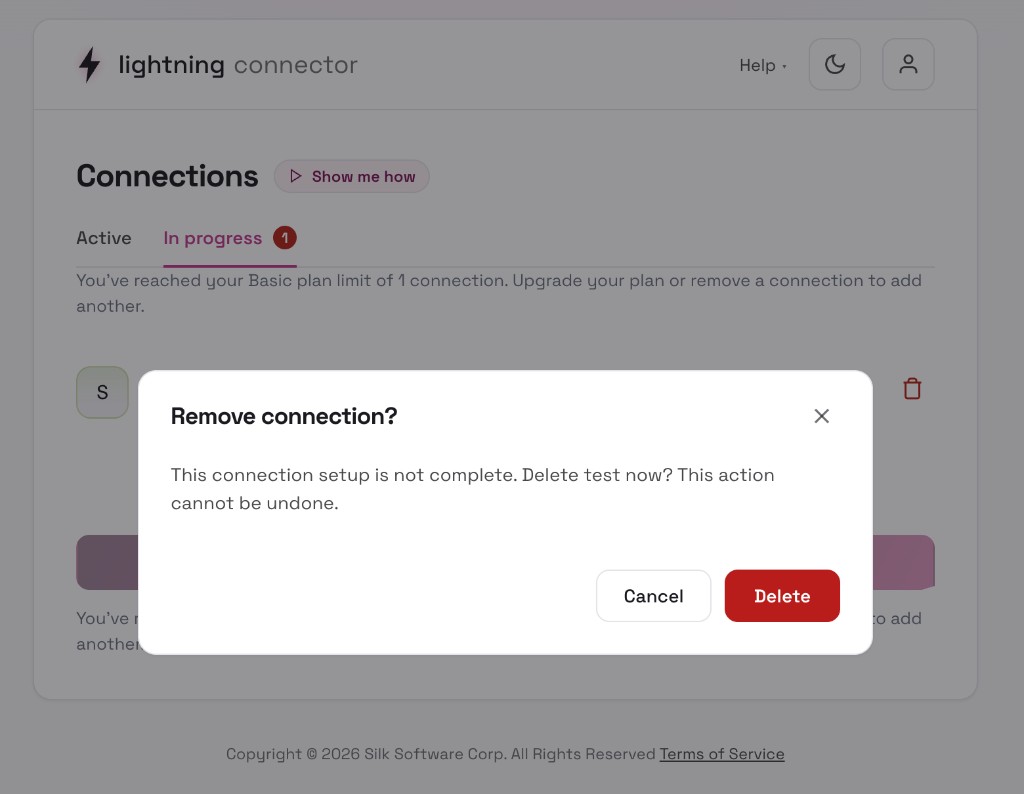
Section titled “Delete a connection”- Click the trash icon on a connection card.
- In the delete modal, provide a reason (and optional suggestions).
- For active connections with a subscription, choose whether to cancel the subscription or keep it for a new connection.
- Submit. Some deletions are processed as support requests; others complete immediately.
GPA: add another TikTok Shop region
Section titled “GPA: add another TikTok Shop region”GPA applies when one Shopify store connects to multiple TikTok Shop regional targets.
- On an active connection card with at least one target, find + Add TikTok Shop.
- Single-region connection: Clicking starts TikTok Shop OAuth immediately and returns you to
/connectionswhen done. - GPA / multi-market connection: The Add TikTok Shop modal opens:
- Available regions load from your Shopify multi-market status.
- Select one region from the radio list.
- Click Authorize. You are redirected to TikTok Shop OAuth for that region.
- After authorization, the new target appears on the connection card with a region badge.
- On OAuth return, a toast confirms: TikTok Shop authorization completed successfully.
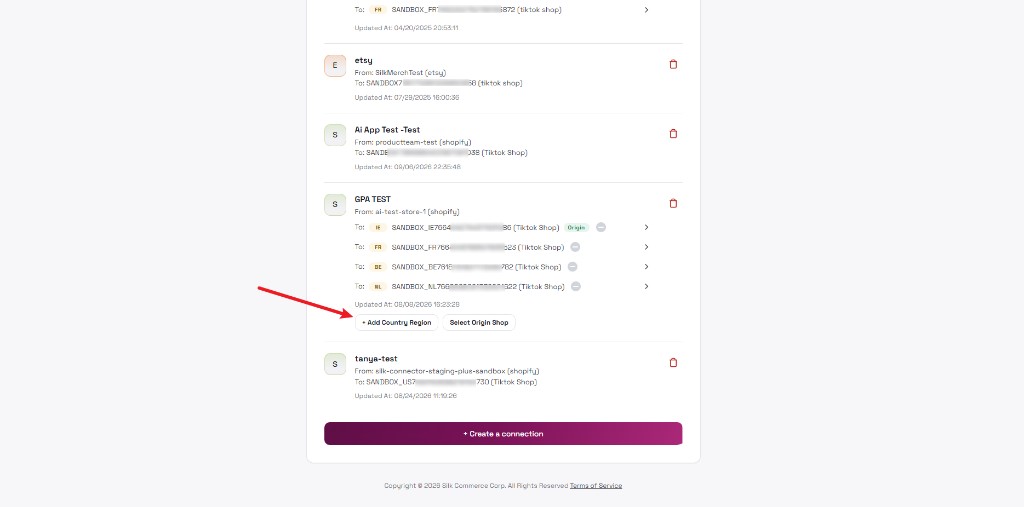
GPA: add country region
Section titled “GPA: add country region”For EU GPA or US-MX fulfillment interoperability connections, use + Add Country Region instead of (or in addition to) Add TikTok Shop.
- Click + Add Country Region on an eligible connection card.
- The modal shows available regions based on connection type:
- EU GPA: Regions from Shopify multi-market status (requires multi-market enabled in Shopify).
- US-MX: Adds the missing US or Mexico region from your shop group.
- Select a region and click Next → (EU) or follow the authorize flow.
- Complete TikTok Shop OAuth for the new region.
- The new target appears on the connection card.
Disabled state: If US and Mexico regions are already linked, Add Country Region is disabled with tooltip: US and Mexico regions are already linked for this connection.
GPA: select origin shop
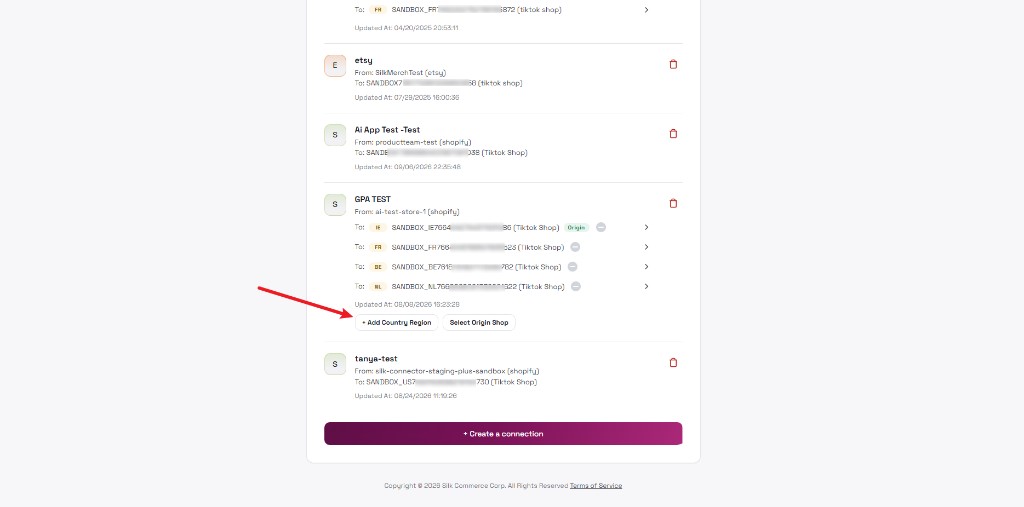
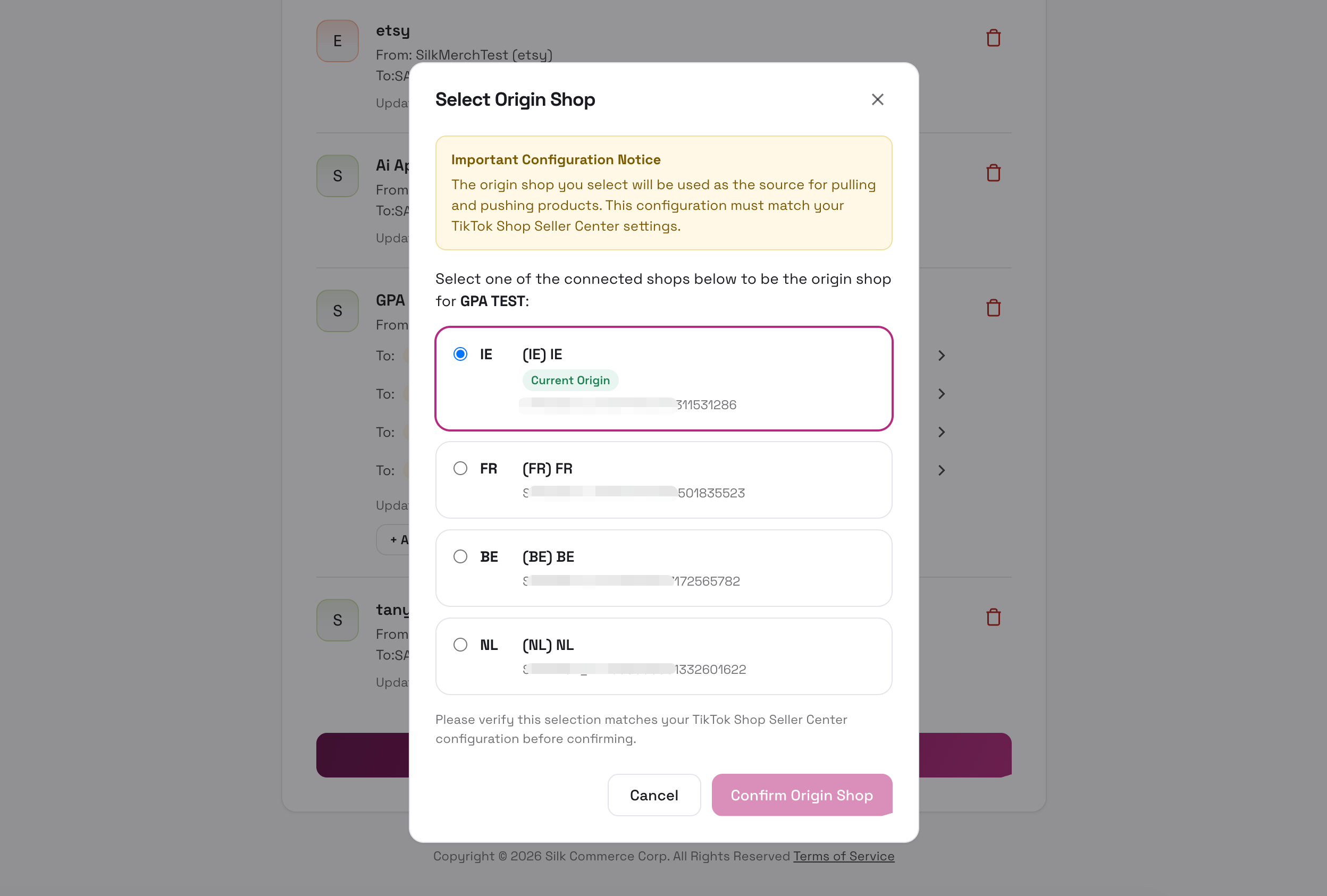
Section titled “GPA: select origin shop”The origin shop is the TikTok Shop region used as the source for pulling and pushing products. It must match your TikTok Shop Seller Center Global Listing configuration.
- On a GPA connection card (multiple targets), click Select Origin Shop.
- Read the Important Configuration Notice in the modal.
- Select one connected shop (radio list). The current origin shows a Current Origin badge.
- Click Confirm Origin Shop.
- The selected target is marked Origin on the connection card.
Open a specific regional target
Section titled “Open a specific regional target”- On a multi-target card, click the arrow (→) next to a target row.
- You enter that target’s connection dashboard at
/connections/:idwith the active target switched in session.
Tips / common issues
Section titled “Tips / common issues”- Connection failed: Use Reconnect to return to Get Started, or delete the connection.
- Add TikTok Shop disabled / no regions: Shopify multi-market may not be enabled; verify Global Markets in Shopify Admin.
- Origin shop mismatch: Product sync and GPA replication fail if the origin selected in Silk does not match TikTok Shop Seller Center → Global Listing.
- Use the header Connection Switcher to jump between connections without returning to the list.
- Failed connections cannot be opened by clicking the card; use Reconnect or Delete.
- The Merchant Billing Banner on this page shows subscription or pending Shopify approval status. Owner sees action buttons; Members see informational text only.