Email Settings
Route: /connections/:id/settings/email
Tutorial ID: settings-email
Breadcrumb: Settings → Email Settings · Alias: …/settings/email-notification
Purpose
Section titled “Purpose”Configure who receives emails (merchant-wide) and which events trigger emails for this connection.
Event subscriptions
Section titled “Event subscriptions”Per-connection toggles (save immediately on change):
| Event | When emails send (summary) |
|---|---|
| Order Sync Failure | Order/fulfillment exceptions, missing carrier, unsupported TTS carriers, export ready, AI checkout handoffs |
| Product Sync Failure | Product sync issues, connection deleted while TTS bound, revenue report ready |
Each row includes a short description and ? help for ON vs OFF meaning. Toggle → API saves → toast “{Event name} saved”.
Operational guidance
Enable Order Sync Failure on production connections so carrier and fulfillment errors reach your on-call inbox. Enable Product Sync Failure when catalog issues would block order lines. Recipients are merchant-wide — add ops and integration contacts, not only the store owner.
Recipients
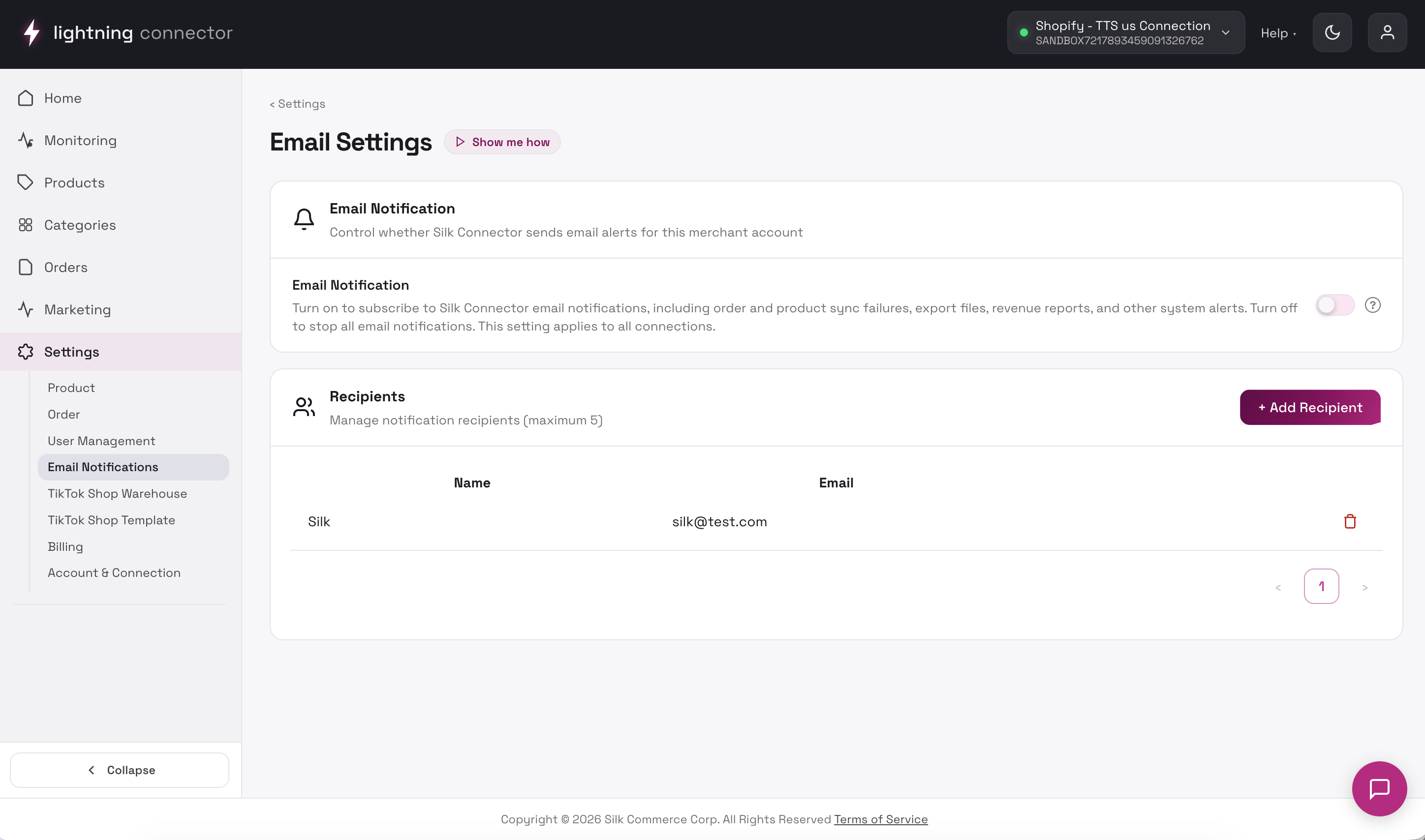
Section titled “Recipients”Merchant-level list (applies across connections for notification delivery):
| Column | Description |
|---|---|
| Name | Display name |
| Recipient address | |
| Actions | Delete (trash icon) |
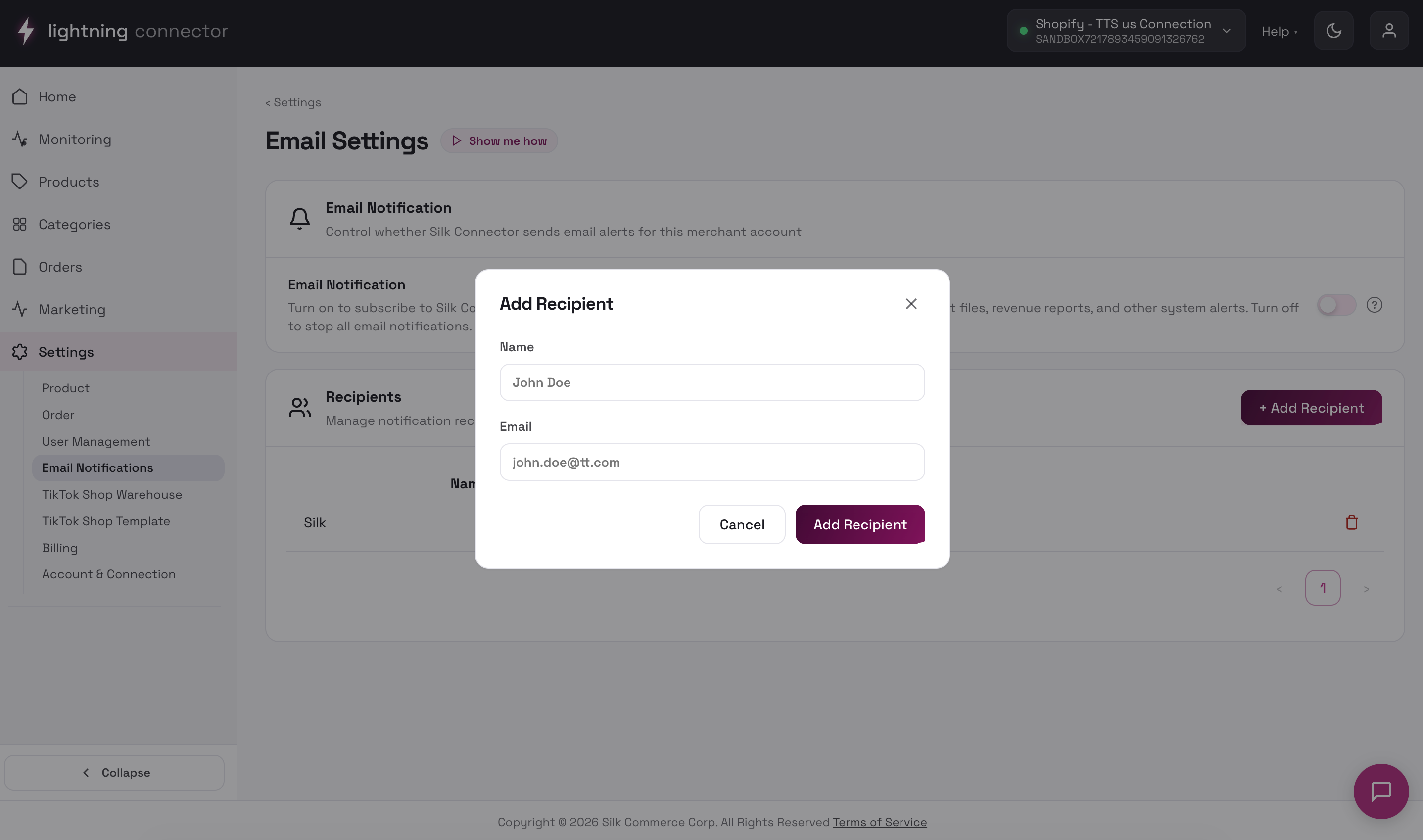
- + Add Recipient — opens Add Recipient modal (Name*, Email* → Cancel / Add Recipient)
- Maximum 5 recipients
- At least 1 recipient must remain — delete is blocked if it would empty the list
- Duplicate emails rejected
Recipients persist via merchant settings (send_email_to).
Workflow examples
Section titled “Workflow examples”- Open Email Settings for that connection and enable Order Sync Failure.
- Confirm recipients include the right ops inbox.
To add a finance contact: + Add Recipient → name + email → Add Recipient. Enable Product Sync Failure if they should receive revenue/report emails.
Tips / common issues
Section titled “Tips / common issues”- Sign in to manage email notifications — log in again.
- Failed to load email settings — refresh; check network.
- Please enter a valid email address — fix the format.
- This recipient email already exists — use another address.
- You can add up to 5 recipients — remove one before adding.