Monitoring
Routes: /connections/:id/monitoring
Tutorial IDs: monitoring, monitoring-tasks, background-task-detail
See also: Shared reference.
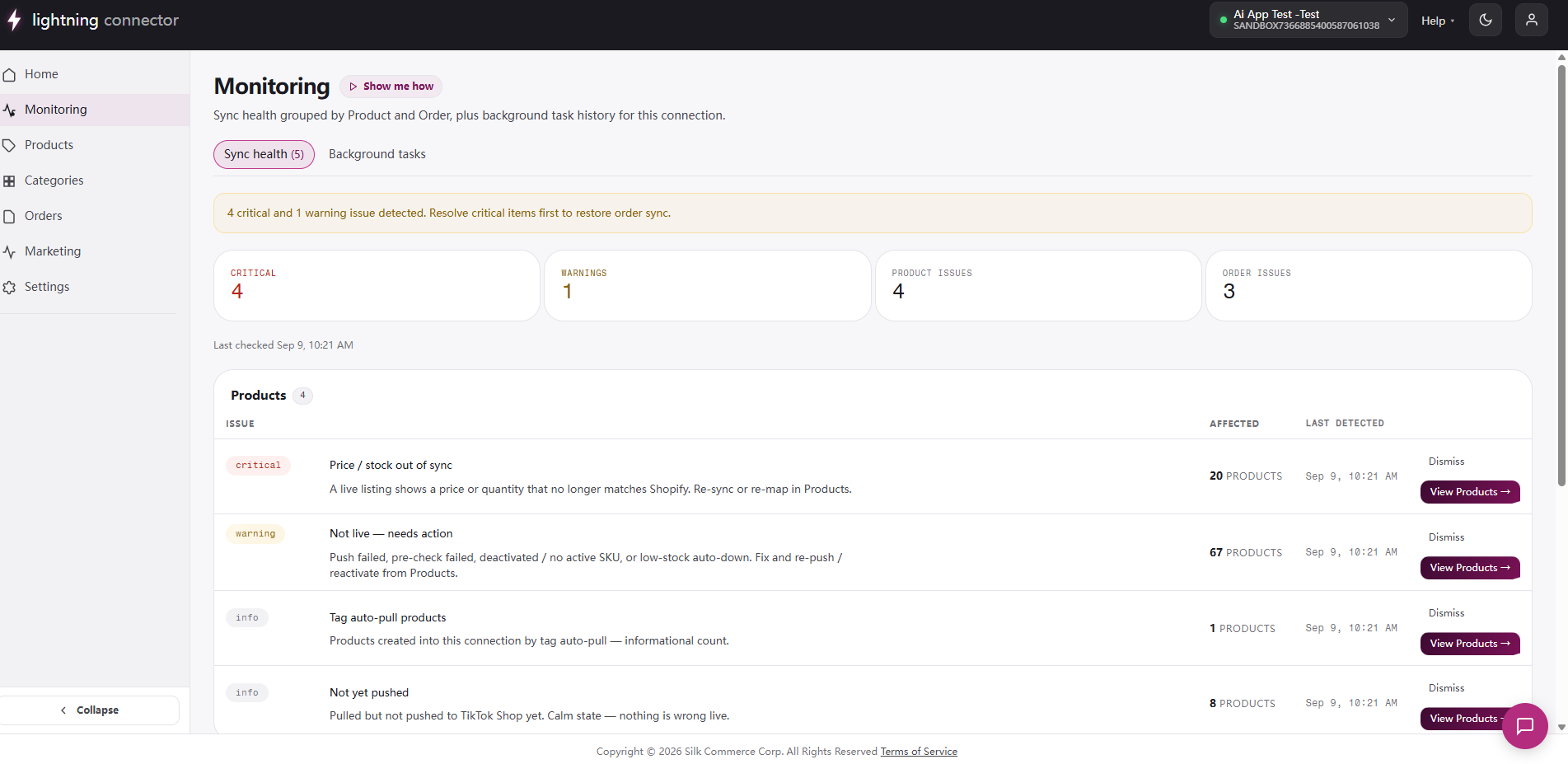
Monitoring — Sync health tab
Section titled “Monitoring — Sync health tab”Review sync health alerts and browse recent background task activity for one connection.
Who can use it: Owner and Member.
Route: /connections/:id/monitoring (default tab: Sync health).
- Open Monitoring from the sidebar (default tab: Sync health).
- Read the summary banner:
- All systems healthy: no action needed.
- Critical/warning counts: investigate issues below.
- Review metric tiles: Critical, Warnings, Product issues, Order issues.
- Scroll issue sections: Order sync failures, Product sync failures, Inventory sync notices, and Other issues (e.g. promotions).
- For each issue card:
- Note severity, affected count, and last detected time.
- Click Dismiss / Restore to manage visibility.
- Click Report issue to open the support sidebar (pre-filled context).
- Click the primary action button (e.g. View products →) to jump to the fix page.
- Switch to the Background tasks tab for inline task history (see Tasks tab).
Monitoring — Background tasks tab
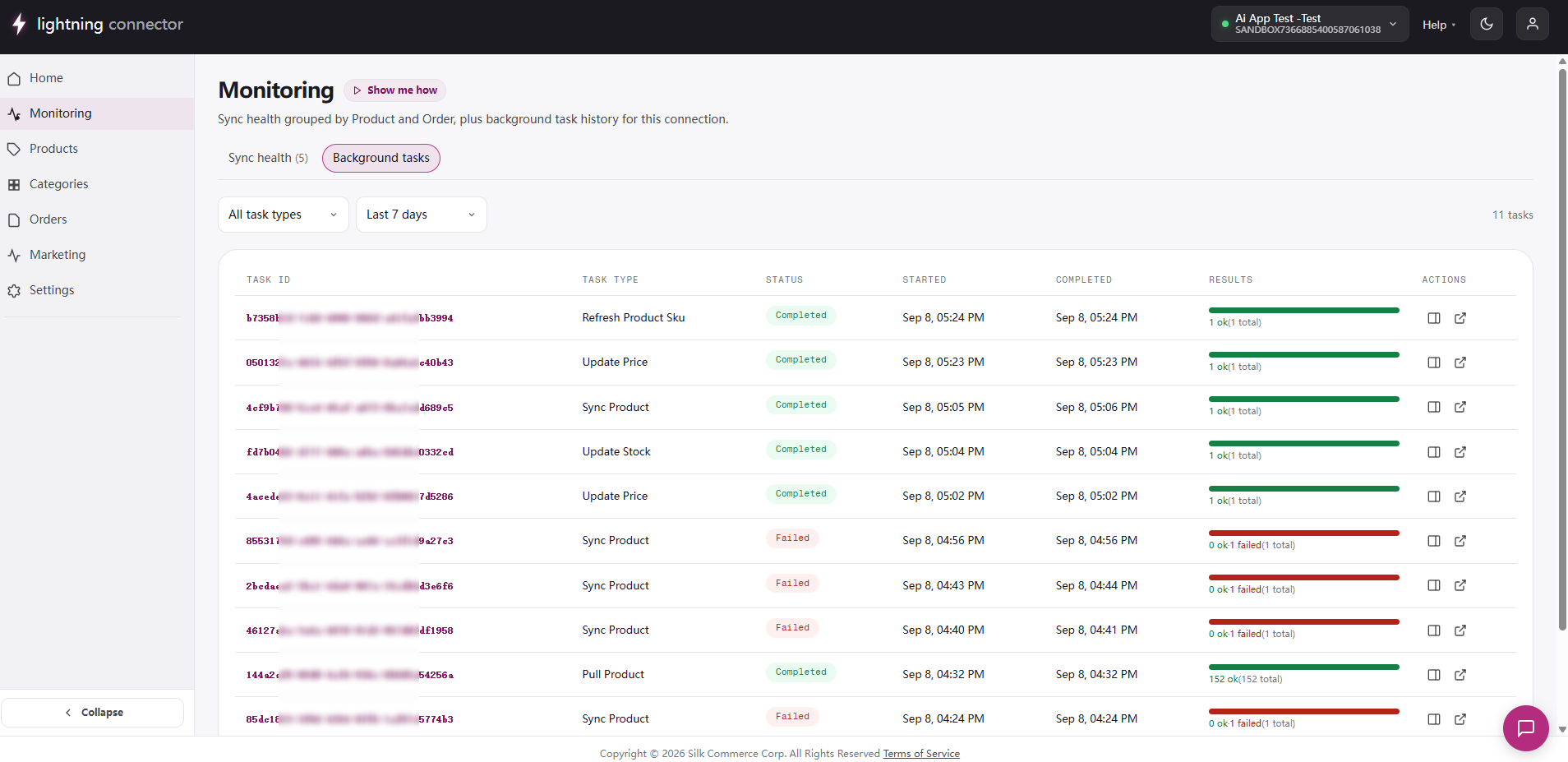
Section titled “Monitoring — Background tasks tab”Route: /connections/:id/monitoring?tab=tasks.
- Click the Background tasks tab (or open
/monitoring?tab=tasks). - Filter tasks by type (All task types, Product Pull, Product Sync, Order Pull, etc.) and time range (Last 24 hours, 7 days, 30 days, All time).
- Click a task ID or the expand icon to open the task detail drawer.
- From the drawer, open the full page link for deep inspection.
Background Tasks full page
Section titled “Background Tasks full page”Route: /connections/:id/tasks.
Paginated list of all automated sync jobs with filters.
- Open Background Tasks from the sidebar (or Monitoring → tasks tab → full page).
- Filter by task type and time range.
- Review the table: Task ID, Task Type, Status (Queued / Running / Completed / Failed / Partial), Started, Completed, Results (success/failed/skipped counts).
- Click a Task ID link to open the detail page.
Task detail
Section titled “Task detail”Route: /connections/:id/tasks/:taskId.
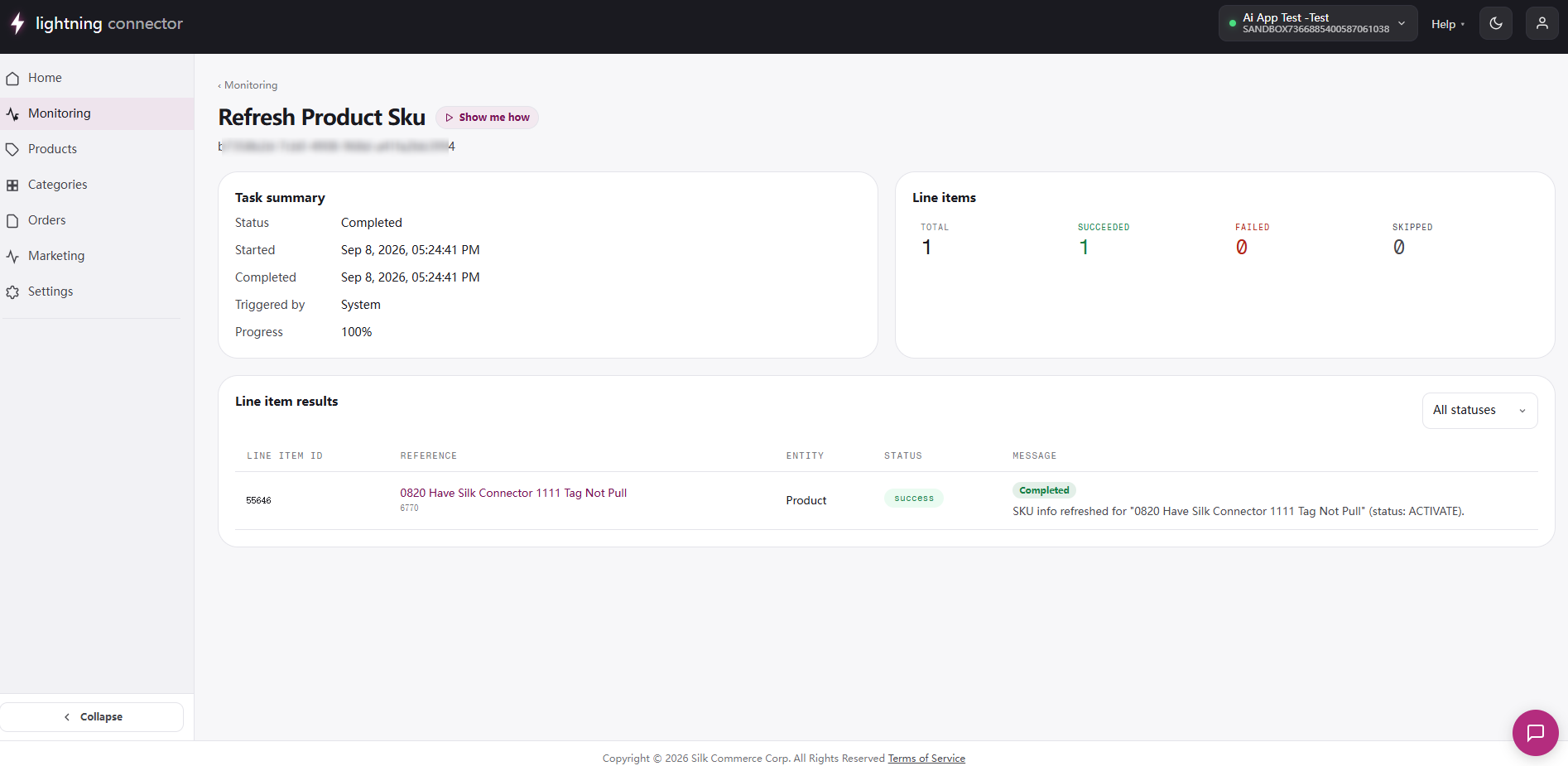
Inspect per-line-item results for a single background task.
- Open a task from the tasks list or Monitoring drawer.
- Read the task summary: Status, Started, Completed, Triggered by, Progress.
- If the task failed, read the error message banner at the top.
- Review line item counts: Total / Succeeded / Failed / Skipped.
- Filter line items by status: All, success, failed, skipped, pending.
- Review each line item message (product name, SKU, failure reason).
- Use breadcrumb Monitoring to return, or View monitoring link for health context.
Tips / common issues
Section titled “Tips / common issues”- Critical monitoring issues should be resolved before warnings; order sync may stay blocked until fixed.
- Partial task status means some line items succeeded and others failed; always drill into details.
- Inventory warnings may appear after scanning product sync tasks; refresh Monitoring if you just fixed stock.
- Task list pagination resets to page 1 when you change filters.