Home Dashboard
Route: /connections/:id
Tutorial ID: home
See also: Billing · Shared reference
Purpose
Section titled “Purpose”See connection health, product and order summaries, revenue trends, and quick links into detailed pages.
Who can use it
Owner and Member (after Get Started is complete).
Step-by-step workflow
Section titled “Step-by-step workflow”- Open a completed connection from the Connections list or Connection Switcher.
- Review optional banners:
- TTS Pre-check notices (when applicable)
- Connection initialization notices
- Combine ship savings (when eligible) with a link to Orders
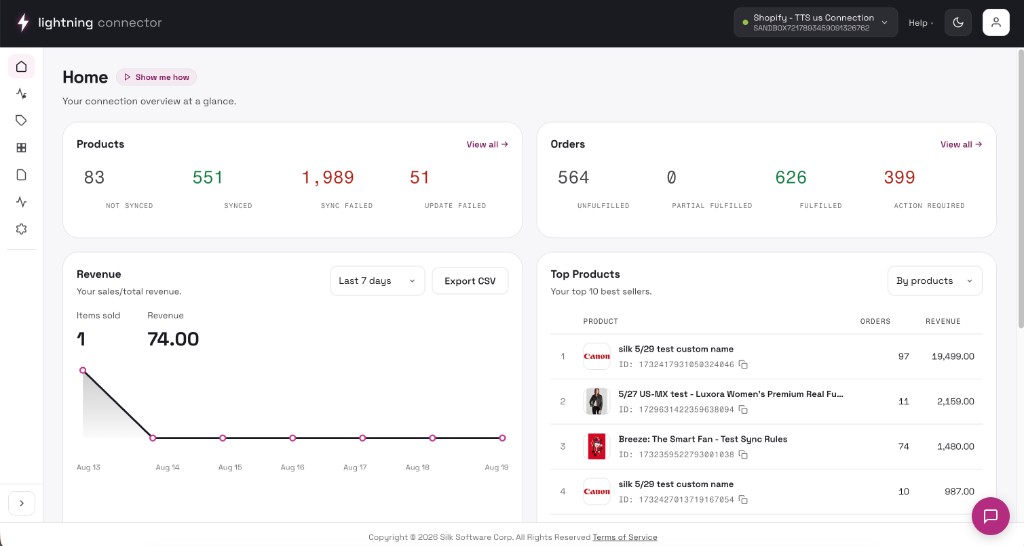
- Products card — click metric tiles to filter Manage Products:
- Not Synced
- Synced
- Sync Failed
- Update Failed
- Orders card — click metric tiles to filter Manage Orders by lifecycle/status (unfulfilled, partial, fulfilled, action required).
- Revenue card — switch Last 7 days / Last 30 days, view the trend chart, optionally Export CSV.
- Top products — review best performers; toggle By products / By SKU.
- Use sidebar navigation to jump to Monitoring, Products, Orders, Settings, etc.
Tips / common issues
Section titled “Tips / common issues”- Metric numbers mirror the same filters used on Products and Orders pages — they should stay consistent.
- If the dashboard fails to load live data, a staging fallback may appear with an error hint; retry or check connection API health.
- Subscription status updates automatically; use Billing if an approval is still pending.