Manage Orders
Route: /connections/:id/orders
Tutorial IDs: orders, order-detail
Scope: Manage Orders only. Order Settings are covered in a separate guide.
What Manage Orders is for
Section titled “What Manage Orders is for”Manage Orders is your control center for TikTok Shop orders on a single connection (one Shopify store linked to one TikTok Shop).
- See order status on TikTok Shop and sync health with Shopify.
- Find orders that need action before you miss dispatch deadlines.
- Review combine shipment recommendations from TikTok Shop.
- Open full order details without leaving the list.
- Search, filter, sort, and export orders.
- Pull in missed orders that did not sync automatically.
Orders sync from TikTok Shop on a schedule (about every 15 minutes). Use Sync missed orders when you know orders are missing from the list.
TikTok Shop, Connector, and Shopify: Silk Connector sits between TikTok Shop (where customers place orders) and Shopify (where you often fulfill and manage inventory). A healthy order usually shows a matching lifecycle: TikTok status moves toward shipped/delivered while the Shopify column reflects fulfillment (Unfulfilled → Partial → Fulfilled).
Recommended daily routine
Section titled “Recommended daily routine”- Open the connection → Orders.
- Glance at Need attention and 24h fulfill window counts.
- Set date range to Last 30 Days (or All if volume is low).
- Work Need attention first: fix settings or products, then Refresh Order.
- Fulfill To Ship (3PL: tracking; 4PL: use Orders by TikTok Shipping).
- Review Combine ship before cut-off so you do not ship duplicate parcels.
- Optionally Export filtered lists for finance or ops reporting.
Open via Connections → connection → Orders. Direct URL: /connections/:id/orders.
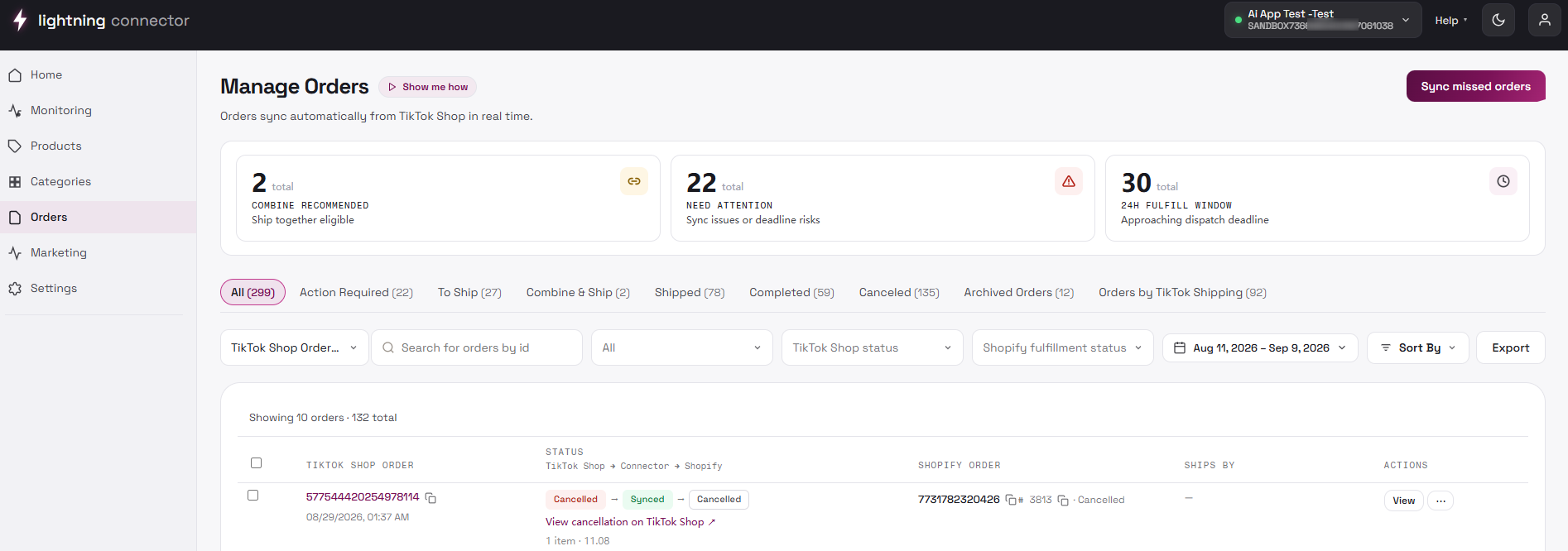
Page layout
Section titled “Page layout”| Area | Purpose |
|---|---|
| Page header | Title, short description, Sync missed orders |
| Overview cards | Combine recommended, Need attention, 24h fulfill window |
| Date range | Limit which orders are loaded (or All time) |
| Toolbar | Search, fulfillment type, TikTok status, page size, sort, invoice, Export |
| Category tabs | All, Need Attention, To Ship, Combine ship, TikTok Shipping, Shipped, Completed, Pending, Canceled, Archive |
| Order list | Table (desktop) or cards (mobile); optional Ship together groups |
| Order detail drawer | Slides in from the right when you open an order |
On first visit, an optional spotlight tour may highlight Need attention, fulfill window, combine groups, and the detail drawer.
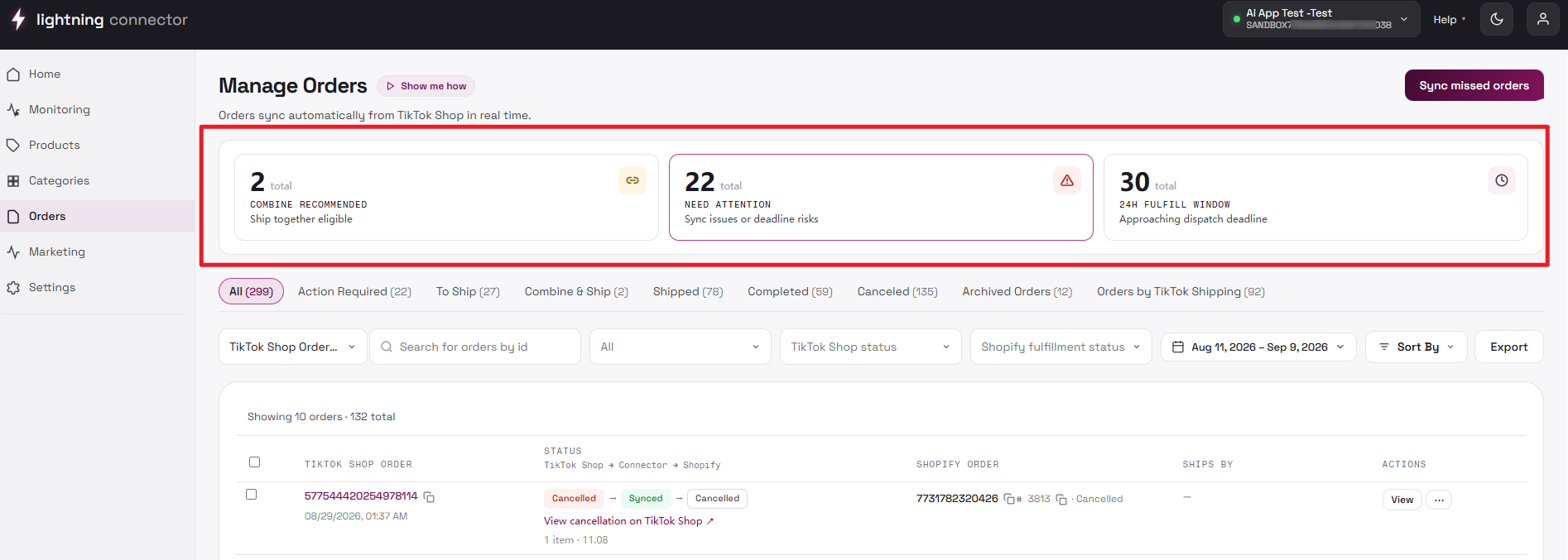
Overview cards
Section titled “Overview cards”- Combine recommended: TikTok Shop identified orders that may ship together. Opens the Combine ship tab.
- Need attention: sync issues, mapping problems, or other items that need you to act. Opens the Need Attention tab.
- 24h fulfill window: orders approaching TikTok Shop’s dispatch deadline. Toggles a dispatch-deadline filter on the current list (not a separate tab).
Cards are shortcuts: They are not separate data sets. Click the same card again when the UI supports it to loosen that filter. If counts look wrong, widen the date range.

Date range, search, and filters
Section titled “Date range, search, and filters”Presets: All, Today, Yesterday, This Week, This Month, Last 30 Days, Last 90 Days. Custom ranges cannot exceed 90 days. All loads the connection’s full order catalog.
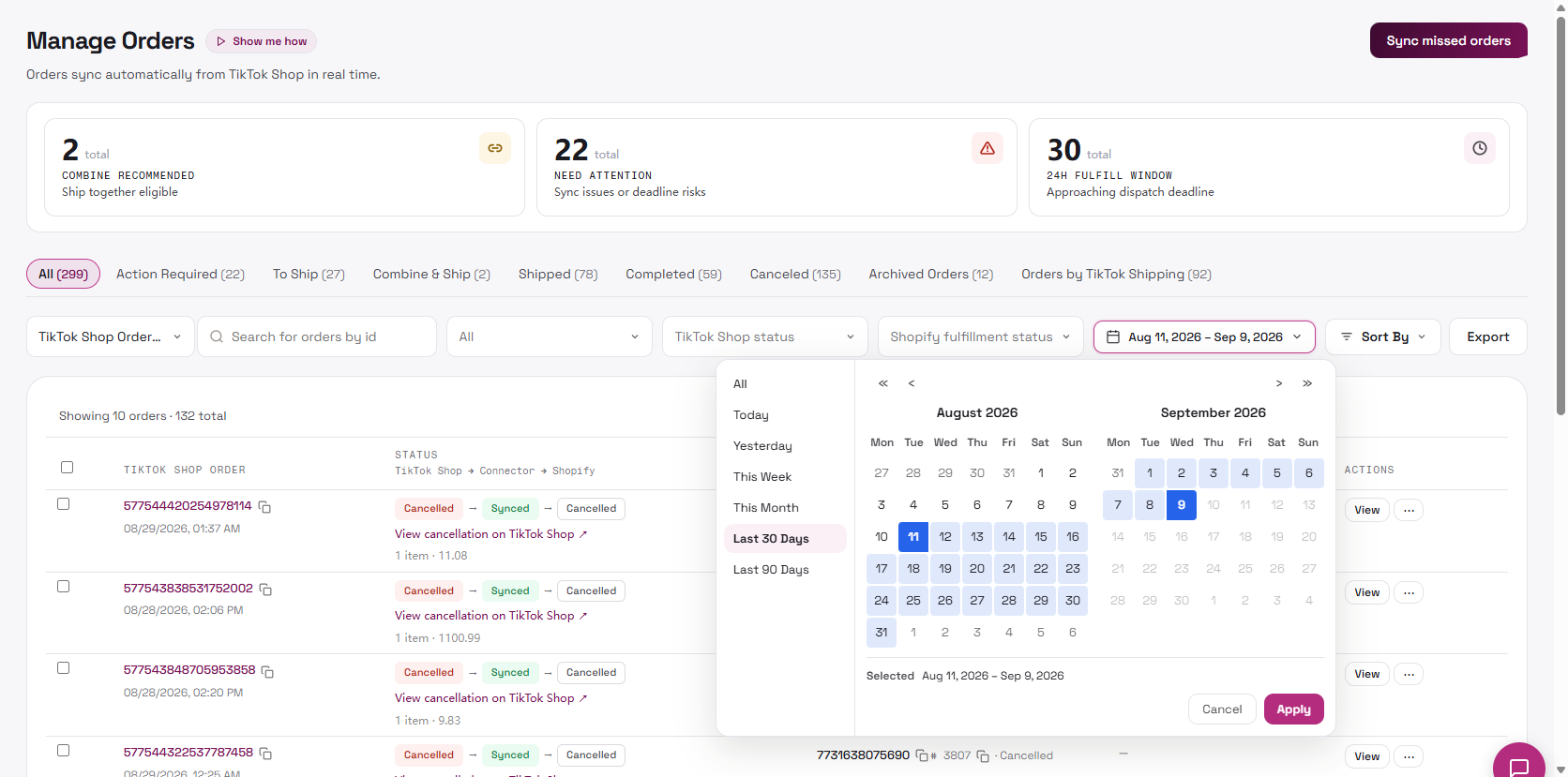
Filters apply in layers: date range → category tab → toolbar → pagination (10/20/50).
Search
Section titled “Search”Search by TikTok Shop order ID or tracking number. If nothing appears, widen date range to All and check the Archive tab.

Fulfillment type
Section titled “Fulfillment type”- Seller Shipping (3PL): you ship with your own carrier.
- TikTok Shipping (4PL): labels/tracking managed via TikTok Shipping.
- Fulfilled by TikTok (FBT): TikTok warehouse network.

Also filter by TikTok Shop status.
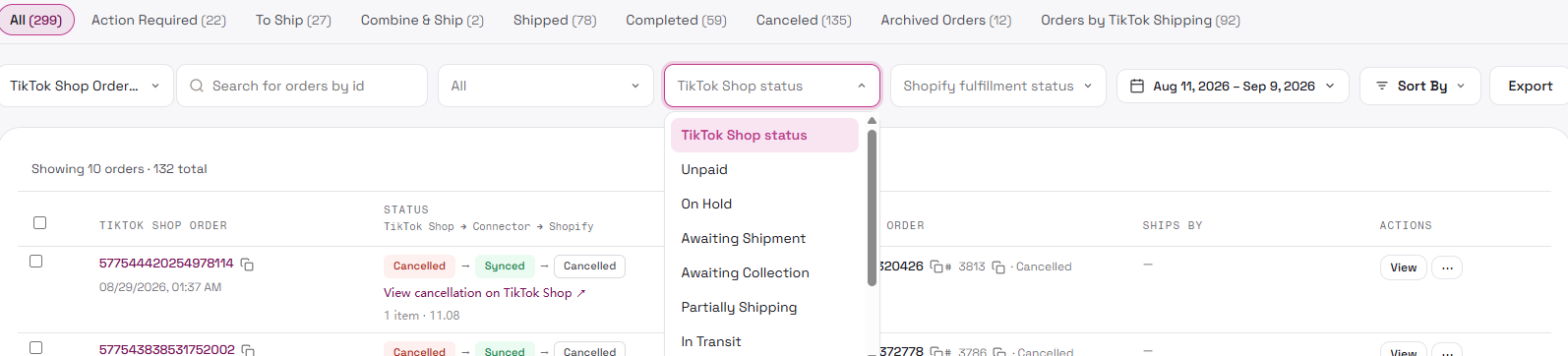
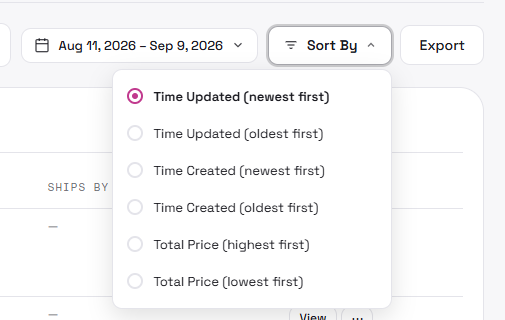
Default sort is Time Updated (newest first).
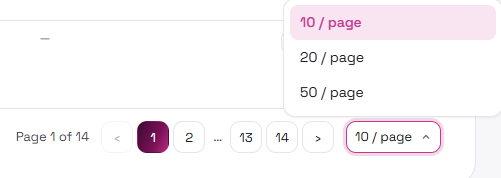
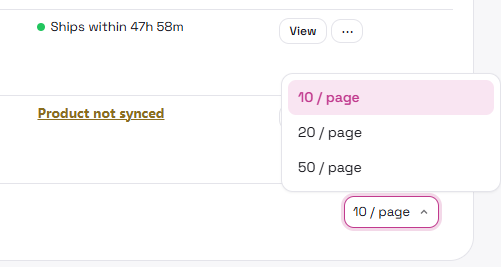
Choose 10, 20, or 50 rows per page.
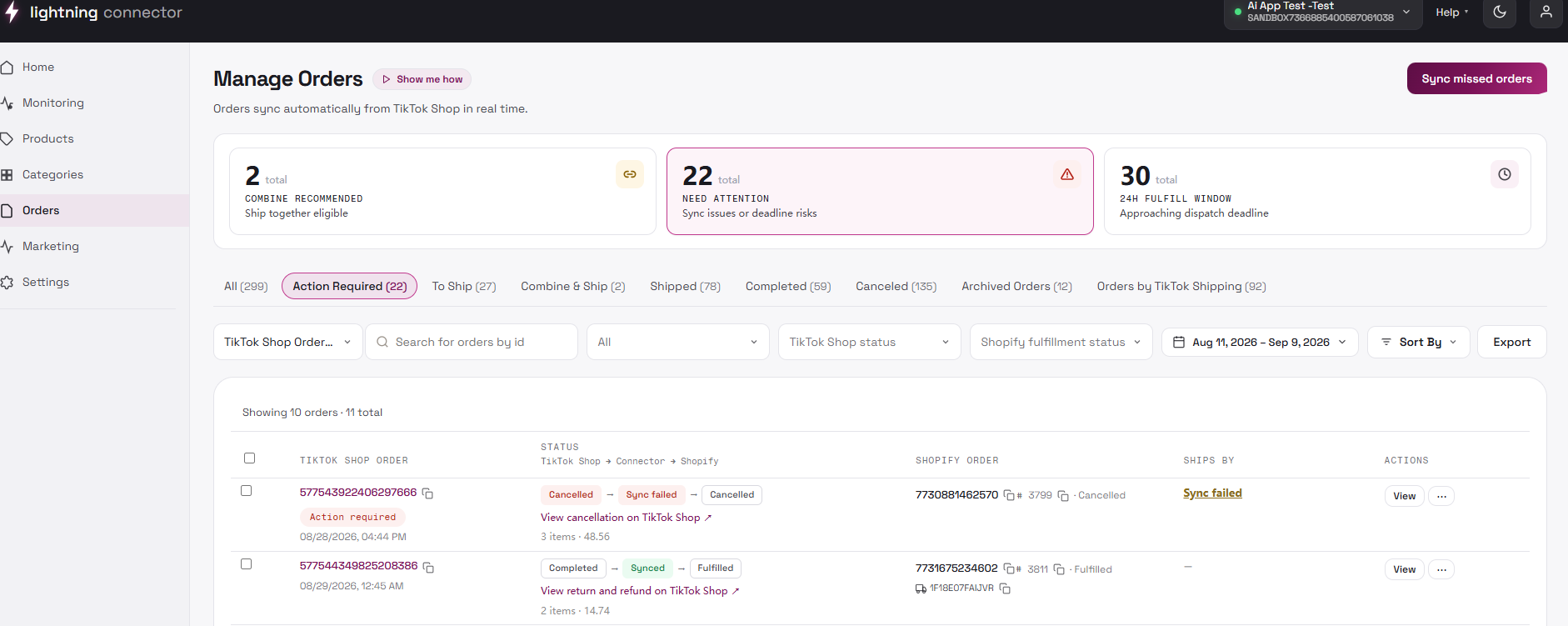
Category tabs group orders by workflow. The Orders by TikTok Shipping tab switches to a 4PL-focused panel.
Order list
Section titled “Order list”Columns: checkbox, TikTok Shop Order ID, Status, Shopify, Ships by, Actions. Badges may include System Flagged, Action Required, or return/refund notices.
Dispatch deadline colors (Ships by)
Section titled “Dispatch deadline colors (Ships by)”- Red: overdue or under 1 hour.
- Amber: within 12 hours.
- Green: more than 12 hours remaining.
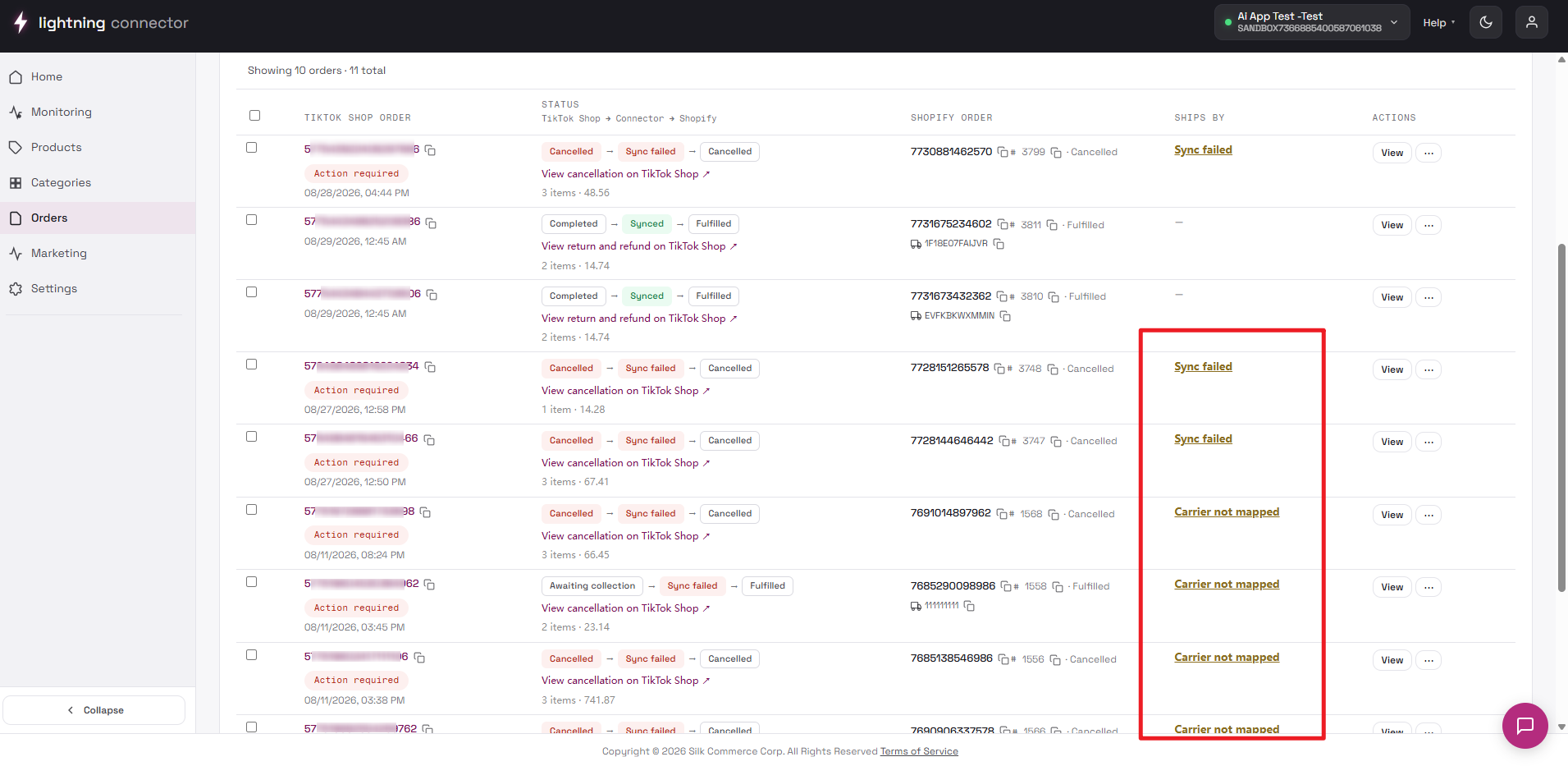
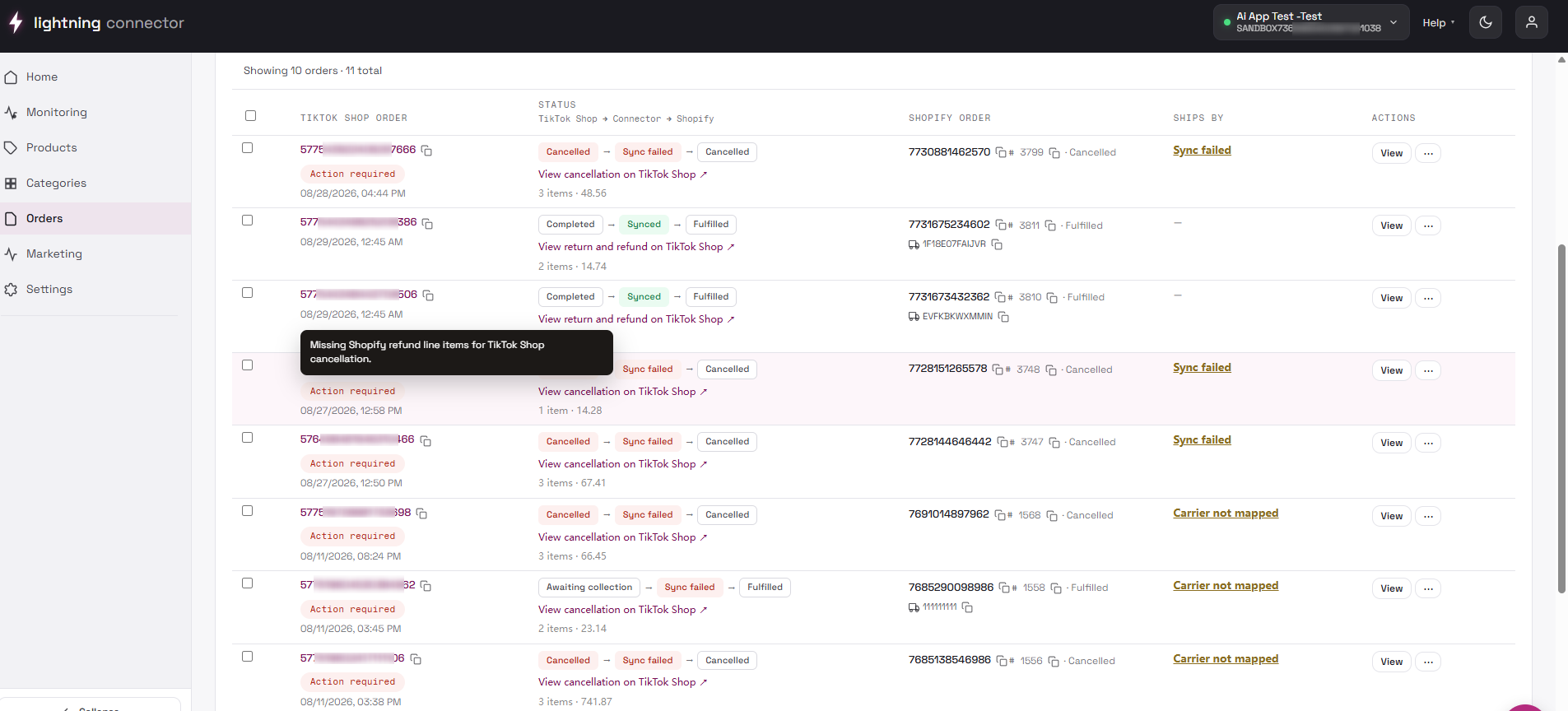
Fixing issues from the list
Section titled “Fixing issues from the list”| Issue | Where the link goes |
|---|---|
| Carrier not mapped | Settings → Order |
| Warehouse mismatch | Settings → Warehouse → Mapping |
| Product not synced | Manage Products |
| Invalid address | TikTok Shop Seller Center |
Work in this order: product sync → carrier/warehouse mapping → Refresh Order → confirm in drawer Sync status.
Ship / tracking
Section titled “Ship / tracking”For seller-shipped orders, enter tracking when available and use Ship to continue fulfillment.
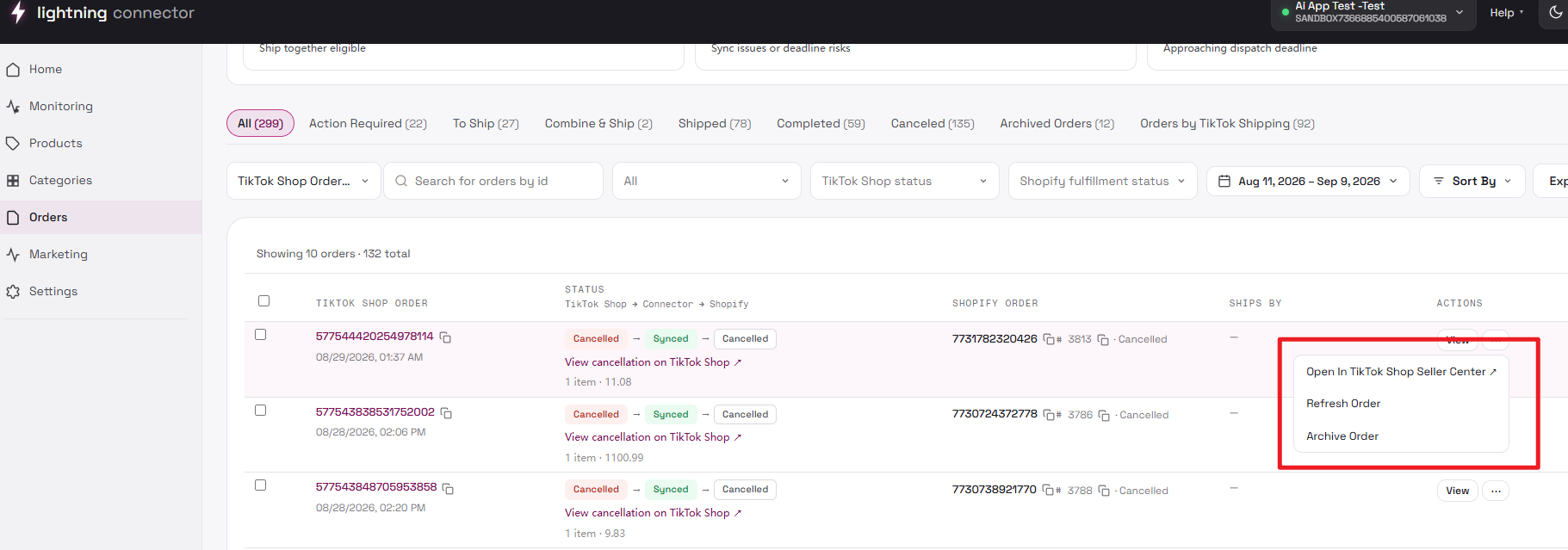
Refresh Order
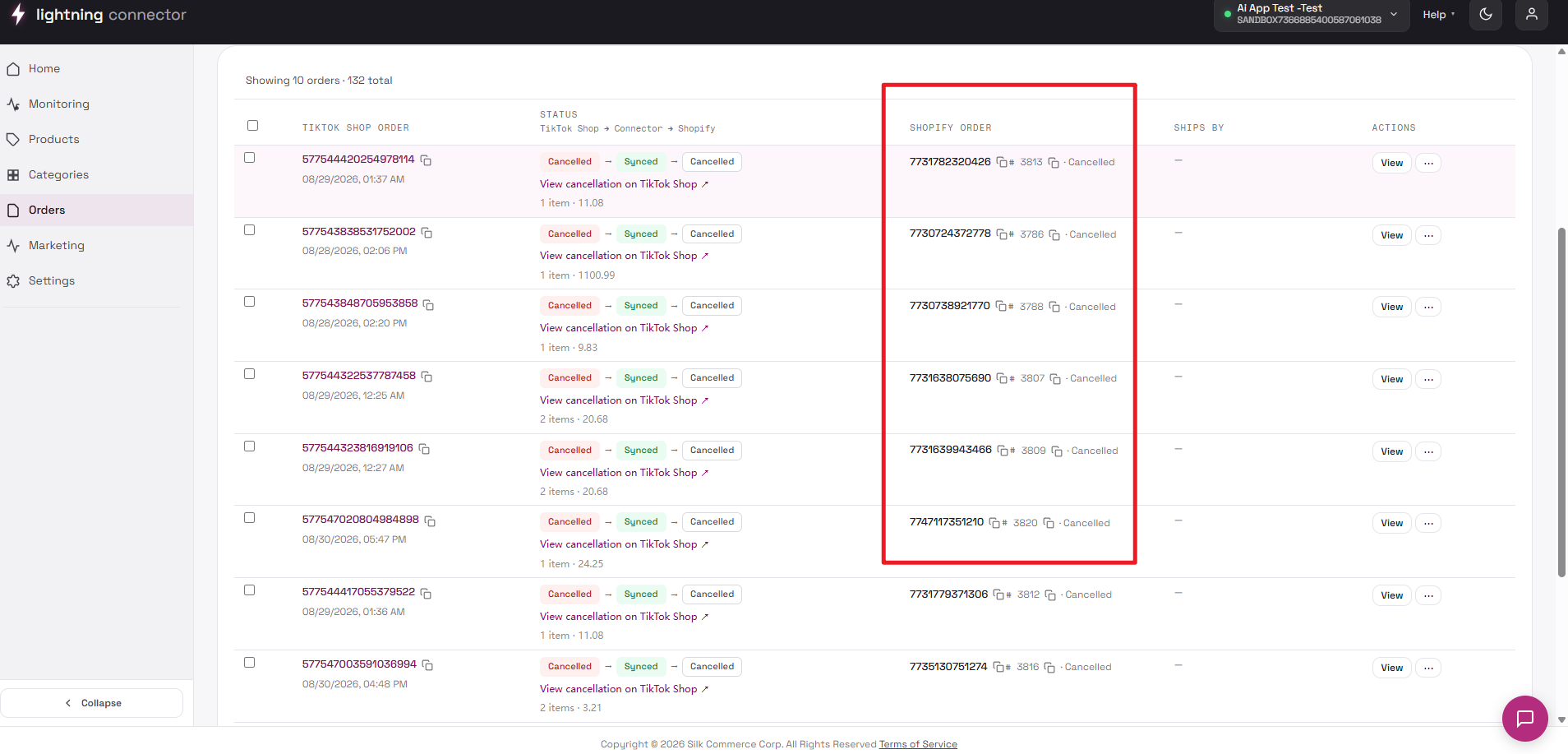
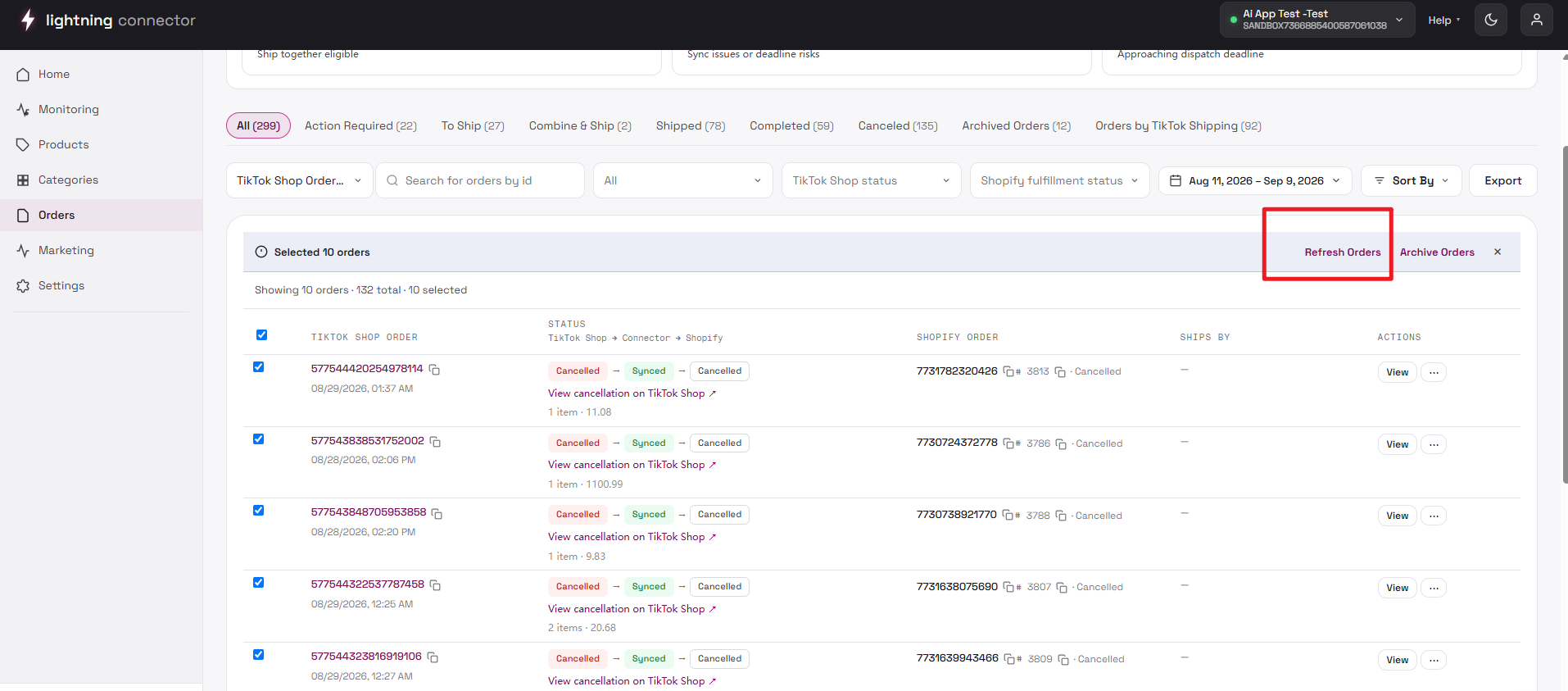
Section titled “Refresh Order”Re-pulls the order from TikTok Shop and runs the sync pipeline again; it is not the same as reloading the browser. Wait for the toast; large refreshes appear under Monitoring → Background tasks. Do not spam refresh. Bulk refresh only includes selected rows on the current page.
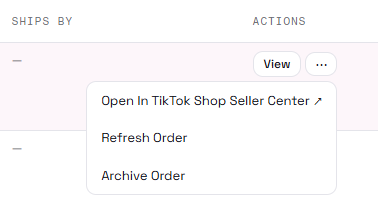
Row actions: View, Refresh, Archive / Unarchive, Brazil invoice, Open in Seller Center. The bulk bar adds Refresh / Archive / Unarchive for selected rows.
Combine shipment (Ship together)
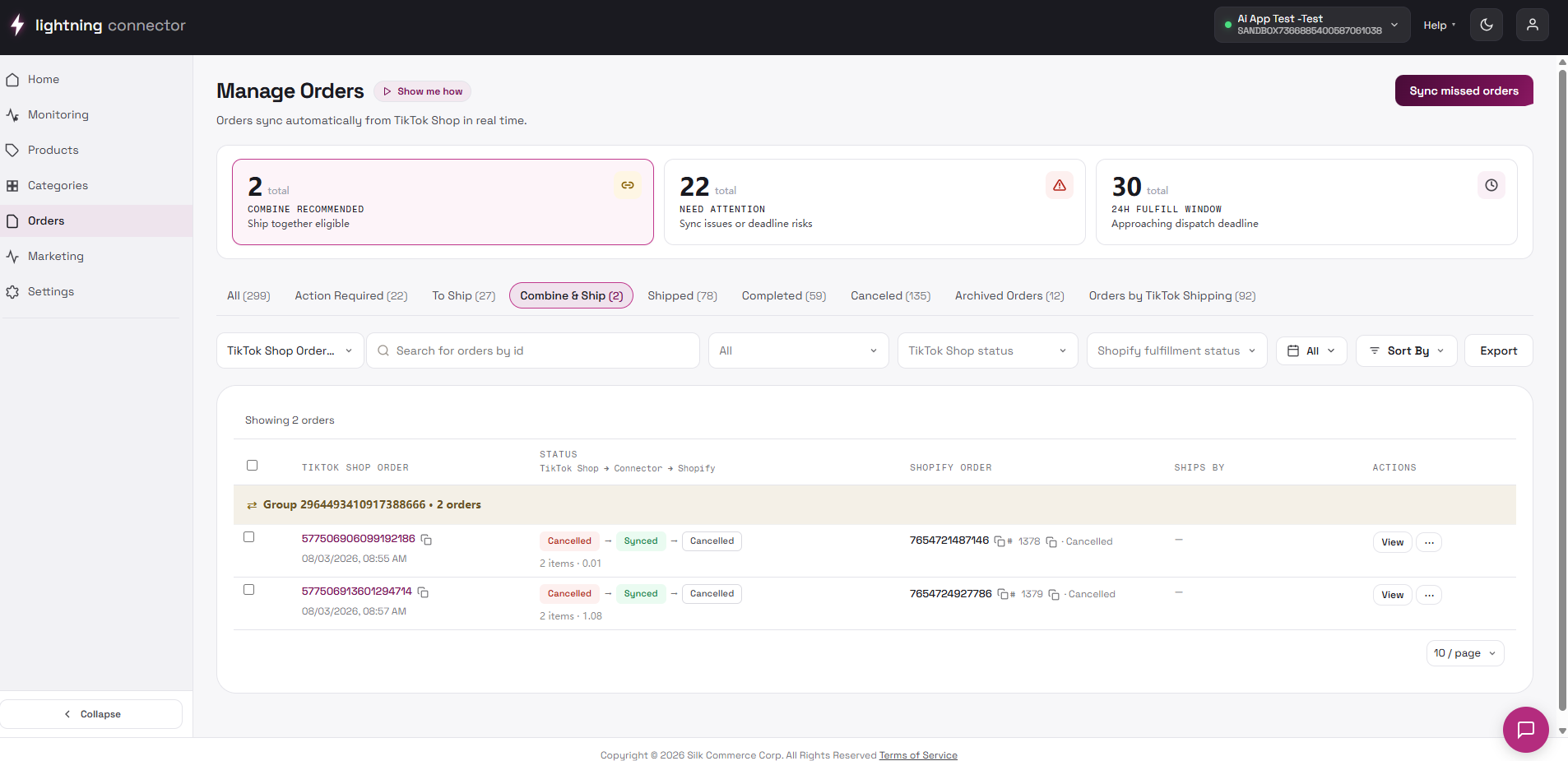
Section titled “Combine shipment (Ship together)”TikTok Shop may assign the same combine group ID to multiple orders when the same buyer, delivery address, and warehouse fit TikTok’s combine rules.
- Open the Combine ship tab or click Combine recommended.
- Review each Ship together suggested group: same recipient, one parcel.
- Click Combine on the group header (or Undo).
- Fulfill or ship once; tracking may propagate to member orders after sync.
Do not combine blindly: If items ship from different warehouses or you need separate tracking, reject or undo and ship separately even if TikTok suggested combination.
Order detail drawer
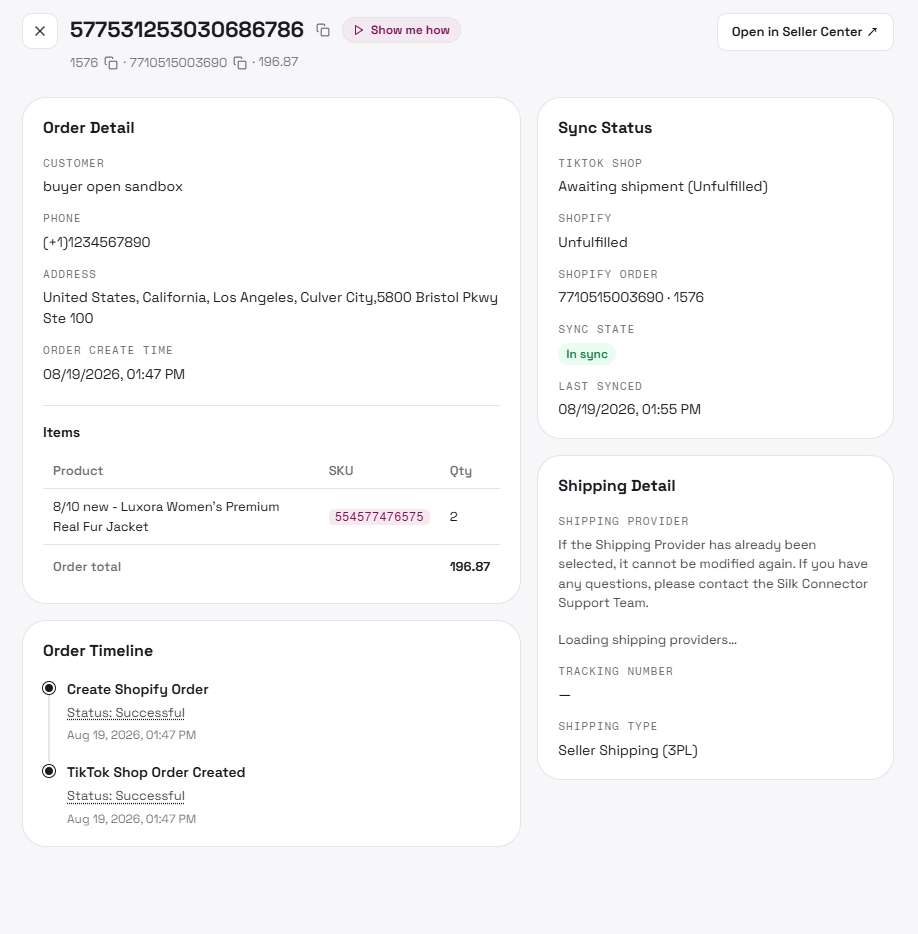
Section titled “Order detail drawer”Open by clicking the TikTok Shop order ID or View. Close with X, click outside, or Esc.
- Header: TTS order ID, Shopify IDs, Open in Seller Center.
- Order detail: customer, address, line items, total.
- Timeline: chronological sync and fulfillment events.
- Sync status: In sync vs Action required, last synced, issue text.
- Shipping detail: provider (editable only when TikTok has no carrier and the order is 3PL), tracking, warehouse / shipping type.
- Ship together: sibling orders in a combine group.
Fix the root cause outside the drawer, then Refresh Order from the list menu. Always Refresh after saving a shipping provider.
Brazil invoice, sync missed orders, export
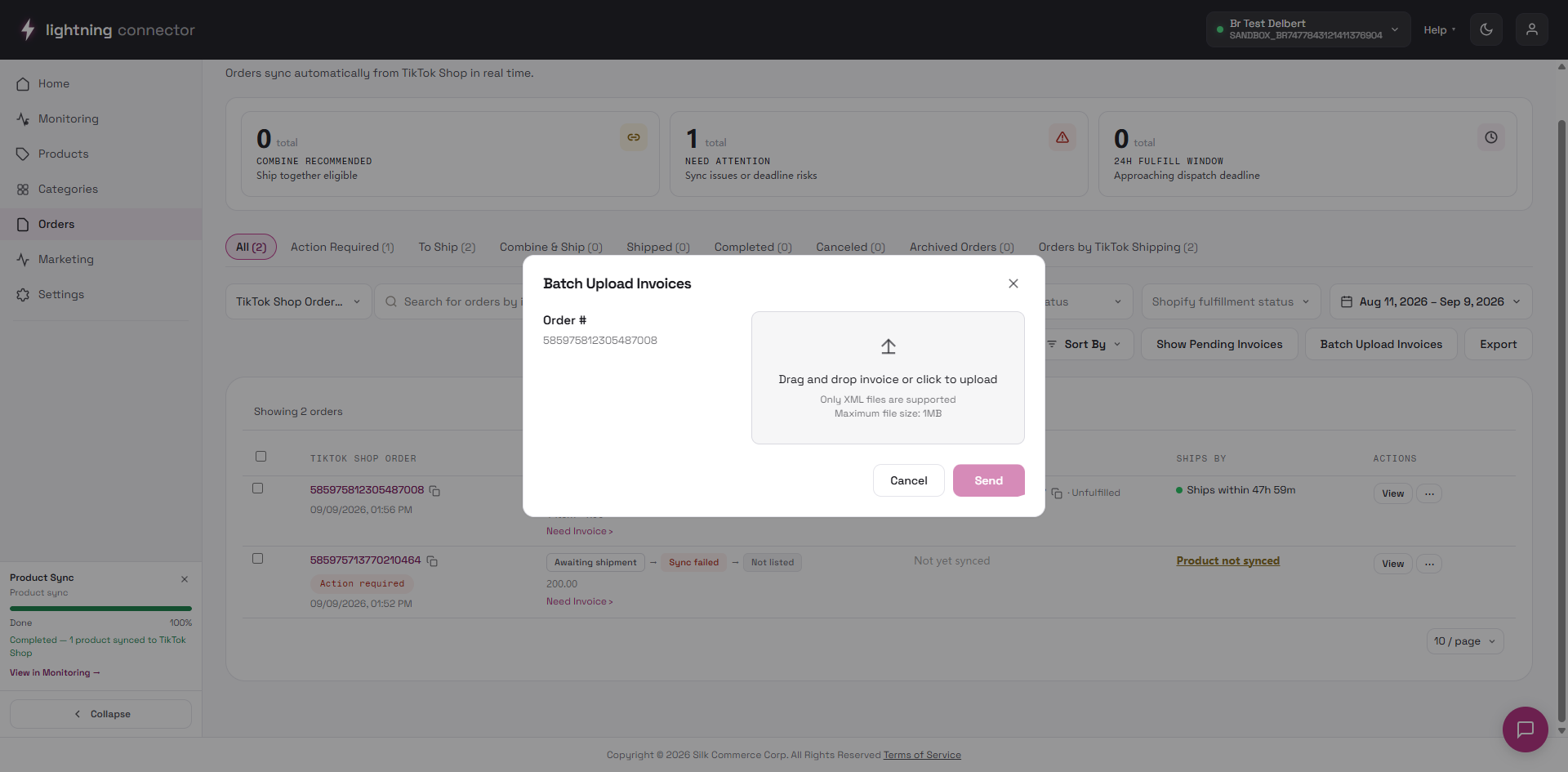
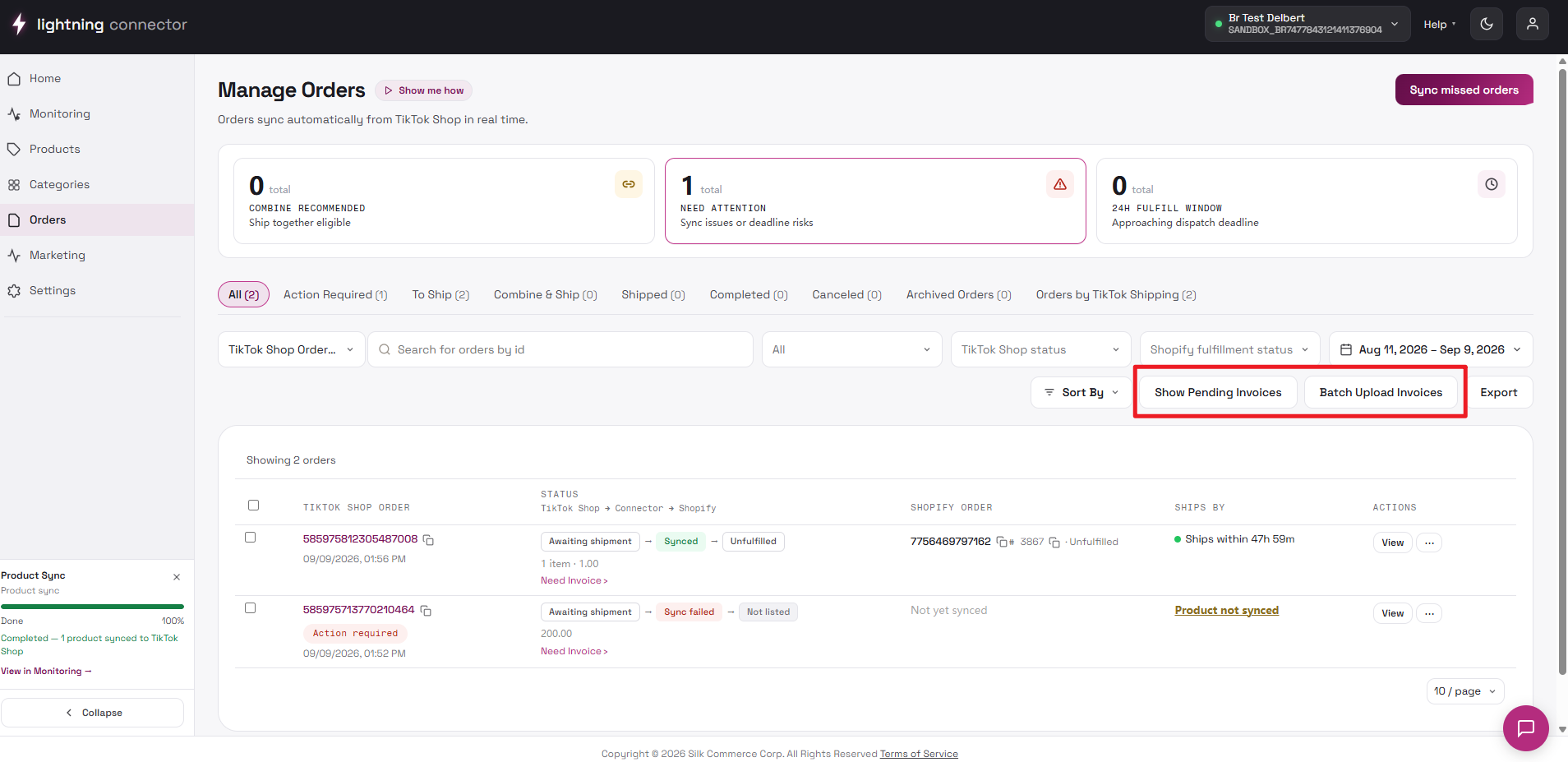
Section titled “Brazil invoice, sync missed orders, export”Invoice features appear only for Brazil connections. Statuses: No Invoice, Success, Processing, Failed / Invalid. Split orders show one row per PKG.
Upload XML only, max 1MB, and only for Awaiting shipment orders. Use Show Pending Invoices and Bulk Upload Invoices for batches.
Sync missed orders
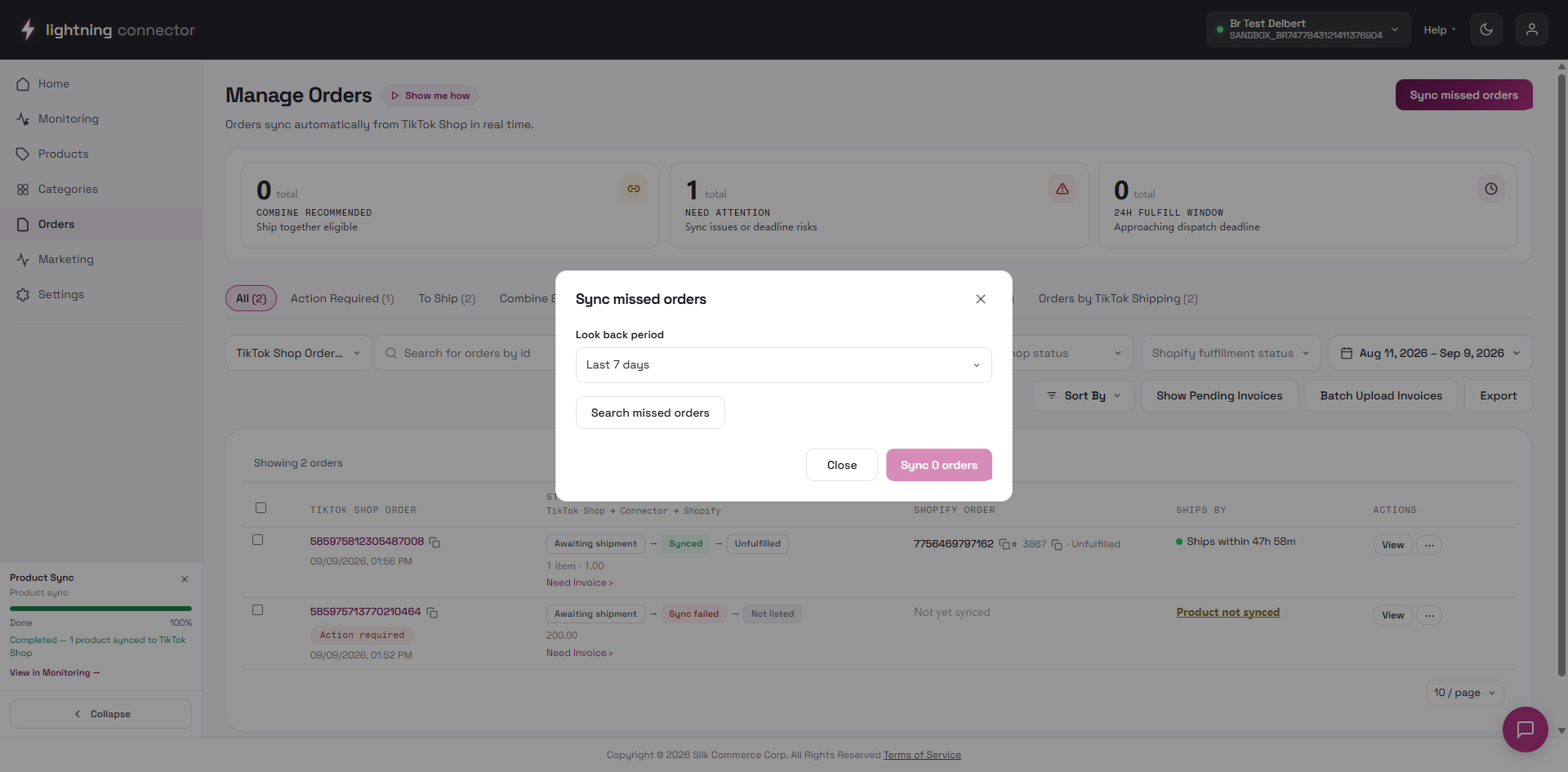
Section titled “Sync missed orders”- Click Sync missed orders.
- Choose lookback (7 / 30 / 90 days) and Search.
- Click Sync to import. Large batches may take minutes.
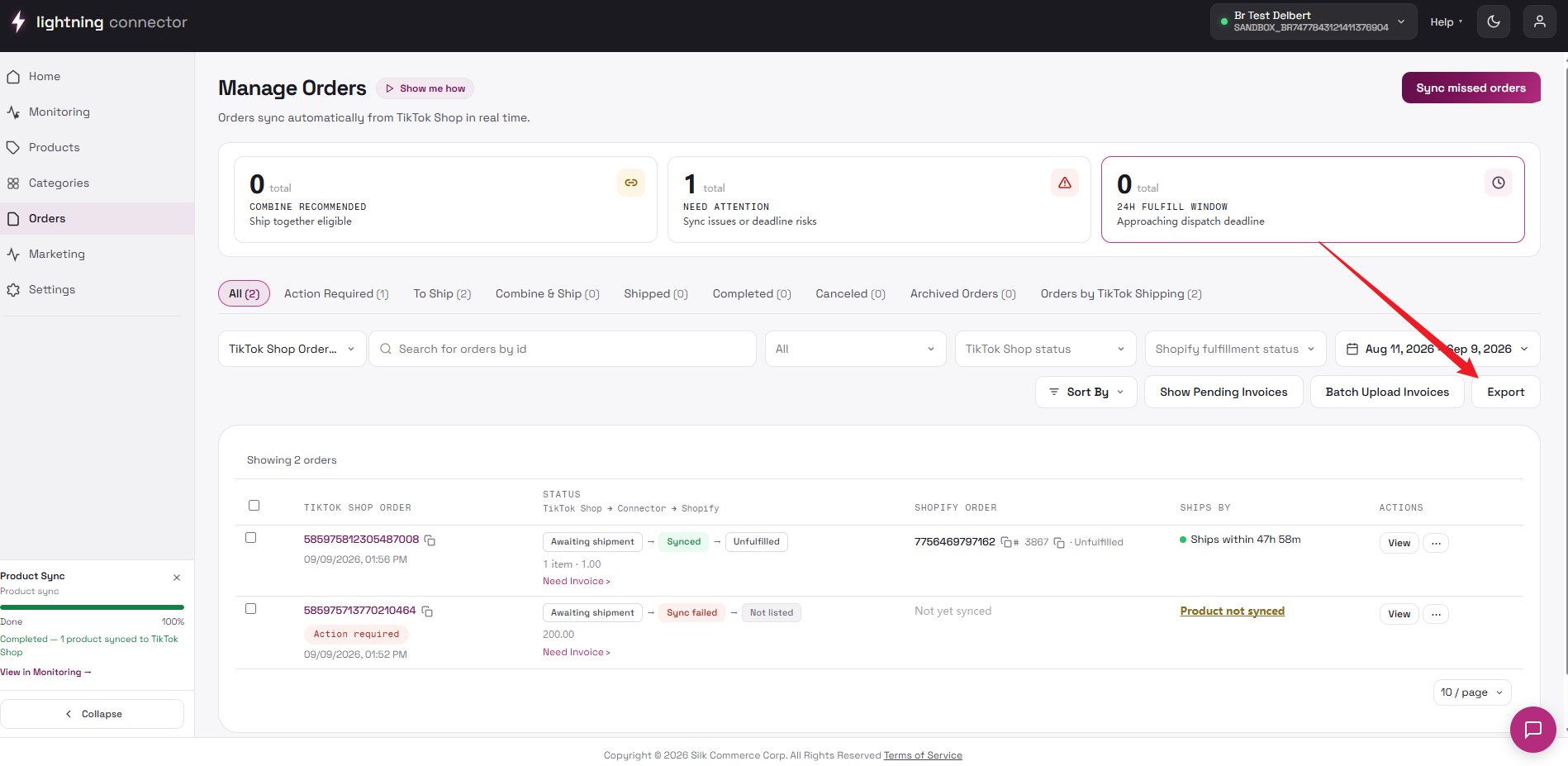
Export uses current filters and date range; you receive an email when the file is ready.
Tips / common issues
Section titled “Tips / common issues”- Clear Need attention first: read the issue, fix Settings / Products / Warehouse / Seller Center, then Refresh Order until the tab count is zero.
- Couldn’t load orders… session expired: re-authorize Shopify and/or TikTok Shop, then refresh the page.
- Refresh succeeded but status unchanged: wait for Order Pull in Background tasks; fix the underlying issue if the task line item failed.
- Very large connections on All may show “Loading more orders…”. Narrow the date range if the list feels slow.
- Related settings: Order Settings (carrier mappings), Warehouse, Product Settings (fixes “product not synced”).